


 Published:October 6, 2026
 Time to read:5 min
How to Send Weekly Reminders for Contacts Without Accounts in Dynamics 365
A Short Overview of the Article
A Short Reference About the Author
Introduction
Requirement
Step-by-step Instructions
Once you have opened Power Automate and selected the appropriate environment, you can begin creating the flow:
-
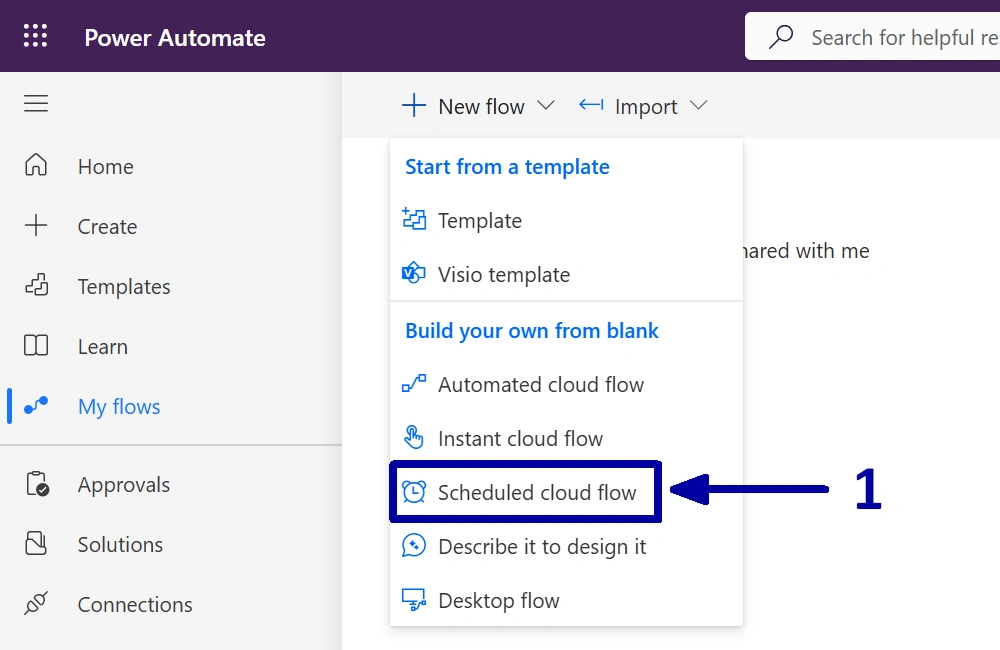
Navigate to the environment where the automation will be created and start by setting up a new "Scheduled cloud flow." (1).
-
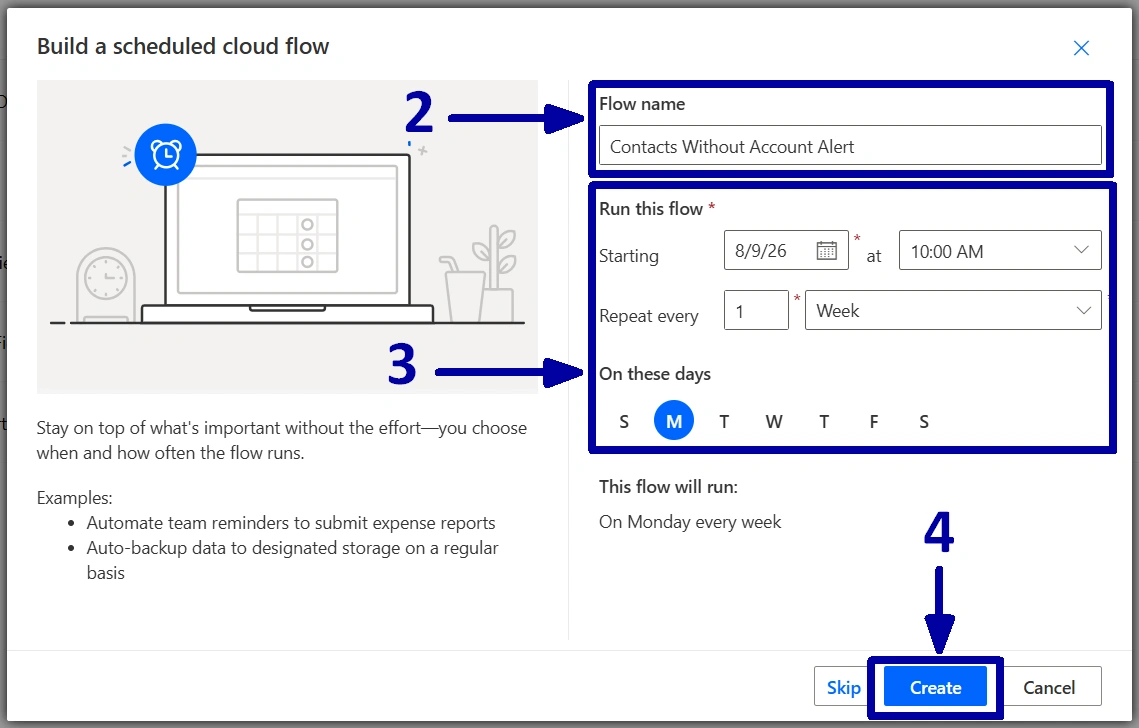
Enter a meaningful name for the flow (2), configure the start date, the start time, and the recurrence interval (3), and then click on the "Create" button (4).
-
Before adding any actions, go through the following steps:
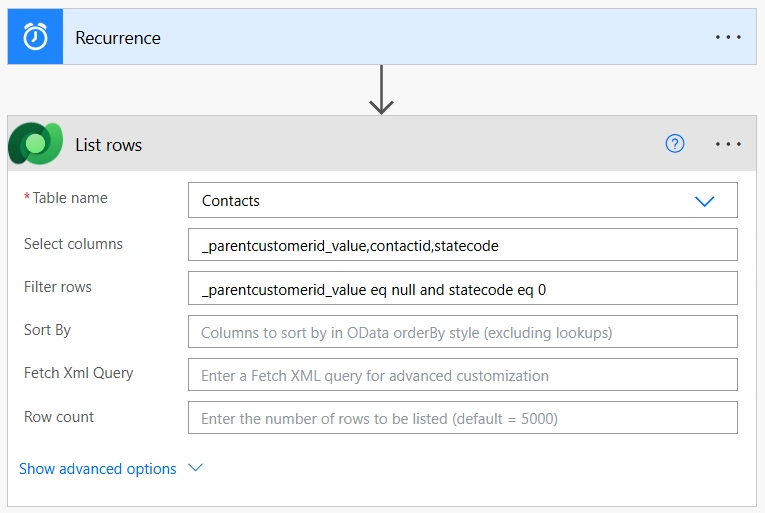
1Open the "Recurrence" trigger and verify that the schedule matches the configuration from the previous step.
2After you have verified that the recurrence schedule is correct, add a new "List rows" action.
3Because the purpose of the automation is to review contacts, select the "Contacts" table in the "Table name" field.
4In our CRM setup, the company information is stored in the "Account Name" field on the "Contact" form, so add this field to the "Select columns" field.
5Because we also need a "Contact ID" to create a valid clickable link to the contact record, add the "Contact ID" to the "Select columns" field as well.
6Next, configure the "Filter rows" field. We only want to retrieve the active contacts with no accounts, so add the corresponding filter to that field.
-
Define a variable for use in the email notification. To determine the base URL for the link, open a "Contact" record in Dynamics 365 and copy the URL up to the last "=" character, excluding the record GUID. This value will be used to dynamically construct links to the individual "Contact" records.
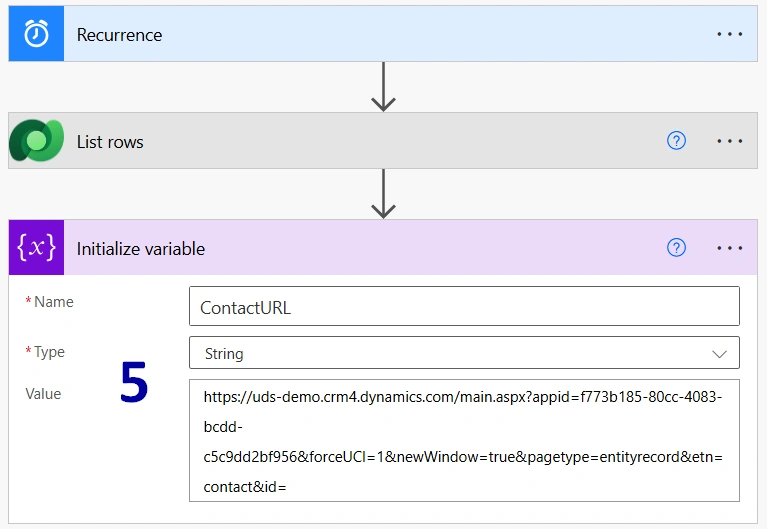
-
Set up a string variable to contain all the information that will be included in the email (6).
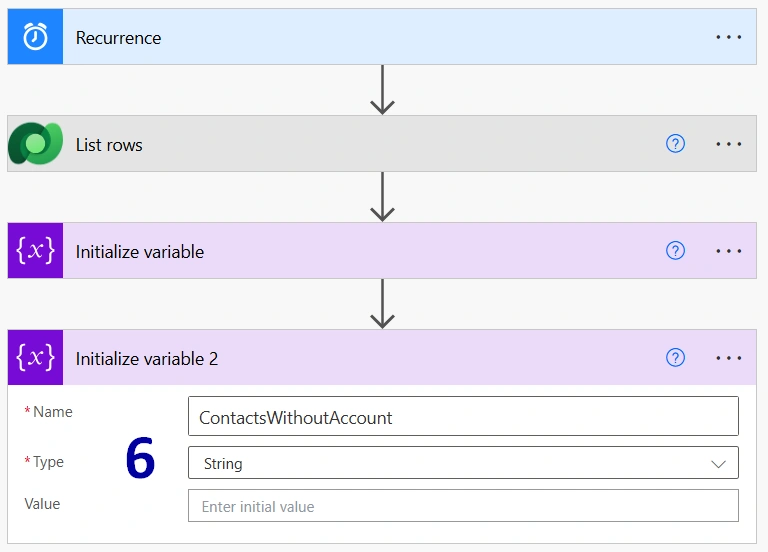
-
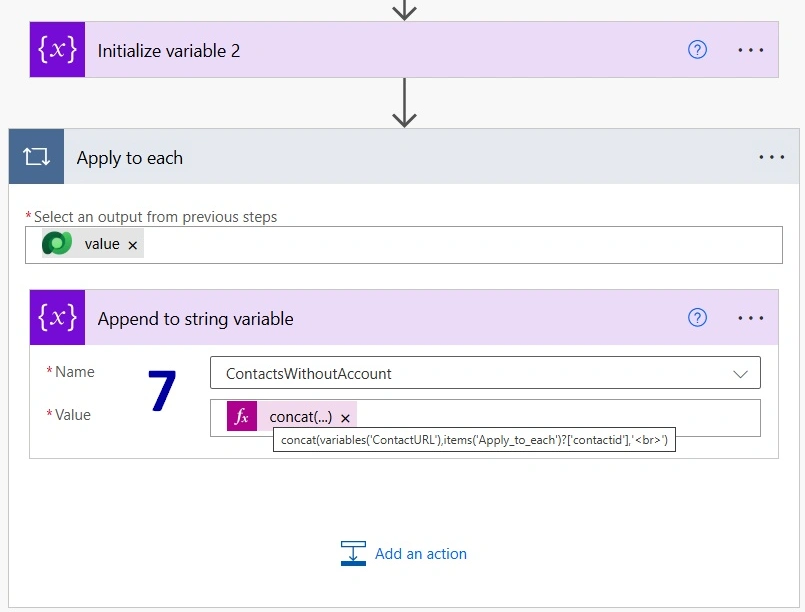
The next step is to combine all the returned records into a single block of text so that we can send one email instead of five separate notifications. There are several ways to accomplish this, but since this series is designed for beginners, we will use the "Apply to each" action. Add an "Append to string variable" inside the "Apply to each" action (7).
Here, we will use the following expression:
Codeconcat(variables('ContactURL'),items('Apply_to_each')?['contactid'],'<br>')This expression combines multiple values into a single string, which will later be used in the email body.
! Note. When concatenating multiple fields, remember to add spaces or other separators where needed. Since the email body supports HTML formatting, it is also recommended to add a <br> tag at the end of each line. This helps separate links and makes the final email easier to read.
-
Now, create the email notification. Add a new "Send an email" action, enter the manager's email address in the "To" field, specify a subject, switch the email body to HTML format, and use the "ContactWithoutAccount" string variable as the main content of the message.
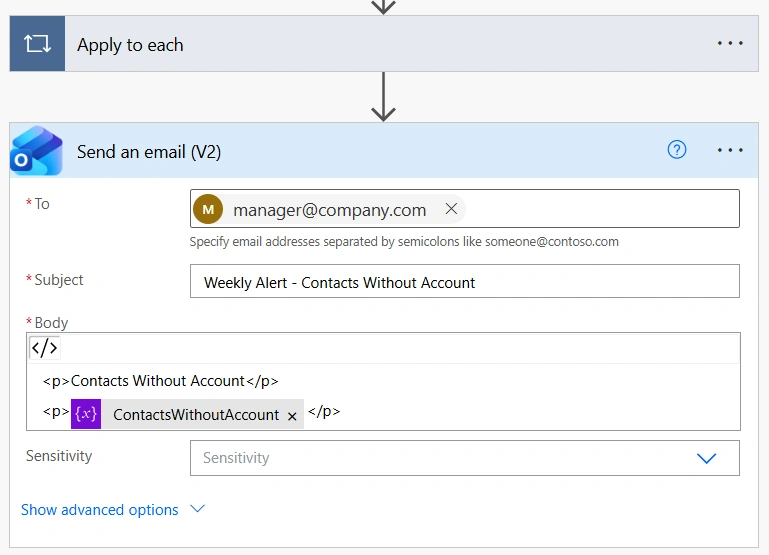
From now on, every Monday, the flow will automatically identify contacts not associated with an account and send the results in a single email to the sales manager. Instead of manually searching for incomplete records, the team can review the report and update contacts as needed.
Conclusion
Frequently Asked Questions that May Interest You
Contacts without an associated account can make customer data less complete and reduce the accuracy of reporting. A regular reminder helps sales teams identify these records and link them to the appropriate accounts when necessary.
In this example, the flow is configured to run every Monday morning. However, you can change the recurrence schedule to match your organization's needs, such as running the flow daily, weekly, or monthly.
Yes. You can modify the flow to include additional contact information, such as the contact's name, email address, or other relevant fields. You can also add filters to limit the results by criteria such as business unit or region.
Yes. The same approach can be adapted to identify other incomplete or potentially problematic records. By changing the table, filters, and information included in the email, you can create similar recurring reminders for different data quality requirements.
Related Content
Table of contents: