



 Published:June 25, 2026
 Time to read:5 min
Managing Forgotten Leads in Dynamics 365 CRM
A Short Overview of the Article
A Short Reference About the Author
Introduction
Lead Management in Dynamics 365 Sales
Requirement
Step by Step Instructions
Let us assume you already know how to access Power Automate and select the correct environment, so we will skip the basics and jump straight into the solution.
-
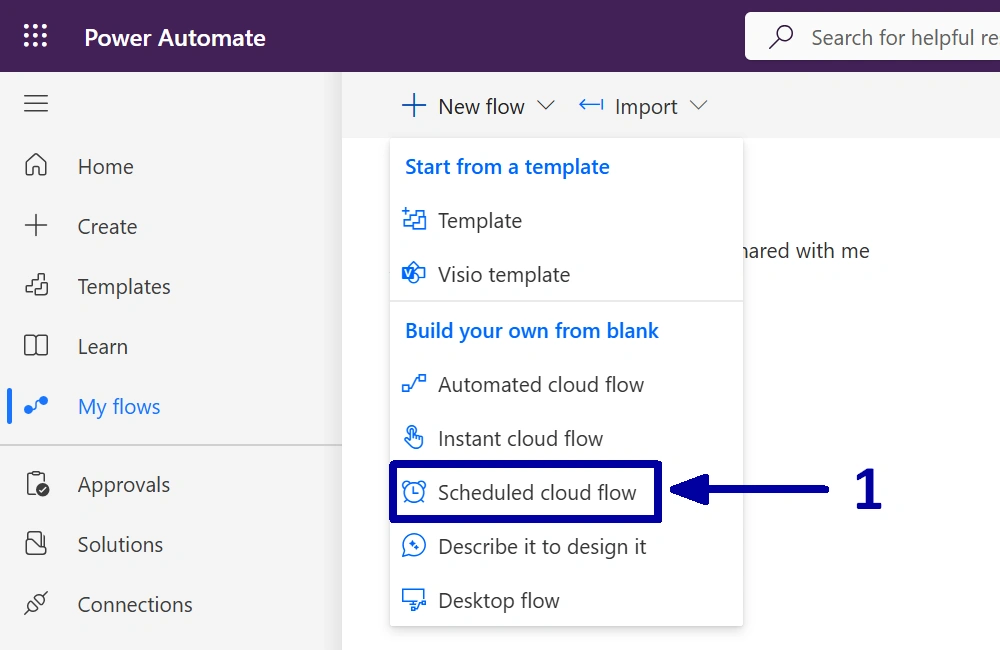
In the environment where you want to create the automation, start by creating a new Scheduled cloud flow (1).
-
Give the flow a meaningful name (2), configure the start date, time, and recurrence interval (3), then click on the “Create” (4).
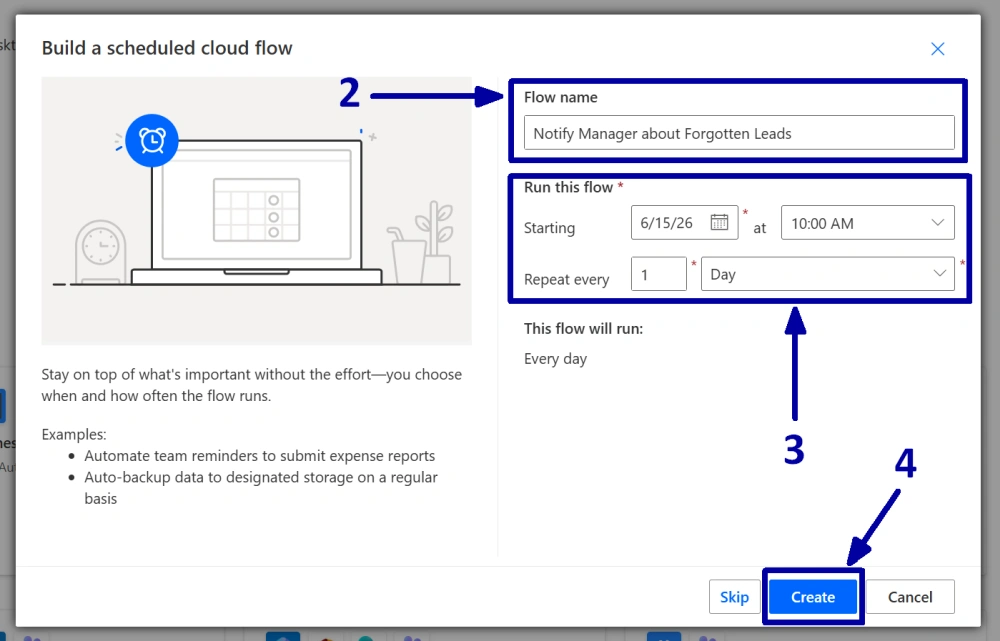
! Note. Once the flow is created, you will be redirected to the Power Automate designer.
-
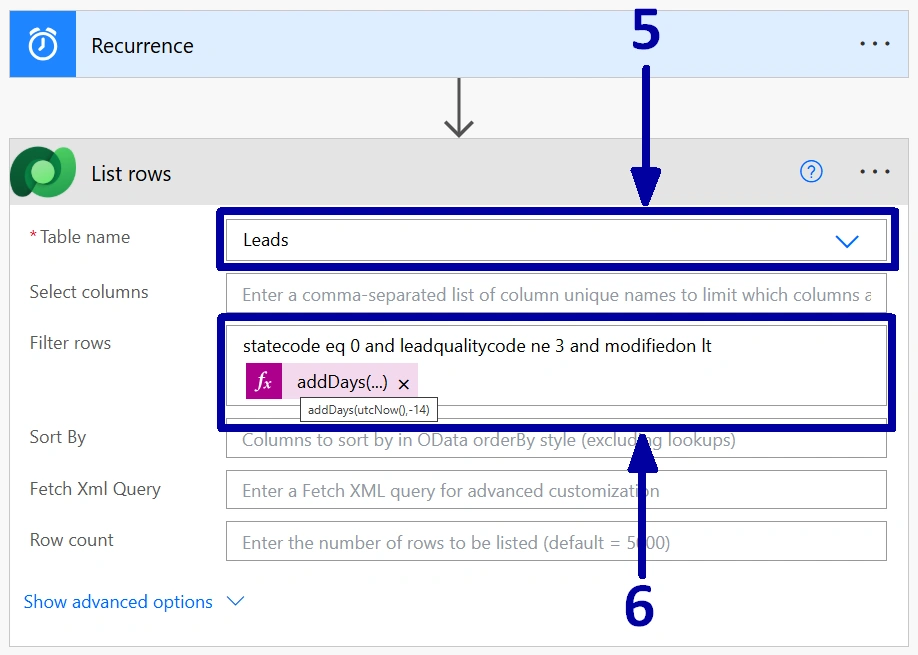
Before adding any actions, it is worth double-checking that the Recurrence trigger contains the same schedule you configured in the previous step. After that, add a new “List rows" step. Since our goal is to monitor Leads, select the “Lead table” in the “Table name” field (5).
! Note. We do not need to retrieve every lead in the system, so let us add a filter. The “Filter rows” field allows us to limit the results to only the records we are interested in. First, we only want active leads, so add the filter ‘statecode eq 0’. Next, since the requirement does not include cold leads, add ‘leadqualitycode ne 3’. Finally, we only want leads that have not been updated for more than two weeks, so we need to add a function based on the ModifiedOn field. Combine all the conditions using the ‘and’ operator so that only the records matching all the criteria are returned (6).
-
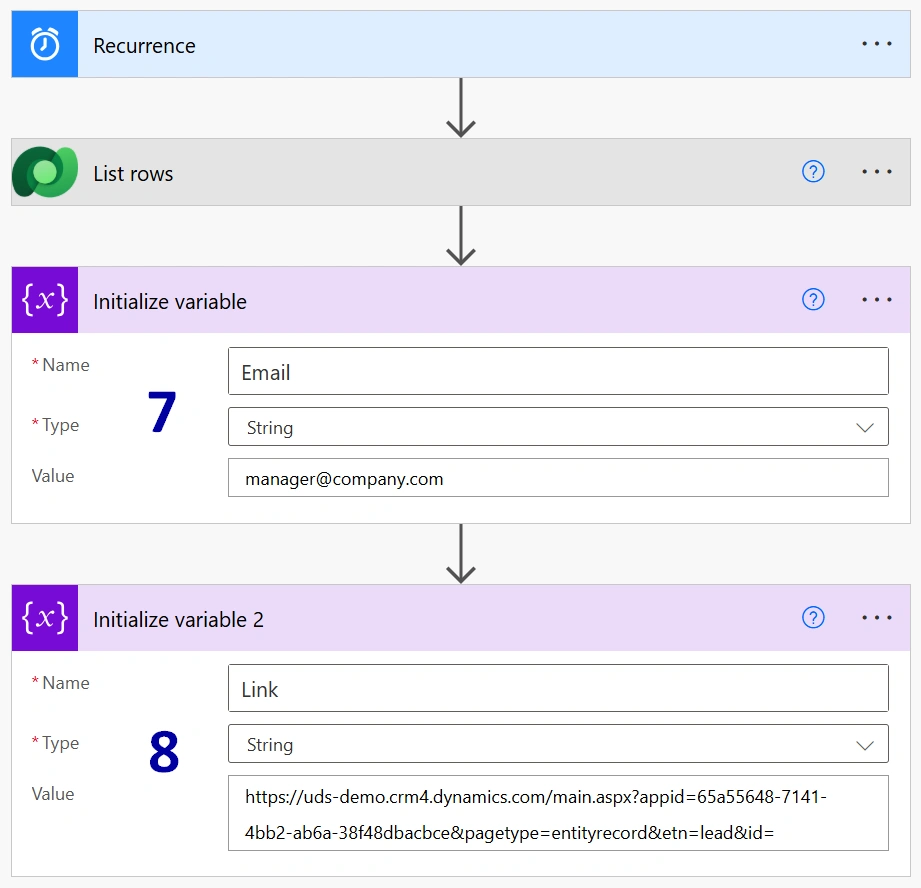
Next, let us create two variables that will be used in the email notification. The first variable will store the manager's email address (7). The second variable will contain a direct link to the lead record (8).
To get the base URL for the link, open any Lead record in Dynamics 365 and copy the URL up to and including the last ‘=’ character before the record GUID. We will use this value to dynamically build links to individual lead records.
-
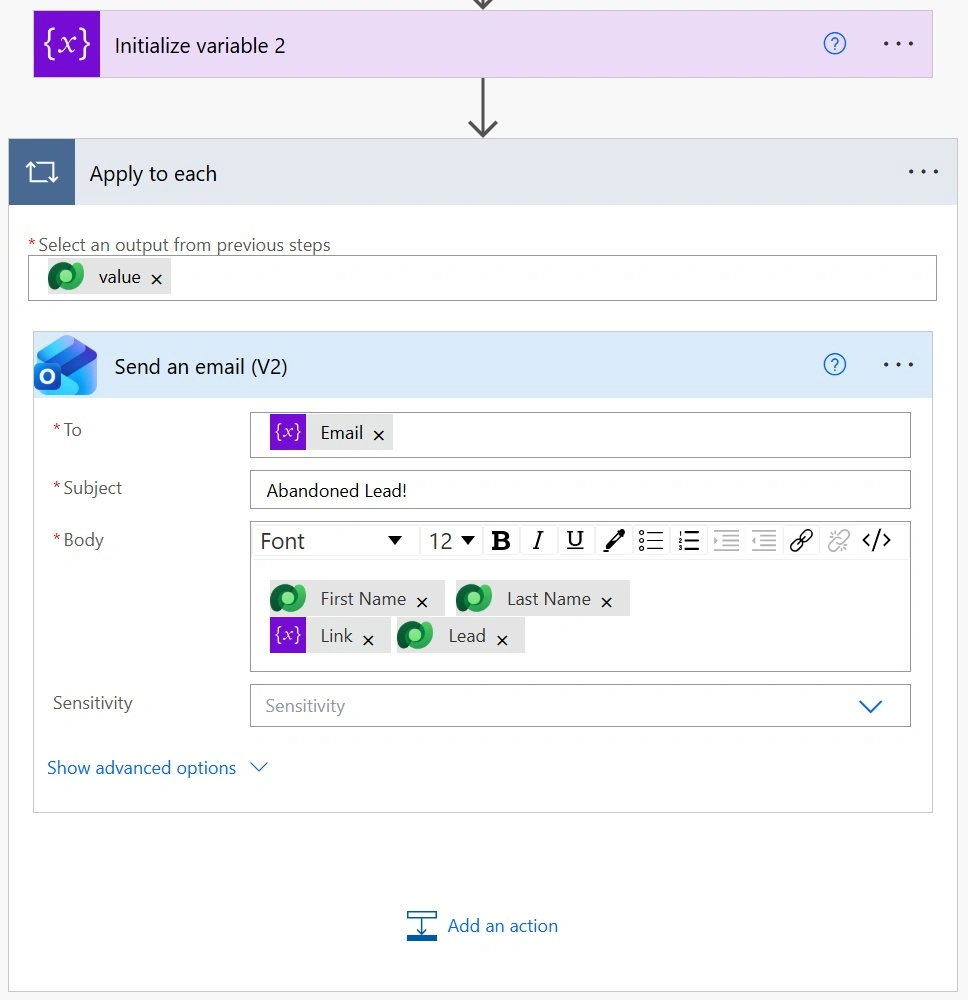
Now, it is time to create an email notification. Add a new “Send an email” action, place the “Email variable” in the “To” field, create a “Subject”, and then build the message “Body”.
! Note. In the example, the lead's First Name, Last Name, Link, and Lead ID are included. One small detail worth mentioning is that there is no space between the Link variable and the Lead ID value. This allows the email to generate a single clickable URL that opens the corresponding lead record directly.
If you prefer Microsoft Teams notifications instead of emails, you can explore a similar approach in another article from our blog: Power Automate Solution: Instant Teams Notifications for New Contact Registrations.
From this point on, the flow will run every day at 10:00 AM and notify the manager about any leads that have been sitting untouched for more than two weeks.
! Note. There are definitely more advanced ways to implement this solution. For example, we could avoid hardcoding the manager's email address, determine the recipient dynamically, or send a single summary email containing links to all abandoned leads. However, to keep this tutorial easy to follow and focused on the core idea, we have chosen a simpler approach.
Conclusion
Frequently Asked Questions that May Interest You
It ensures that potential opportunities are tracked and nurtured effectively. Automating reminders for leads that have been inactive prevents overlooked prospects, allowing your sales team to focus on qualified leads and ultimately drive more revenue.
The Lead Notification System in Power Automate monitors your CRM for leads that have not been followed up after a specified period. When a lead remains untouched for more than two weeks, the system sends an automated email alert to the designated manager. This proactive approach enhances Sales Team Collaboration and enables timely action on critical opportunities.
Implementing Business Process Automation, such as a lead inactivity monitoring system, helps maintain CRM data integrity by regularly reviewing lead statuses and prompting action on unattended records. By automating this process, you can reduce the risk of losing valuable opportunities and ensure that urgent follow-ups are addressed promptly.
Yes, you can customize the automated reminders in the Power Automate flow to fit various business needs. For instance, you can adjust the inactivity period, change the recipients of the notifications dynamically, or add additional actions based on specific criteria, allowing for a tailored approach to Sales Pipeline Management that aligns with your organization's strategy.
Related Content
Table of contents: