



 Published:August 18, 2026
 Time to read:5 min
Weekly High Value Opportunities Digest in Dynamics 365
A Short Overview of the Article
A Short Reference About the Author
Introduction
Requirement
Step-by-step Instructions
Once you have accessed Power Automate and selected the appropriate environment, you can create the flow:
-
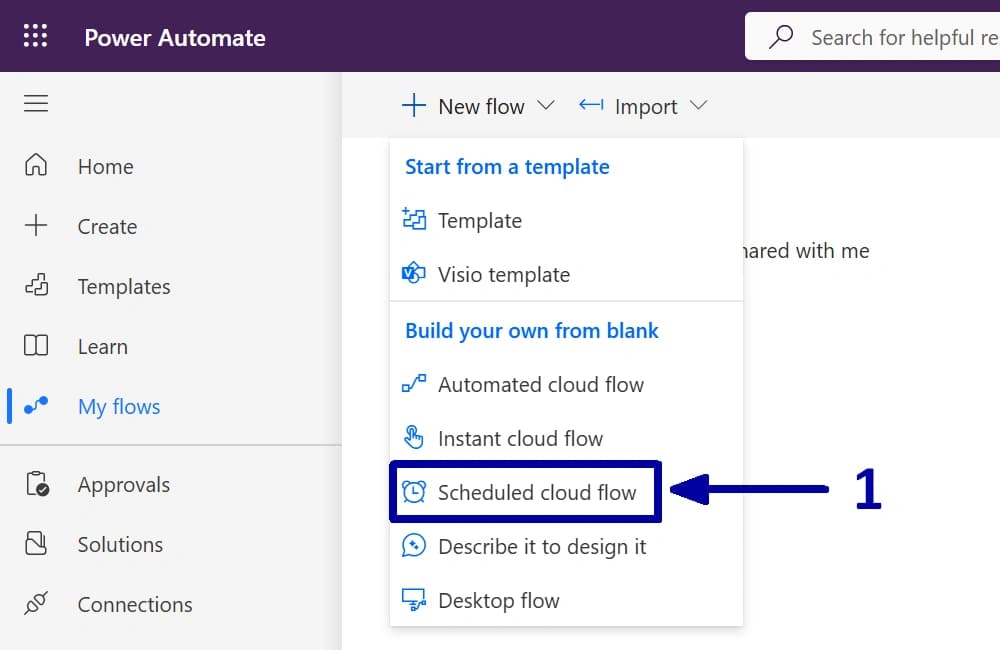
In the environment where you want to create the automation, choose the "Scheduled cloud flow" (1) to create a new flow.
-
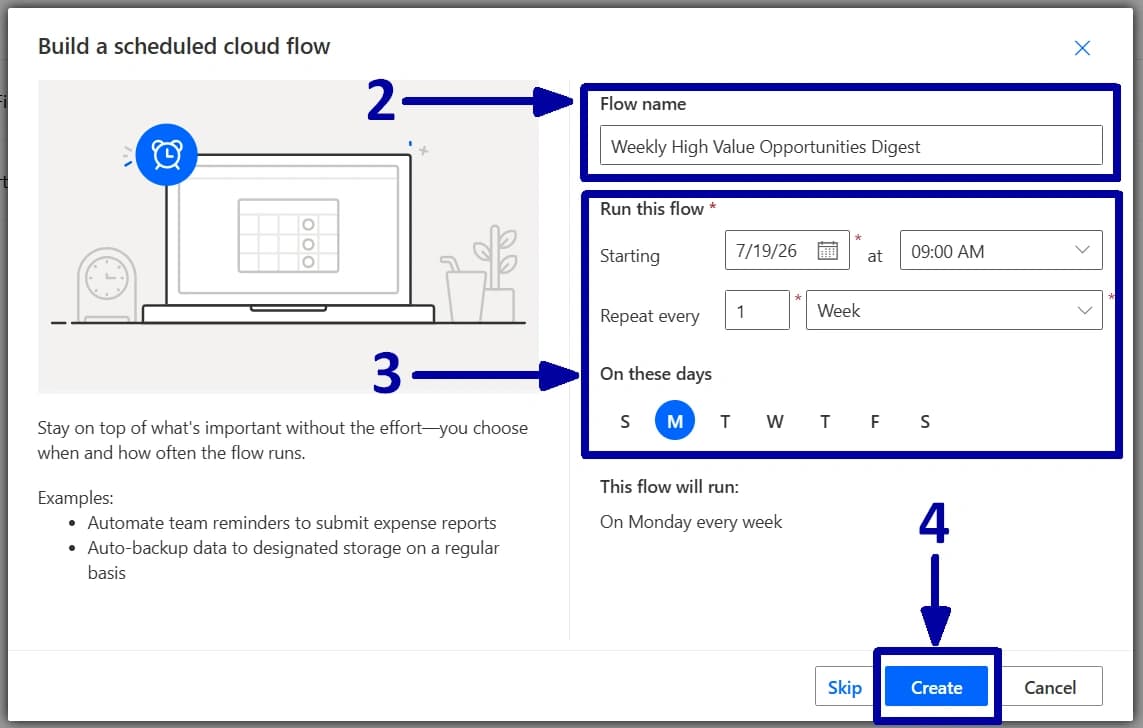
Enter a meaningful name for the flow (2), configure the start date, time, and recurrence interval (3), and then click on the "Create" (4).
-
Before adding any actions, verify that the "Recurrence" trigger reflects the schedule configured in the previous step. Once that is confirmed, proceed with the following steps:
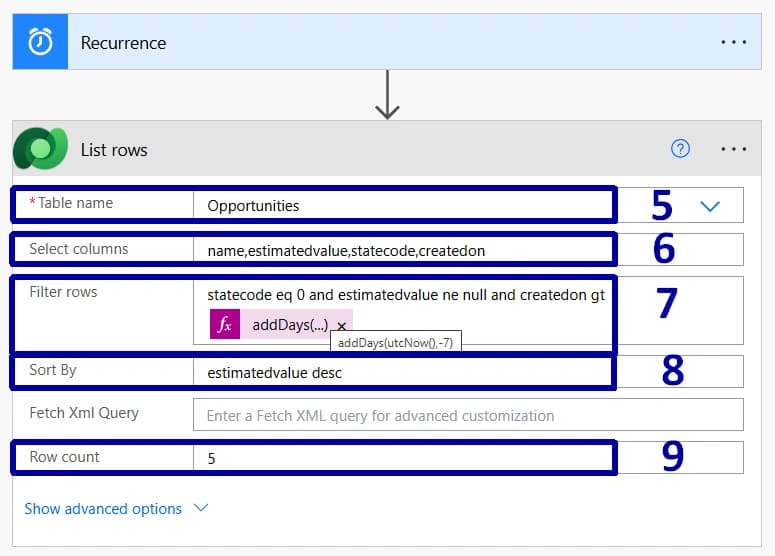
1) Add a new "List rows" action. Since the goal is to review opportunities, select the "Opportunities" table in the "Table name" field (5).
2) As we do not need to retrieve every column from the "Opportunity" table, limit the results to only the fields required for the review. In the "Select columns" field, enter the "Topic", "Estimated Revenue", "Created On", and "Status" (6).
! Note. If you would like to include a direct link to each opportunity in the email, you can use the same approach described in one of the previous articles in this series.
3) Next, configure the "Filter rows" field. We only want to retrieve the active opportunities that have an "Estimated Revenue" value and were created during the last seven days (7).
4) Now, since we are interested in the largest potential deals, we also need to sort out the results. In the "Sort By" field, sort the records by the "Estimated Revenue" in descending order (8).
5) Finally, set a limit on the number of returned records. In the "Row count" field, enter "5", so the flow only retrieves the top five opportunities (9).
-
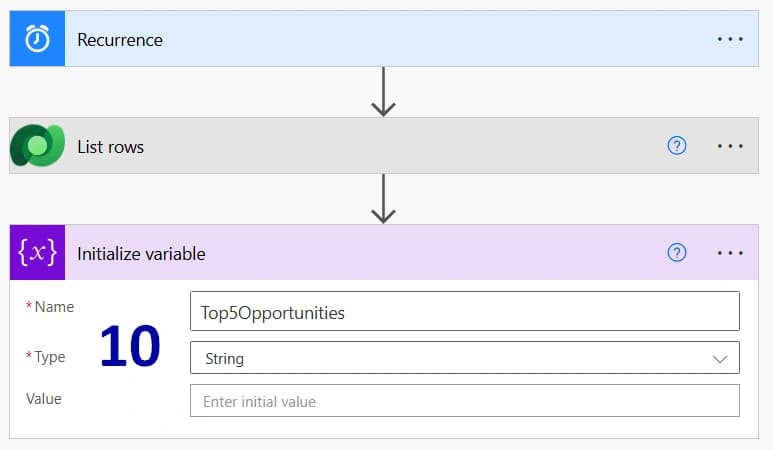
Now, let us create a string variable that will store all the information we want to include in the email (10).
-
The next step is to combine all the returned records into a single piece of text so that we can send one email instead of five separate notifications.
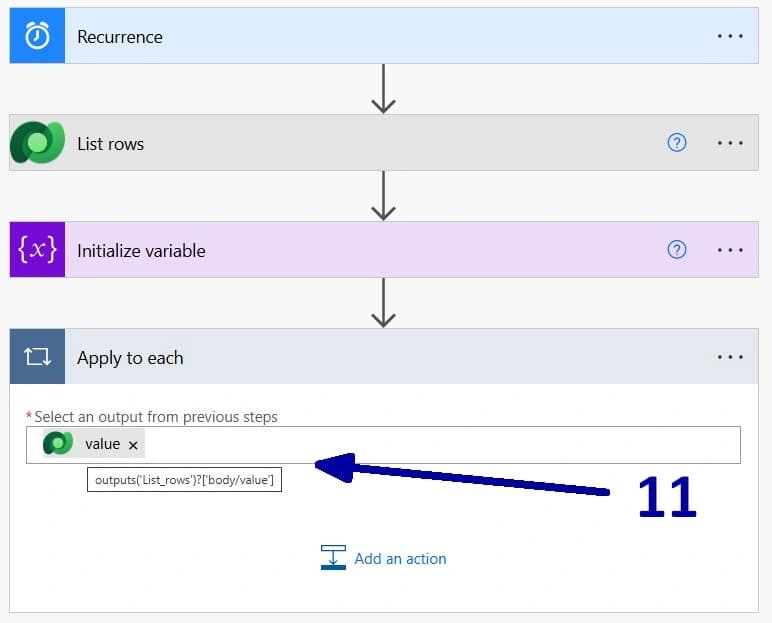
There are several ways to achieve this, but since this series is intended for beginners and we are only processing five records, we will use the "Apply to each" action (11).
-
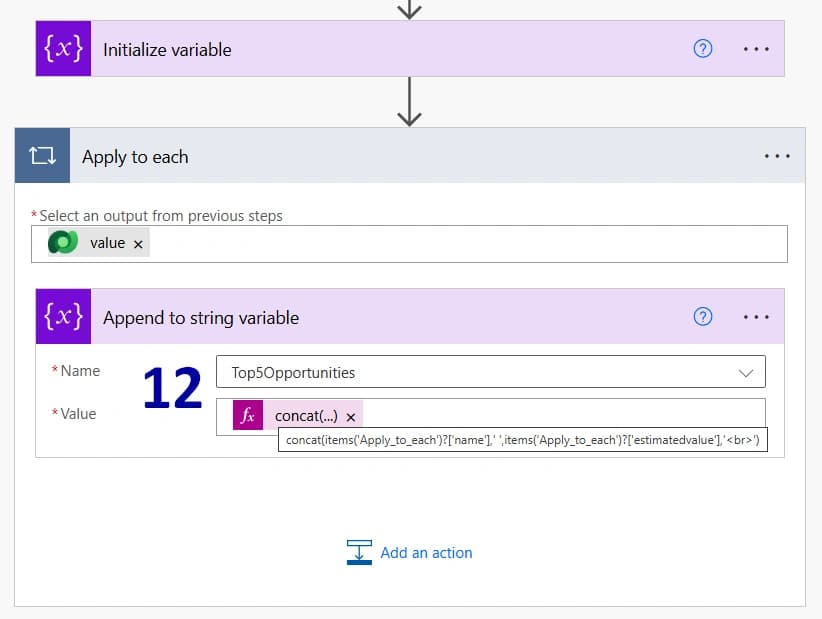
Inside the "Apply to each" action, add an "Append to string variable" step (12). In this example, we are using the following expression:
Codeconcat(items('Apply_to_each')?['name'],' ',items('Apply_to_each')?['estimatedvalue'],'<br>')This expression combines multiple values into a single string that will later be used in the email body.
! Note. If you concatenate multiple fields, do not forget to add spaces or other separators where needed. Since the email body supports HTML formatting, we also recommend adding a "<br>" tag at the end of each line to make the final email easier to read.
-
Now, configure the email notification:
1) Add a new "Send an email" action
2) Enter the manager's email address in the "To" field
3) Create a subject, switch the email body to HTML format, and use the string variable as the main content of the message
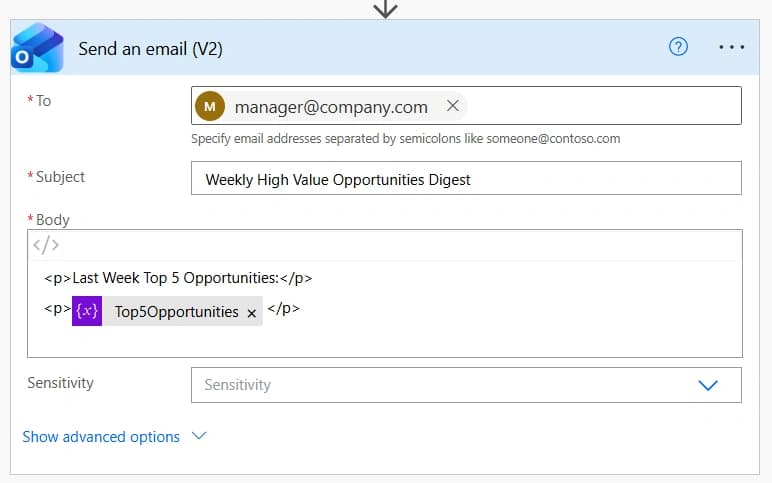
From this point on, every Monday at 9:00 AM the manager will receive a summary email containing the five highest-value open opportunities created during the previous seven days.
Conclusion
Frequently Asked Questions that May Interest You
It is a weekly summary email that automatically gives managers a concise overview of the largest new sales opportunities, so they can stay informed without searching for CRM views or running reports.
Yes. You can fully customize your sales email reports. You can change how many opportunities appear in each email, adjust the reporting period, and add additional opportunity details to fit your team’s needs.
You can configure the automation to stop notifications when no opportunities are found, so managers receive emails only when there is relevant information to review.
Yes. The flow can be adapted to create separate weekly digests for different sales teams, allowing each manager to receive updates that are relevant to their team.
A sales opportunity digest is a concise, automated summary that highlights the most important opportunities and delivers them directly to a manager, typically by email. In this example, the digest is generated every Monday and contains the five highest-value open opportunities created during the previous seven days. It is intended for quick review and helps managers focus their attention on the deals that may have the greatest business impact.
A report, on the other hand, is generally used for more detailed analysis of opportunity data. Reports can include a larger set of records and fields, apply different filters and groupings, and provide a broader view of the sales pipeline. In short, a digest focuses on quick, actionable information, while a report is better suited to detailed analysis and ongoing reporting.
A Dynamics 365 opportunity report can include a wide range of information, depending on the fields, filters, and reporting requirements. For example, it can contain the opportunity topic, estimated revenue, creation date, expected close date, status, owner, customer, sales stage, probability, and other relevant opportunity details.
Reports can also be configured to filter, sort, group, and analyze opportunities in different ways. For example, a sales manager could use a report to compare opportunities by owner, sales stage, estimated revenue, or expected close date. This makes reports useful when a more comprehensive view of the sales pipeline is required, whereas an automated digest can provide a smaller, focused selection of opportunities that require immediate attention.
Opportunity pipeline report, Opportunity by sales stage report, Sales forecast report, Won and Lost opportunities report, Opportunity conversion report, Opportunity revenue report.
Related Content
Table of contents: