



 Published:July 31, 2026
 Time to read:5 min
Reminding about an Overdue Opportunity to Close Dates in Dynamics 365 CRM
A Short Overview of the Article
A Short Reference About the Author
Introduction
Requirement
Step-by-step Instructions
After you have accessed Power Automate and selected the correct environment, it is time to create a flow:
-
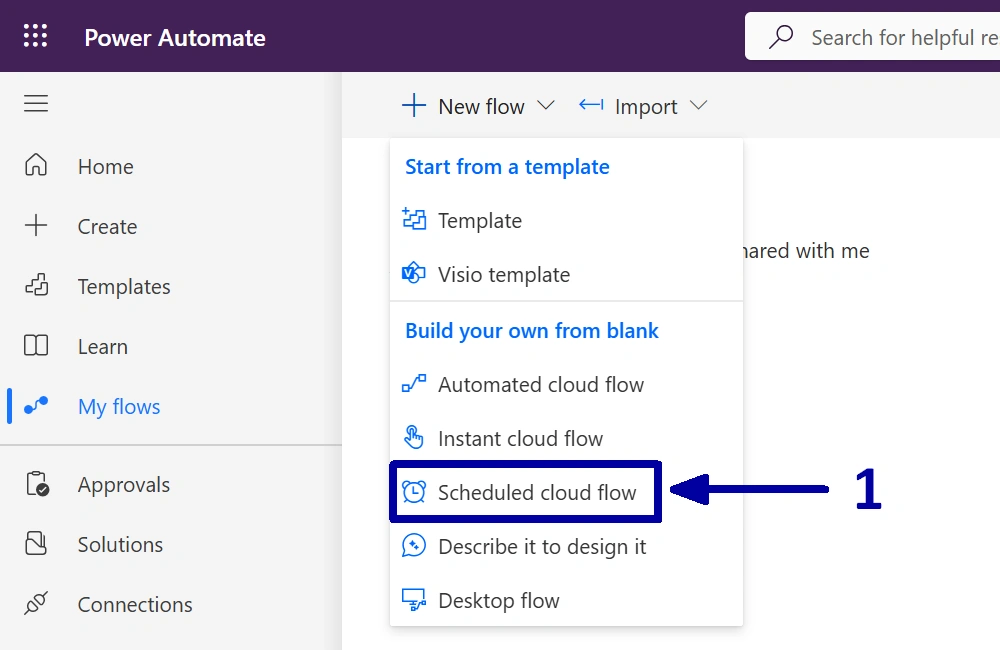
In the environment where you want to create the automation, start by creating a new “Scheduled cloud flow” (1).
-
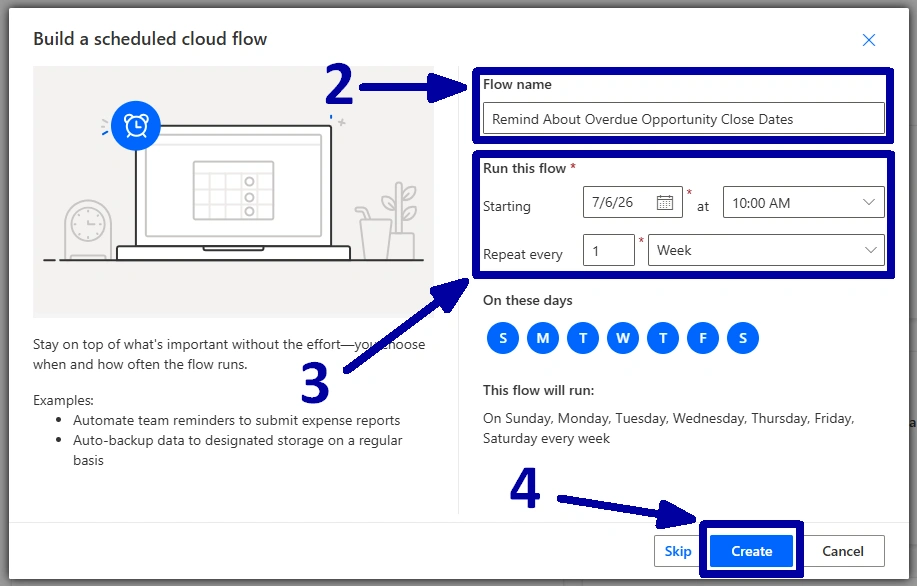
Give the flow a meaningful name (2), configure the start date, time, and recurrence interval (3), then click on the “Create” (4).
-
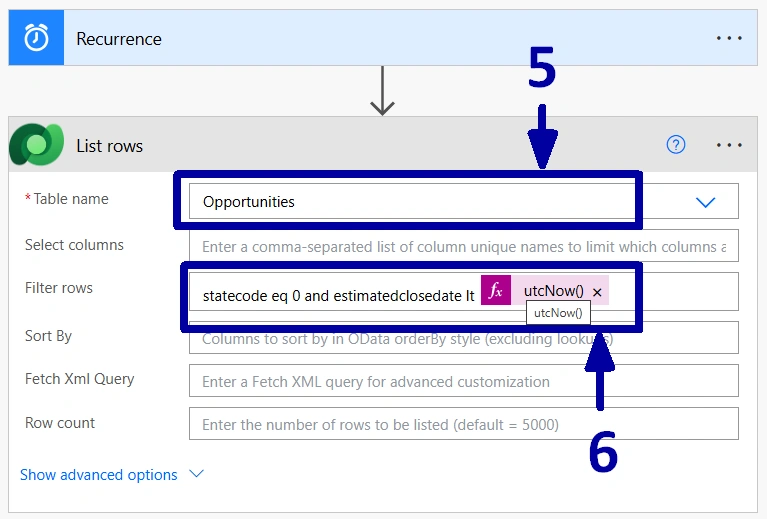
Before adding any actions, it is worth checking that the Recurrence trigger contains the schedule you configured in the previous step. Once that is confirmed, add a new "List rows" action. Since our goal is to monitor opportunities, select the "Opportunities" table in the "Table name" field (5).
! Note. We do not need to retrieve every opportunity in the system, so let us narrow down the results. The "Filter rows" field allows us to return only the records that match our requirements.
Now, go through the following stages:
1) First, we only want the open opportunities, so add the condition “statecode eq 0”.
2) Next, we only want to notify the owners when the "Estimated Close Date" has already passed, so add another condition based on the "Estimated Close Date" field. Since this field is required in our CRM, there is no need to check whether it contains a value.
3) Combine both conditions using the "and” operator so that only the records matching all the criteria are returned (6).
-
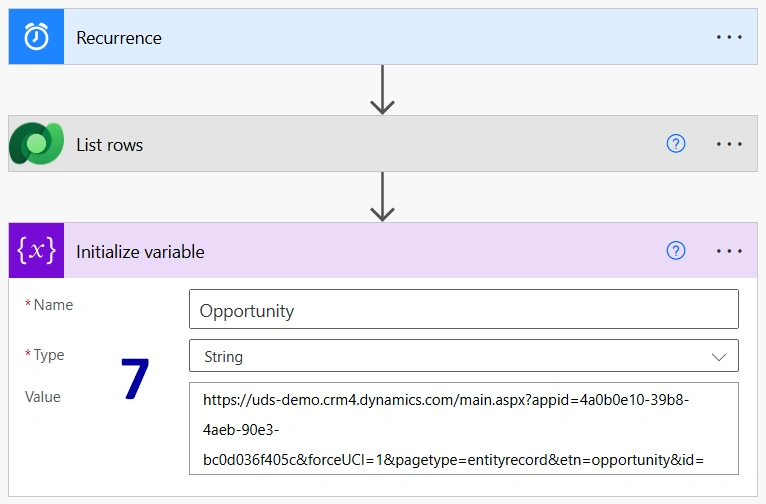
Next, let us create a variable that will be used in the email notification. This variable will contain a direct link to the opportunity record (7).
To build the record link, open any Opportunity in Dynamics 365 and copy the URL up to and including the last '=' character before the record GUID. We will use this base URL to dynamically generate links to individual opportunity records.
-
The next step is to identify the owner of each opportunity so we can retrieve their email address.
After that, follow this subsequence:
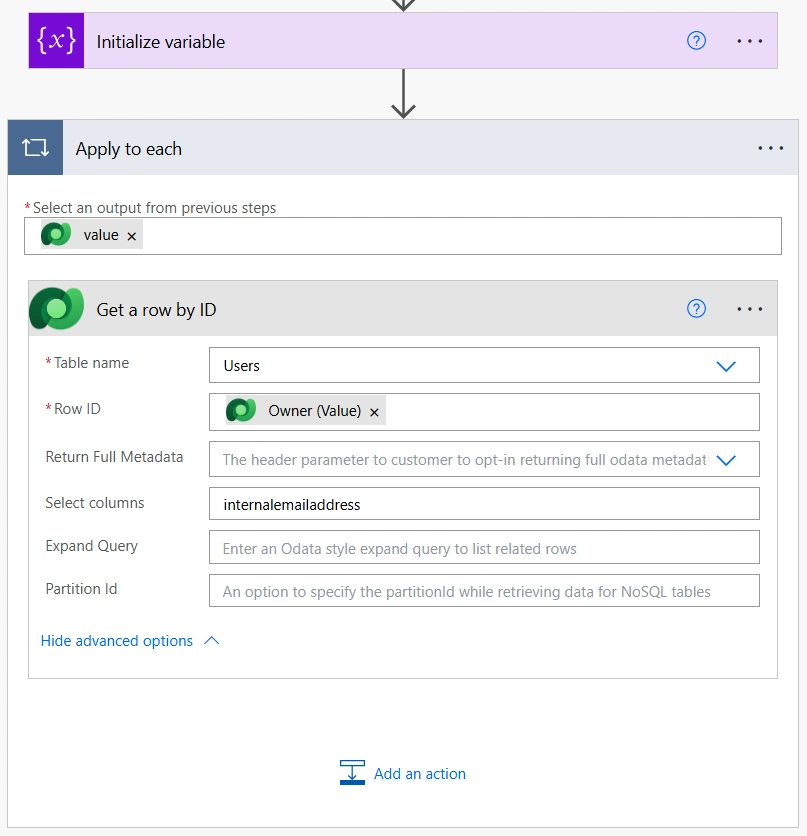
1) Add a new "Get a row by ID" action.
2) Since we are looking up system users, select the "Users" table in the "Table name" field.
3) For the "Row ID" field, use the "Owner (Value)" from the "List rows" action. As soon as you add this value, Power Automate will automatically place the "Get a row by ID” action inside an “Apply to each” container. This is expected behavior because the flow needs to retrieve the owner information for every opportunity returned by the previous step.
4) In the “Select columns” field, enter the schema name of the field that stores the user's email address.
! Note. Technically, there is no need to specify the “Select columns”, and the flow will work without it. However, we recommend using it whenever you need a few fields. Retrieving only the required data makes the flow slightly more efficient and easier to maintain. You can apply the same recommendation to the "List rows" action.
-
Now, it is time to create an email notification:
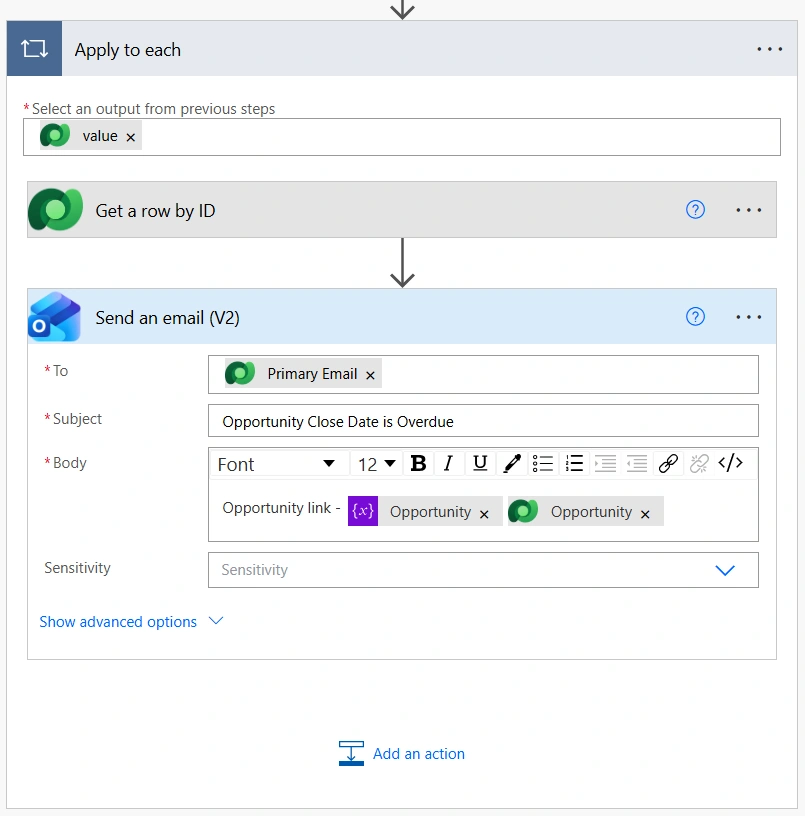
1) Add a new "Send an email" action, use the email address retrieved in the "Get a row by ID" step in the "To" field.
2) Create a subject.
3) Then build the message body.
! Note. The email can contain any information that makes sense for your business. In our example, we only included a link to the opportunity record. One small detail worth mentioning is that there is no space between the “Opportunity variable” created earlier and the "opportunityid" value. This allows the email to generate a single clickable link that opens the corresponding opportunity directly.
Now, save the flow, make sure it is active, and let it run according to the configured schedule. From this point on, opportunity owners will automatically receive a reminder whenever one of their open opportunities has passed its estimated close date.
Conclusion
Frequently Asked Questions that May Interest You
A scheduled flow is the best choice for Opportunity management in Dynamics 365 because the reminder depends on comparing the Estimated Close Date with the current date. Running the automation once a week is usually enough to identify overdue opportunities while supporting efficient Dynamics 365 sales pipeline management without unnecessary processing or excessive email notifications.
Yes. When you manage opportunities in Dynamics 365 Sales, you can modify the filter to look for opportunities that have been overdue for a specific number of days instead of simply checking whether the Estimated Close Date is earlier than today. This helps reduce reminders for opportunities that have only just passed their expected close date and aligns with best practices for opportunity management in Dynamics 365.
Yes. Instead of retrieving the opportunity owner's email address, you can modify the flow to send notifications to a sales manager, a shared mailbox, or both. Many organizations also combine owner reminders with manager notifications when opportunities remain overdue for an extended period. This is one of the benefits of opportunity management in Dynamics 365, as it improves visibility, accountability, and collaboration across the sales team.
The email can include any relevant opportunity details, such as the opportunity name, estimated revenue, customer, estimated close date, sales stage, or a direct link to the record in Dynamics 365. Providing more context allows users to review and update the opportunity without having to search for it manually. Combined with Intelligent opportunity management, these reminders help sales teams prioritize high-value deals, keep records accurate, and maintain a healthy sales pipeline.
Related Content
Table of contents: