





A Short Overview of the Article
In this article, the second in the series of articles devoted to Everyday Power Automate Solutions for Dynamics 365, we will look at a simple Power Automate solution that automatically identifies old cold leads and closes them on a regular schedule. So, you can identify and automate inactive leads. This approach helps keep the lead database clean without requiring users to manually review hundreds of records every month.
A Short Reference About the Author
Andrei is a highly skilled Project Manager who leads a team with expertise in technologies such as Dynamics 365, Power Platform, Azure, Copilot, and more, delivering tailored solutions to meet each client's unique needs. He also brings extensive experience in implementing the Dynamics 365 Sales, Customer Service, and Marketing modules.
Introduction
Over time, every CRM system accumulates records that are no longer relevant to the business. Leads are no exception. While sales teams are usually focused on active opportunities, older leads often remain in the system long after they have become useless. In many cases, these records are never reviewed again, but they continue to appear in views, dashboards, and reports alongside leads that still require attention.
Keeping outdated leads active can make it more difficult to understand the true state of the sales pipeline. Reports may show inflated numbers, users may spend time reviewing records that no longer have value, and managers may struggle to identify where the team should focus on their efforts. Regularly cleaning up inactive leads helps keep the data more accurate and ensures that everyone is working with information that reflects the current business reality.
Requirement
We will look at a common request that often comes from sales managers after they have been using Dynamics 365 for some time.
During a review of the lead pipeline, a manager notices that a large number of old cold leads were still marked as active. Most of these records have been created several months earlier and have not been updated for weeks. The team has already determined that these leads are unlikely to convert. But because nobody has been responsible for regularly cleaning them up, they have remained in the system and continued to appear in reports and views.
To address this issue, the manager asks for a simple automated process. The requirement is to run a cleanup once per week and automatically deactivate all open leads that meet the following criteria: the lead is marked as “cold”, was created more than three months ago, and has not been modified for at least four weeks. This will help keep the active lead list up to date while removing records that no longer require the sales team's attention.
Step-by-step Instructions
Let us assume you already know how to access Power Automate and select the correct environment and skip the basics and jump straight into the solution.
-
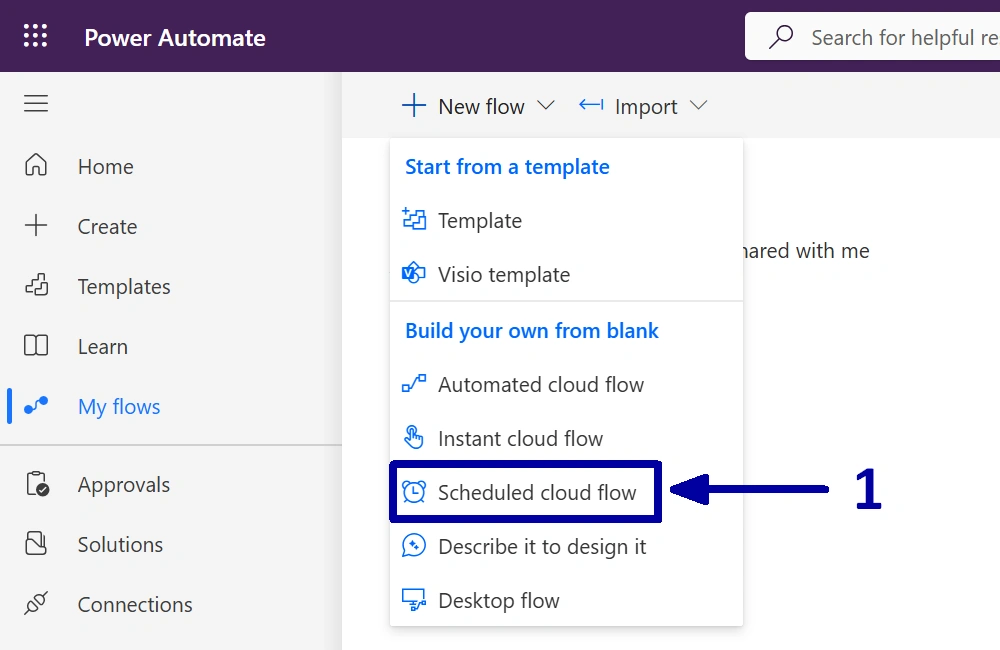
In the environment where you want to create the automation, start by creating a new “Scheduled cloud flow” (1).
-
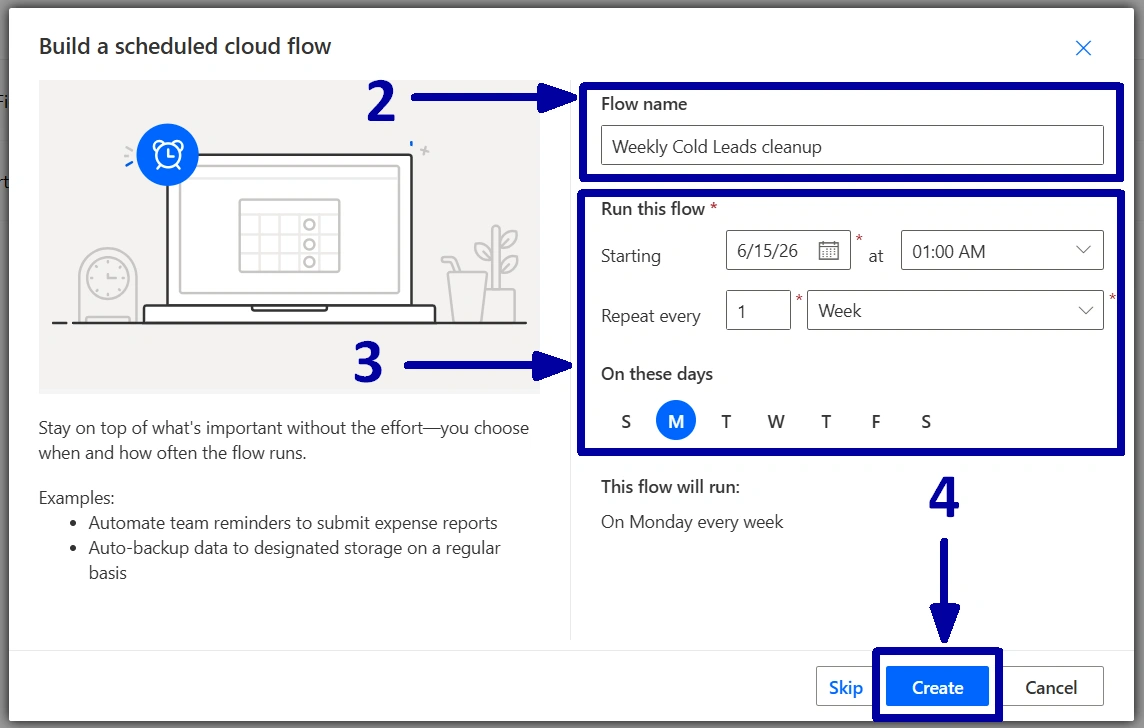
Give the flow a meaningful name (2), configure the start date, time, and recurrence interval (3), then click on the “Create” (4).
-
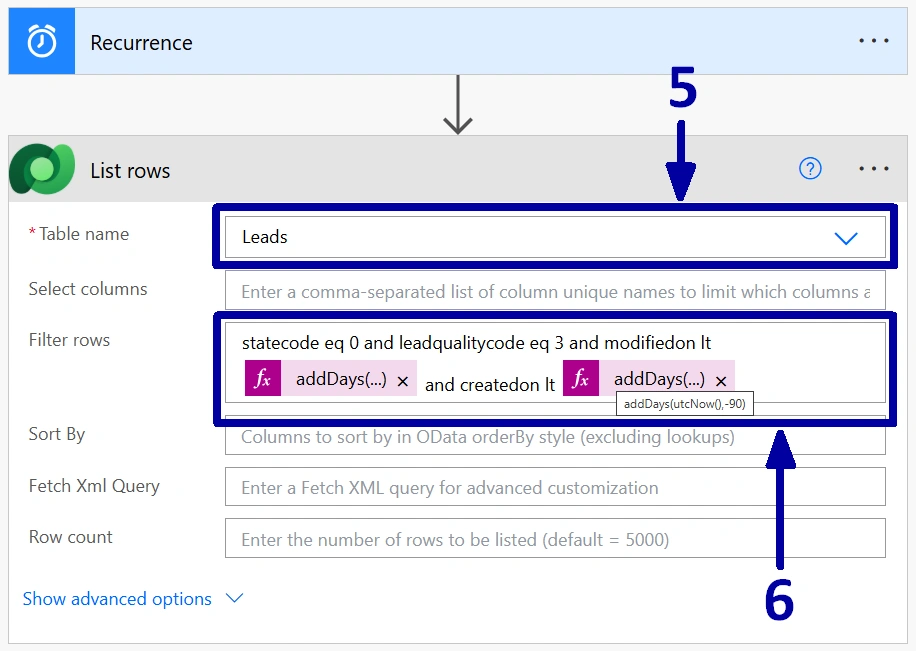
Before adding any actions, it is worth checking that the Recurrence trigger still contains the schedule configured in the previous step. Once that is confirmed, add a new "List rows” action. Since we are working with leads, select the “Leads” table in the “Table name” field (5).
There is no need to retrieve every lead in the system, so let us narrow down the results. The “Filter rows” field allows us to return only the records that match our requirements. First, we only want active leads, so add the condition “statecode eq 0”. Next, because the requirement specifically targets cold leads, add “leadqualitycode eq 3”. Finally, we need to identify the leads that were created more than three months ago and have not been updated for at least four weeks. To achieve this, add two additional conditions: one based on the “Created On” field and another based on the “Modified On” field. Combine all the conditions using the “and” operator so that only the records meeting every requirement are returned (6).
-
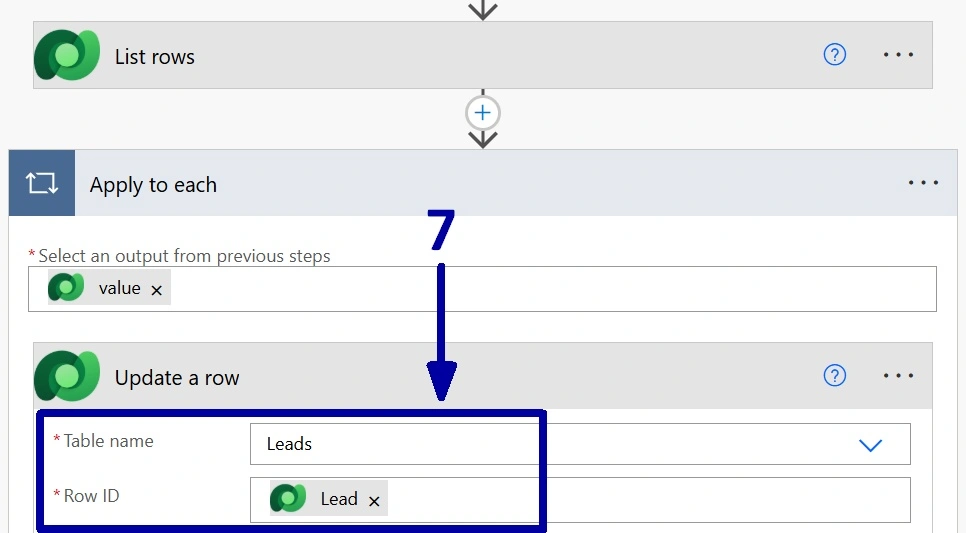
Once the filtering is in place, the only thing left is to deactivate the matching leads. Add an “Update a row” action and keep the “Table name” set to the “Leads”. For the “Row ID” field, select the “Lead” value from the previous step (7).
As soon as you add the “Lead”, Power Automate will automatically place the “Update a row" action inside an "Apply to each" container. This is expected behavior. Since the “List rows" action can return multiple leads, Power Automate needs to process each record individually and apply the update to every lead that matches the criteria.
-
In the same "Update a row" action, scroll down to the "Status" and "Status Reason" fields and select the values that should be assigned when the lead is deactivated.
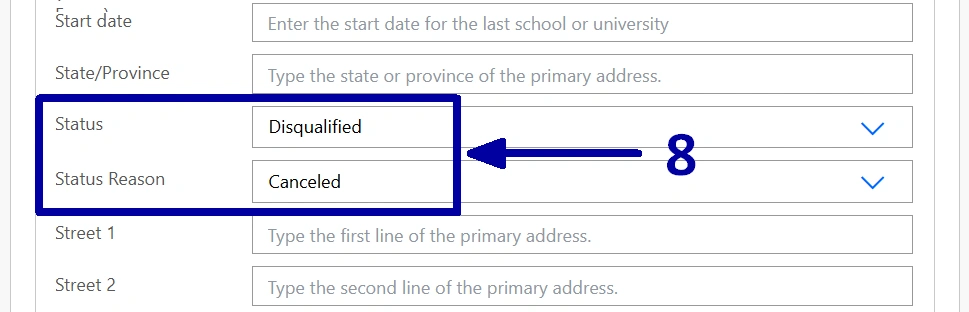
Thus, save the flow, run a quick test if needed, and then let it do the work for you. From this point on, the cleanup process will run automatically according to the schedule you configured, helping keep your lead database tidy and up-to-date.
! Note. In one of our previous articles, we looked at a solution for sending automatic follow-up reminders about forgotten leads, Managing Forgotten Leads in Dynamics 365 CRM. If your business is comfortable using the same schedule for both processes, you could combine the two automations into a single flow. One part of the flow could notify managers about inactive leads, while another part could automatically deactivate the records that have exceeded the agreed inactivity period.
Conclusion
Keeping a CRM system clean is not the most exciting task, but it has a direct impact on data quality and reporting accuracy. Over time, inactive leads can accumulate, making it harder for sales teams and managers to focus on opportunities with potential. Automating cleanup helps ensure outdated records do not continue to clutter views, dashboards, and reports. The solution described in this article is intentionally simple, but it provides a solid foundation that can be expanded later if needed. For example, you could add a notification before deactivation, generate a summary report for managers, or apply different rules for different business units. Even in its basic form, this automation can save time, improve data quality, and help maintain a more accurate picture of the sales pipeline.
Frequently Asked Questions that May Interest You
Deactivating leads preserves historical sales data while removing inactive records from day-to-day views and reports. This allows organizations to maintain an audit trail, analyze past sales activity, and comply with data retention policies without cluttering the active pipeline.
Yes. The filter can be adjusted to match your company's requirements. For example, you can use a different lead quality, extend or shorten the inactivity period, exclude specific lead sources, or apply additional conditions such as owner, business unit, or territory.
The flow evaluates the conditions each time it runs. If a lead has been modified within the defined period or no longer meets the filter criteria, it will not be deactivated. This ensures that only leads that satisfy all configured conditions are processed.
Yes. The same pattern can be applied to other Dataverse tables, such as opportunities, cases, contacts, or custom entities. By changing the table and filter conditions, you can automate the cleanup or status updates of many different types of records using the same Power Automate approach.
Related Content
UDS blog articles: