



 Published:July 21, 2026
 Time to read:5 min
Detecting Duplicated Leads by Email in Dynamics 365 CRM
A Short Overview of the Article
A Short Reference About the Author
Introduction
Requirement
Step-by-step Instructions
Let us assume you already know how to access Power Automate and select the correct environment, skip the basics, and jump straight into the solution.
-
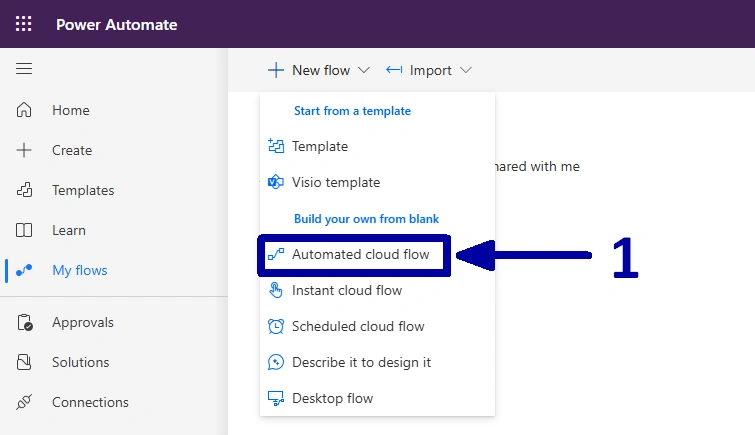
In the environment where you want to create the automation, start by creating a new “Automated cloud flow” (1).
-
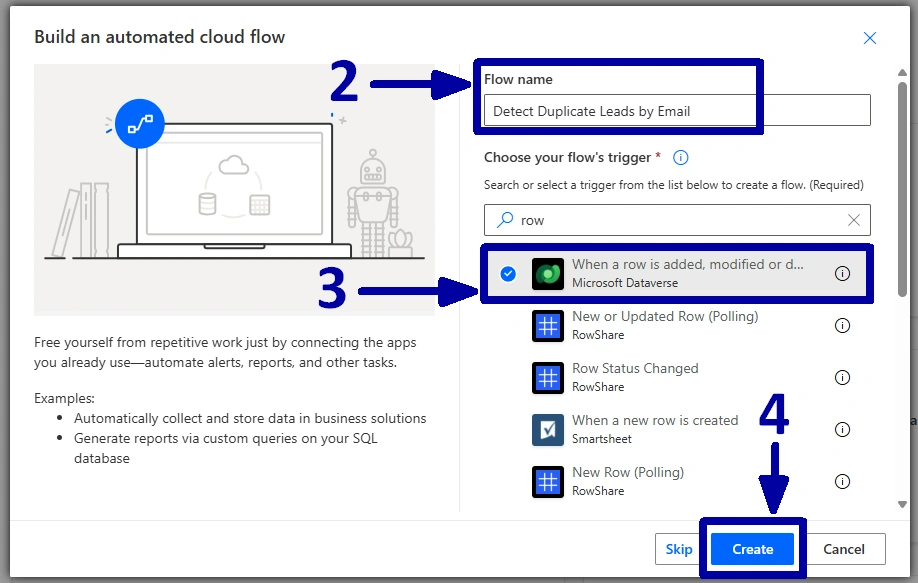
Give the flow a name (2), select the flow’s trigger. When a row is added, modified, or deleted (3), click on “Create” (4).
-
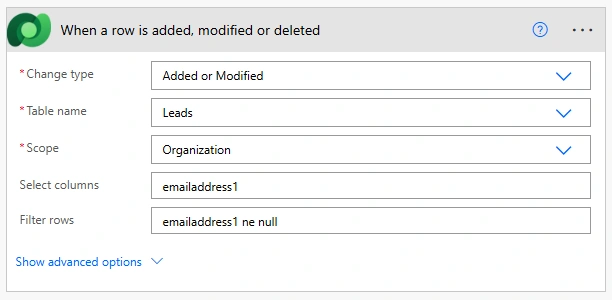
On the Power Automate designer page, adjust the trigger step in the following way:
1) Set the "Change type" for the "Added or Modified", because we want to monitor not only newly created Leads but also updates to existing ones.
2) Set the "Table name" to the "Leads", since we are working with the Leads table.
3) Set the "Scope" to the "Organization", because the flow should trigger the records created or modified by any user in the system.
4) Set the "Select column" to the "emailaddress1", because this is the schema name of the primary email field on the Lead table, and we only need to monitor changes to this field.
! Note. It is also recommended to set the "Filter rows" to the "emailaddress1 ne null", so the flow only triggers when an email address is actually present.
-
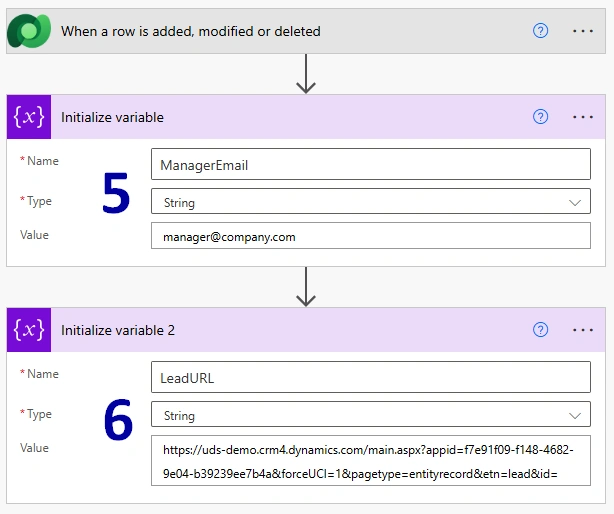
Next, let us create two variables to use later in the notification email. The first one will store the manager's email address (5). The second one will contain a direct link to the lead record (6).
! Note. To build the record link, open any "Lead" in Dynamics 365 and copy the URL up to and including the last "=" character before the record GUID. We will reuse this base URL to construct links for individual leads dynamically.
-
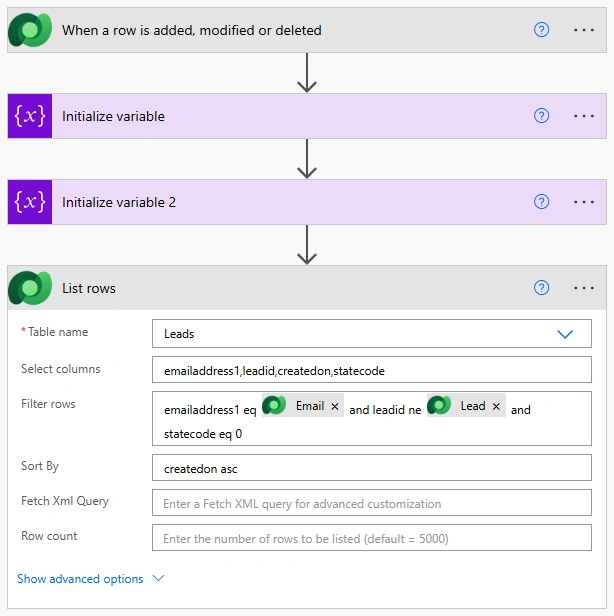
Add the next step to the "List rows". This step will let us find the existing leads with the same email address.
Go through the following stages:
1) Set the "Table name" to the "Leads", since we are searching within the "Leads table".
2) Set the "Select columns" to the "emailaddress1,leadid,createdon,statecode". This ensures that we only retrieve the fields needed for comparison and notification. You can leave this empty, but that would return the full record, which is unnecessary for this scenario and less efficient in general.
3) Set the "'Filter rows" to the "emailaddress1 eq <NewOrUpdatedLead_Email> and statecode eq 0 and leadid ne <NewOrUpdatedLead_GUID>”, since we are looking for an exact match among other active leads.
4) Set the "Sort by" to the "createdon asc". This is optional, but it helps keep the processing order consistent when multiple matches exist.
-
Now is the time to create an email notification. Add a new “Send an email” action, place the “managerEmail" variable in the "To" field, define a subject, and then build the message body.
! Note. Please, pay attention to the fact that there is no space between the “LeadURL” and the lead “GUID” in both cases. The only difference is that in the first case the “Lead” is taken from the trigger step, while in the second case it comes from the "List rows" step.
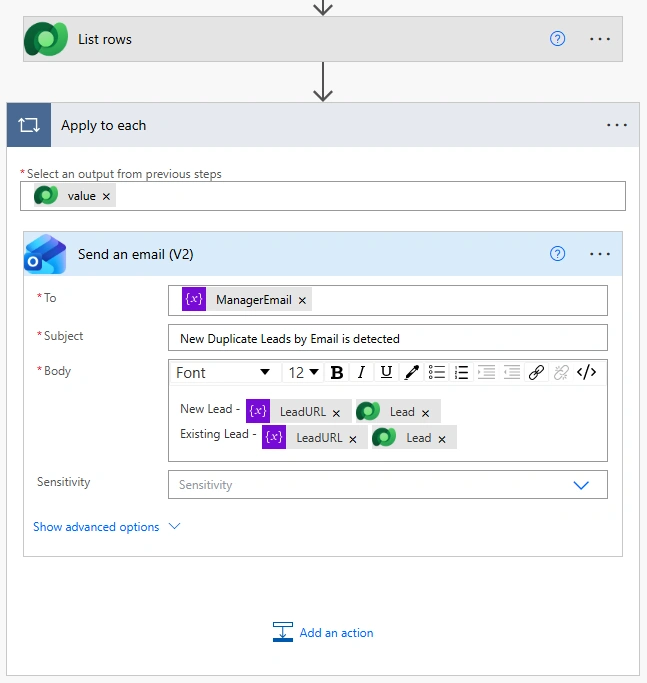
From now on, the manager will receive an email whenever a new lead is created with an existing email address, or whenever the email address of an active lead is updated to match another active lead's email address.
! Note. In this example, we created a very simple duplicate notification process. In a real-world scenario, you will most likely want to enhance it. For example, you can use string functions to convert email addresses to lowercase before comparing them, ensuring that the comparison is case-insensitive. You could also extend the process to detect and handle temporary ("10-minute") email domains.
Conclusion
Frequently Asked Questions that May Interest You
Dynamics 365 duplicate detection works well for many scenarios, but it may not cover every business requirement. For example, some companies intentionally allow duplicate leads during the initial stages of the sales process. A Power Automate flow provides more flexibility by notifying users about potential duplicates without preventing record creation.
No. This flow only checks for duplicates when a lead is created or when its email address is updated. If you need to identify existing duplicate records, you should perform a separate cleanup using Dynamics 365 duplicate detection or a dedicated solution such as the UDS Duplicate Checker.
Yes. You can modify the “List rows” filter to compare additional fields such as phone number, company name, or a combination of multiple fields. This allows you to tailor the duplicate detection logic to your organization's specific business rules.
For a production environment, consider normalizing email addresses before comparison (for example, converting them to lowercase), filtering out disposable email domains, adding conditions to avoid unnecessary notifications, and including additional information about the matching lead in the email. You could also extend the flow to create tasks, post notifications in Microsoft Teams, or route potential duplicates to a dedicated review queue.
Related Content
Table of contents: