



 Published:August 12, 2026
 Time to read:5 min
Dynamics 365 Opportunity Management: Detecting and Notifying Missing Fields
A Short Overview of the Article
A Short Reference About the Author
Introduction
Requirement
Step-by-step Instructions
After you have accessed Power Automate and selected the correct environment, it is time to create the flow:
-
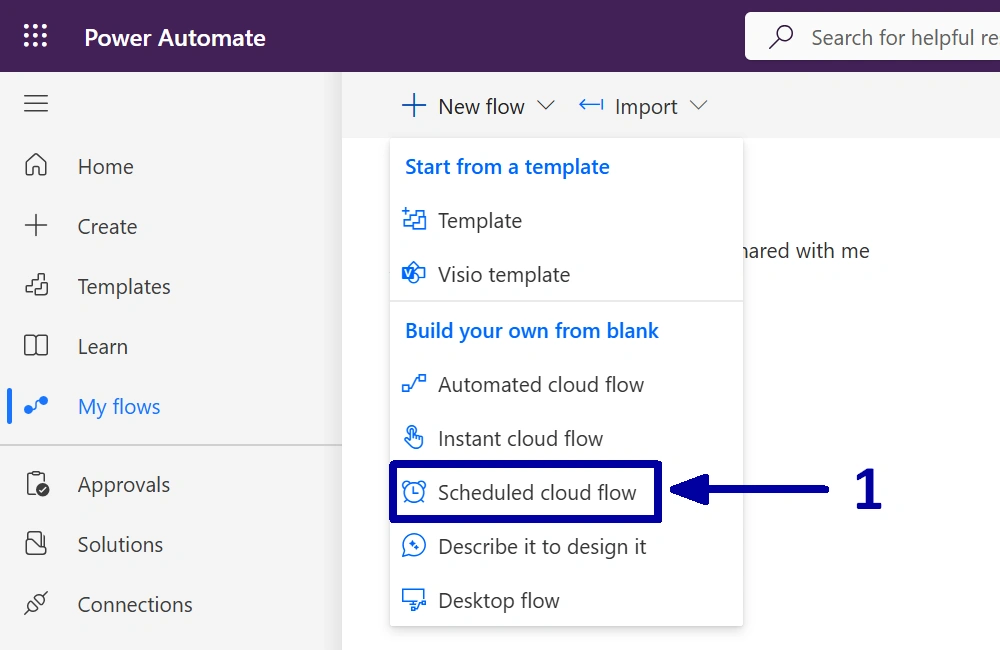
In the environment where you want to create the automation, start by creating a new "Scheduled cloud flow" (1).
-
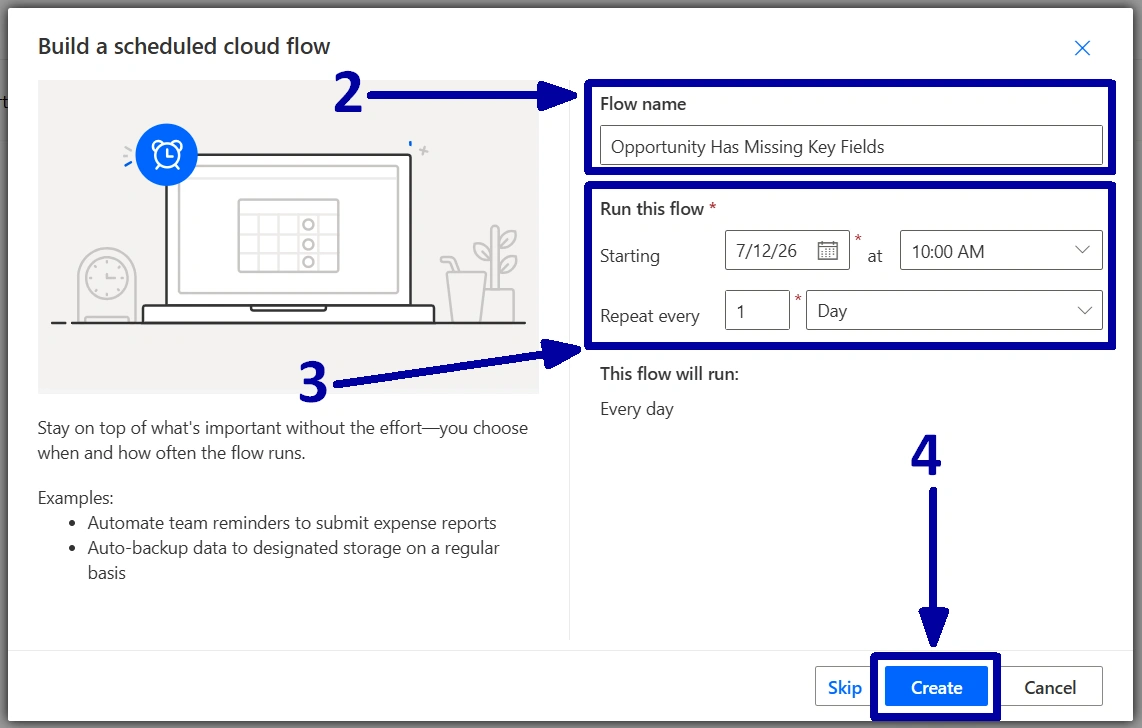
Give the flow a meaningful name (2), configure the start date, time, and recurrence interval (3), then click on the "Create" (4).
-
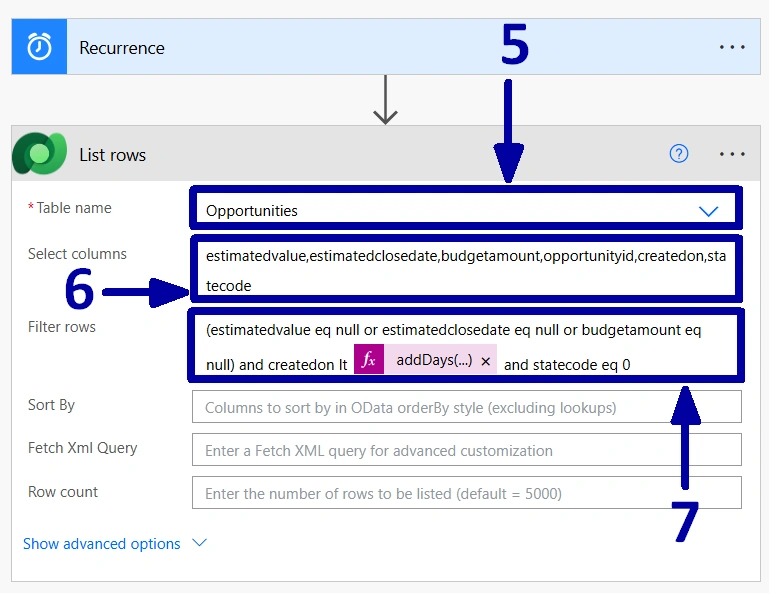
Before adding any actions, it is worth checking that the Recurrence trigger contains the schedule you configured in the previous step. Once that is confirmed, add a new "List rows" action. Since our goal is to monitor opportunities, select the "Opportunities" table in the "Table name" field (5).
Now, we do not need to retrieve every column from the "Opportunity table", so let us limit the results to only the fields we need. In the "Select columns" field, add only the "Estimated Revenue", "Estimated Close Date", "Budget Amount", "Opportunity", "CreatedOn", and "Status" columns (6). Retrieving only the required columns makes the flow slightly more efficient and easier to maintain.
And because we are checking whether the "Estimated Revenue", "Estimated Close Date", or "Budget Amount" is empty for an open opportunity, we also need to create a suitable filter (7).
-
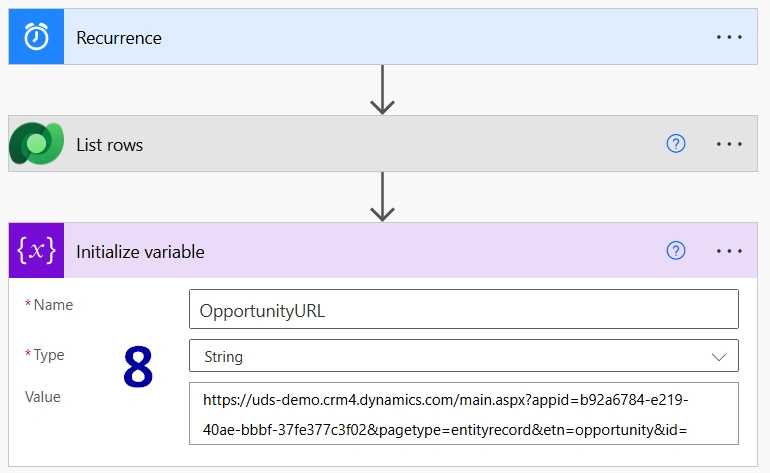
Next, let us create a variable to use in the email notification. This variable will contain a direct link to the opportunity record (8).
To build the record link, open any "Opportunity" in Dynamics 365 and copy the URL up to and including the last "=" character before the record "GUID". We will use this base URL to dynamically generate links to individual opportunity records.
-
Now, it is time to create an email notification. Add a new "Send an email" action, place the manager's email address in the "To" field, create a "Subject", and then build the message "Body".
In our example, we have included the opportunity's "Estimated Revenue", "Estimated Close Date", "Budget Amount", "CreatedOn", together with the "OpportunityURL" variable and the "Opportunity GUID". One small detail worth mentioning is that there is no space between the "OpportunityURL" variable and the "Opportunity GUID" value. This allows the email to generate a single clickable URL that opens the corresponding opportunity record directly.
! Note. We are intentionally not formatting the date or currency values in this example. Power Automate provides several ways to format both, but to keep this tutorial focused on the main idea, we will leave that as an exercise for you to explore.
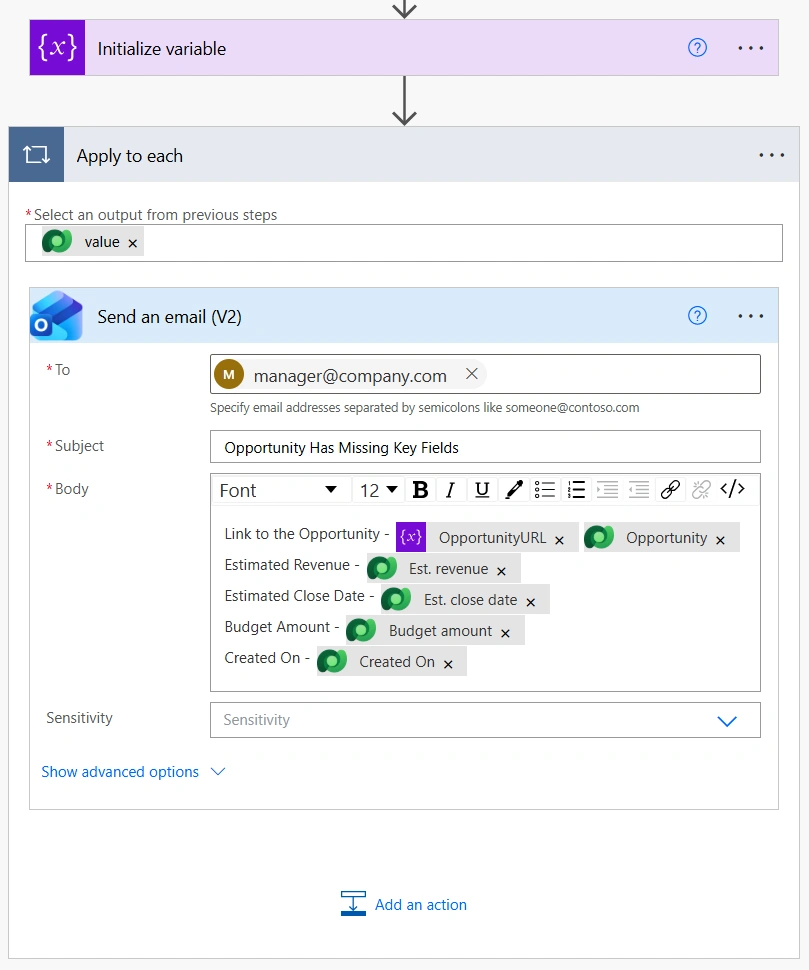
From this point on, the flow will run every day at 10:00 AM and notify the manager whenever an active opportunity is missing one or more of the key business fields.
Conclusion
Frequently Asked Questions that May Interest You
Yes. Instead of sending the email to a fixed manager’s email address, you can dynamically retrieve the opportunity owner and use their email address in the “Send an email” action. This is useful when each sales representative is responsible for keeping their own opportunities up to date.
Absolutely. The flow can be adapted to check any fields that are important for your sales process. For example, you could also check fields such as “Probability”, “Customer Need”, “Decision Maker”, or “Next Step”. Simply update the columns retrieved by the “List rows” action and adjust the filter accordingly.
Yes. The Recurrence trigger can be configured to run daily, weekly, or according to another schedule that fits your business requirements. You can also adjust the time at which the flow runs. For example, you might choose to send reminders every weekday morning rather than every day.
Yes, but this requires some additional logic. You could add a field to the Opportunity table to store when a reminder was last sent and use that information to determine whether another notification should be generated. This allows you to control how frequently users are reminded and avoid sending the same notification every day.
In Dynamics 365 Opportunities, required fields must be completed before a record can be saved or moved through certain stages of the sales process. They are typically used to ensure that essential information is captured, such as the opportunity's name, customer, or other fields configured as mandatory by your organization.
Optional fields do not have to be completed to save or progress an Opportunity. They are used to capture additional information that may be useful for sales tracking, reporting, forecasting, or business processes but is not essential.
In short:
-
Required fields must be completed. Dynamics 365 may prevent the record from being saved or advanced until they contain a valid value.
-
Optional fields can be left blank and completed later if the information becomes available.
Administrators can customize which Opportunity fields are required, optional, or conditionally required based on business needs and process configuration.
This distinction helps companies balance data quality and process compliance with the flexibility for salespeople to create and update Opportunities efficiently.
-
Related Content
Table of contents: