



 Published:September 16, 2026
 Time to read:5 min
Creating a Follow-up Task After an Opportunity Wins in Dynamics 365
A Short Overview of the Article
A Short Reference About the Author
Introduction
Requirement
Step-by-step Instructions
Once you have opened Power Automate and selected the appropriate environment, you can create the flow:
-
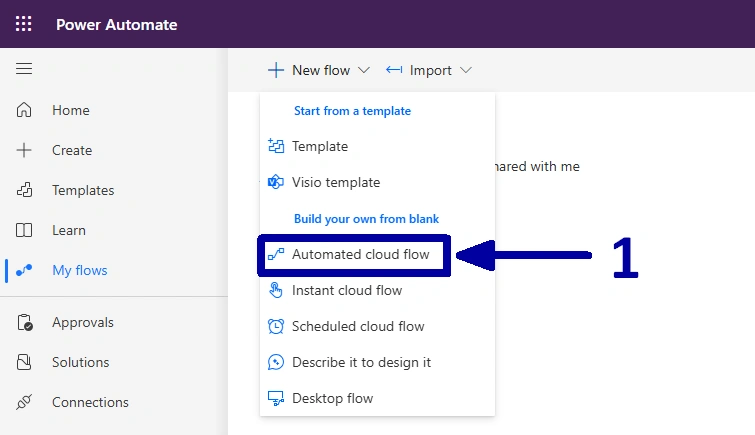
In the environment where you want to set up the automation, select the "Automated cloud flow" to create a new flow (1).
-
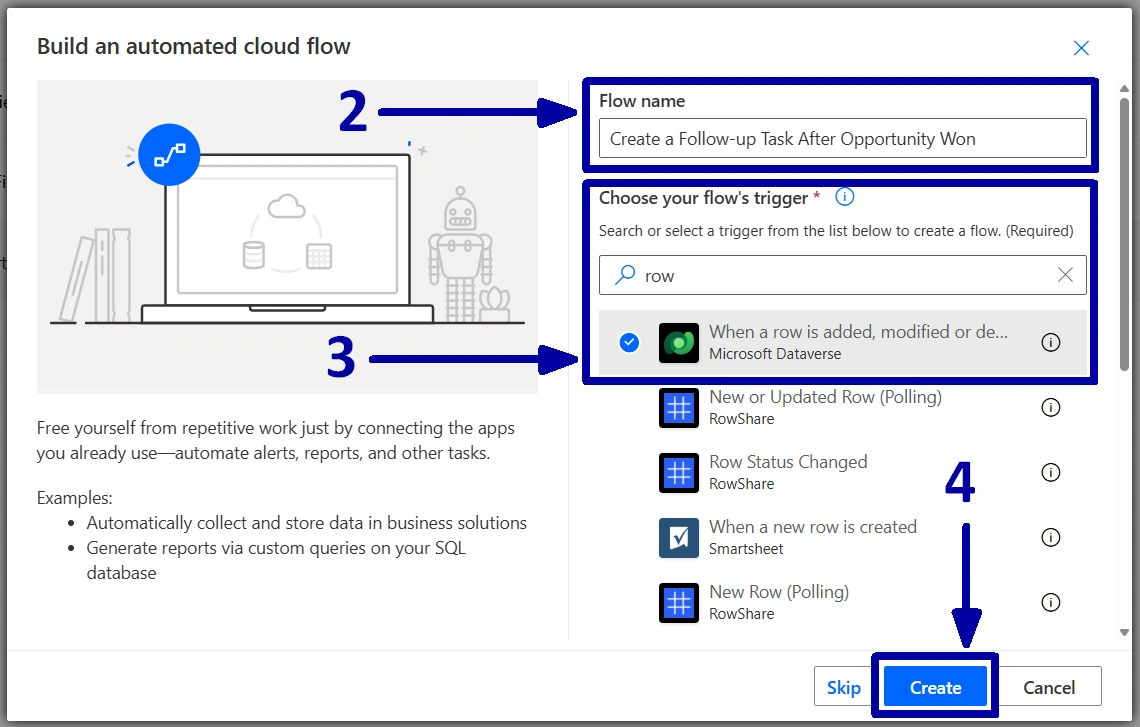
Give the flow a name (2), select a flow's trigger "When a row is added, modified or deleted" (3), then click on the "Create" (4).
-
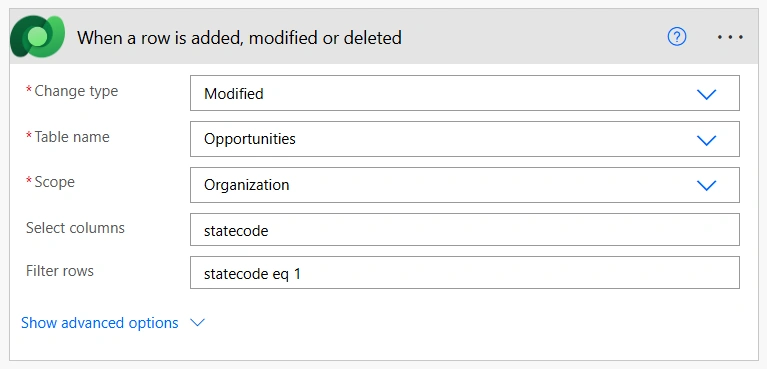
On the Power Automate designer page, configure the trigger as follows:
1Set the "Change type" to the "Modified", because we only want the flow to react when an existing opportunity is updated.
2Set the "Table name" to the "Opportunities", since we are monitoring the "Opportunity" table.
3Set the "Scope" to the "Organization", because the flow should trigger regardless of which user updates the opportunity.
4Set the "Select columns" to the "statecode", because this is the schema name of the "Opportunity - Status" field, and we only need to monitor changes to this field.
5Set the "Filter rows" to the "statecode eq 1", because the value "1" represents a "Won" opportunity. This ensures the flow triggers only when an opportunity is updated to Won status.
-
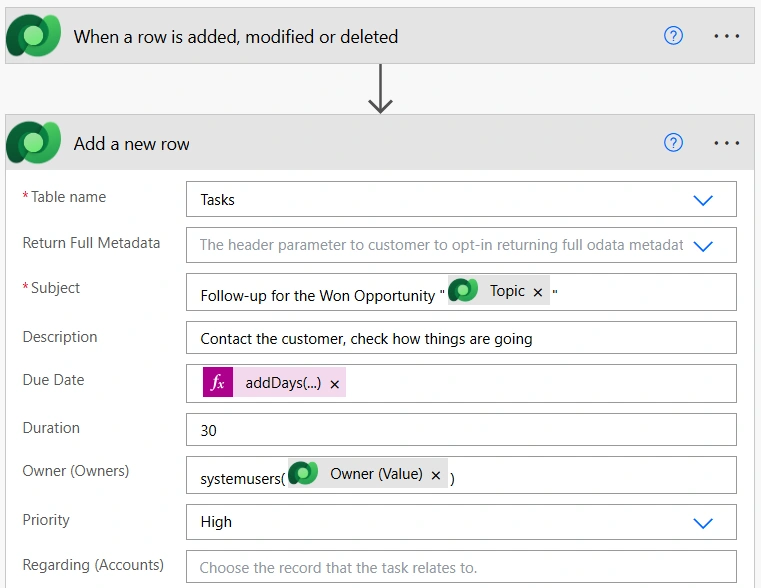
Form a follow-up task. Add a new "Add a new row" action and configure it as follows:
1Set the "Table name" to the "Tasks", since we are creating a new task.
2Give the task a meaningful name in the "Subject" field, so the owner immediately understands what should be done.
! Note. The "Description" field is optional, but it is a good place to add additional context or instructions if needed.
3For this example, we will set both the "Start Date" and the "Due Date" to 30 days from today.
! Note. Since this is a simple follow-up task, there is no need to use different dates.
! Note. If you want to estimate how long the follow-up should take, specify the value in minutes in the "Duration" field.
4Next, assign the task to the opportunity owner. Since the "Owner" is a lookup field, the value must be provided in the correct format: "systemusers(Owner_ID)".
! Note. If required, set the task priority. If you leave this field empty, Dynamics 365 will use the default "Normal priority".
5Finally, link the task to the corresponding "Opportunity" by populating the "Opportunity" lookup field in the same way as you assigned the "Owner".
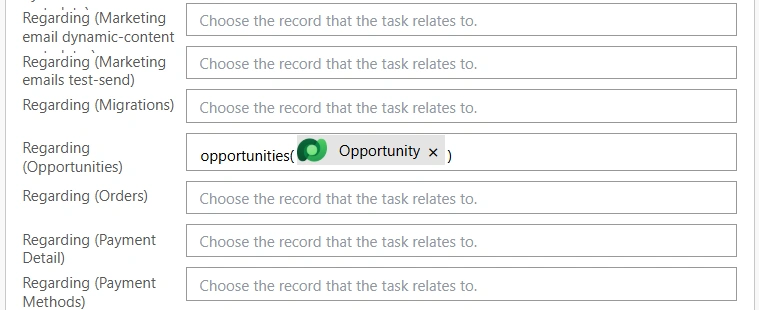
From this point forward, whenever an opportunity is marked as "Won," Power Automate will automatically create a follow-up task and assign it to the opportunity owner.
This simple automation helps ensure successful deals do not end the conversation and reminds the sales team to stay in touch with customers.
Conclusion
Frequently Asked Questions that May Interest You
The flow creates a follow-up task when an existing opportunity is modified and its status changes to “Won.” The trigger is configured to monitor the opportunity’s “statecode” field and filter for the value 1, which represents a won opportunity.
Yes. The 30-day period is only an example. You can modify the Start Date and Due Date expressions in the “Add a new row” action to schedule the task after any period that fits your sales process, such as 7, 14, or 60 days.
The task is assigned to the owner of the opportunity. The owner’s ID is used in the required lookup format, “systemusers(Owner_ID)”, so the appropriate sales representative receives the task.
Yes. You can customize the task subject, description, priority, duration, and dates. You can also extend the flow to send an email or other notification to the opportunity owner, or create different follow-up actions based on opportunity type, value, or other conditions.
Related Content
Table of contents: