


 D365 Customer Service
 D365 Field Service
 Copilot StudioD365 Customer ServiceD365 Field ServiceCopilot Studio

Geography
Germany
Industry
Automotive
Size
200+ employees
Implementation
2025

The project team comprised specialists in Dynamics 365, Power Platform, Azure, and AI. They focus on implementing AI functions into business processes for customer support and applied generative AI best practices throughout this project.

The company receives about 500 incoming emails from customers and suppliers every day. Pre-processing of each email is done manually and includes setting the appropriate tag and attaching the message to the required entity in CRM. On average, this operation takes from 2 to 5 minutes per email, which creates a significant burden on the team.
As the customer base grows, the number of emails will keep rising, making the current approach hard to scale. Therefore, a solution was needed to automate email pre-processing, reduce the impact of the human factor, and ensure fast, stable integration with the CRM.

Therefore, the project team decided to focus on automating email pre-processing to reduce the impact of human error and ensure fast, stable integration with the CRM.

Thus, the solution was to implement an AI agent in Copilot Studio that automatically processes incoming emails from Outlook. The agent would analyze the content of the email, determine its type and business context, and then perform categorization and link the message to the appropriate entity in Dynamics 365.
Therefore, to implement the client’s request, we used Microsoft Copilot Studio, in which we created a new AI agent.
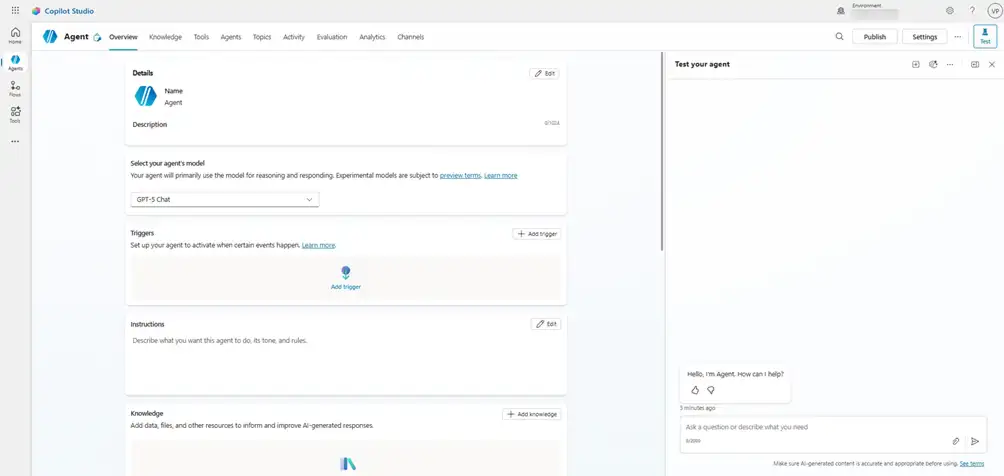
At the initial stage, the “Tools” tab was used to add and configure the main tools that the agent uses in the process of processing letters. The tool “List rows from selected environment” was configured first, which allowed the users to retrieve the sender's contact data along with associated B2C roles.
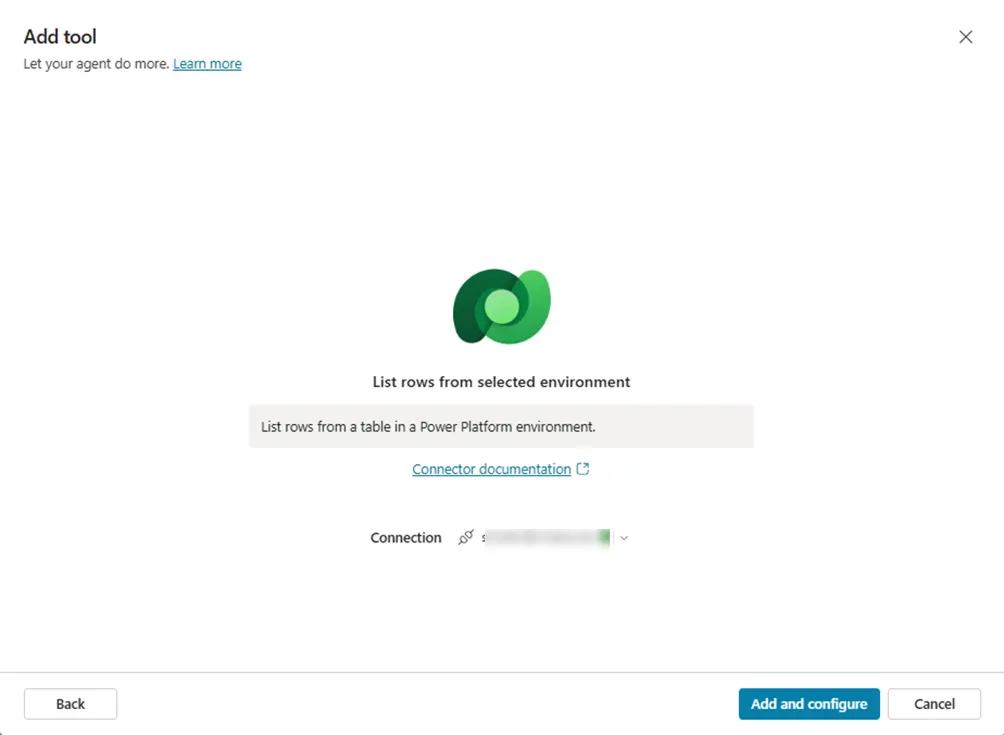
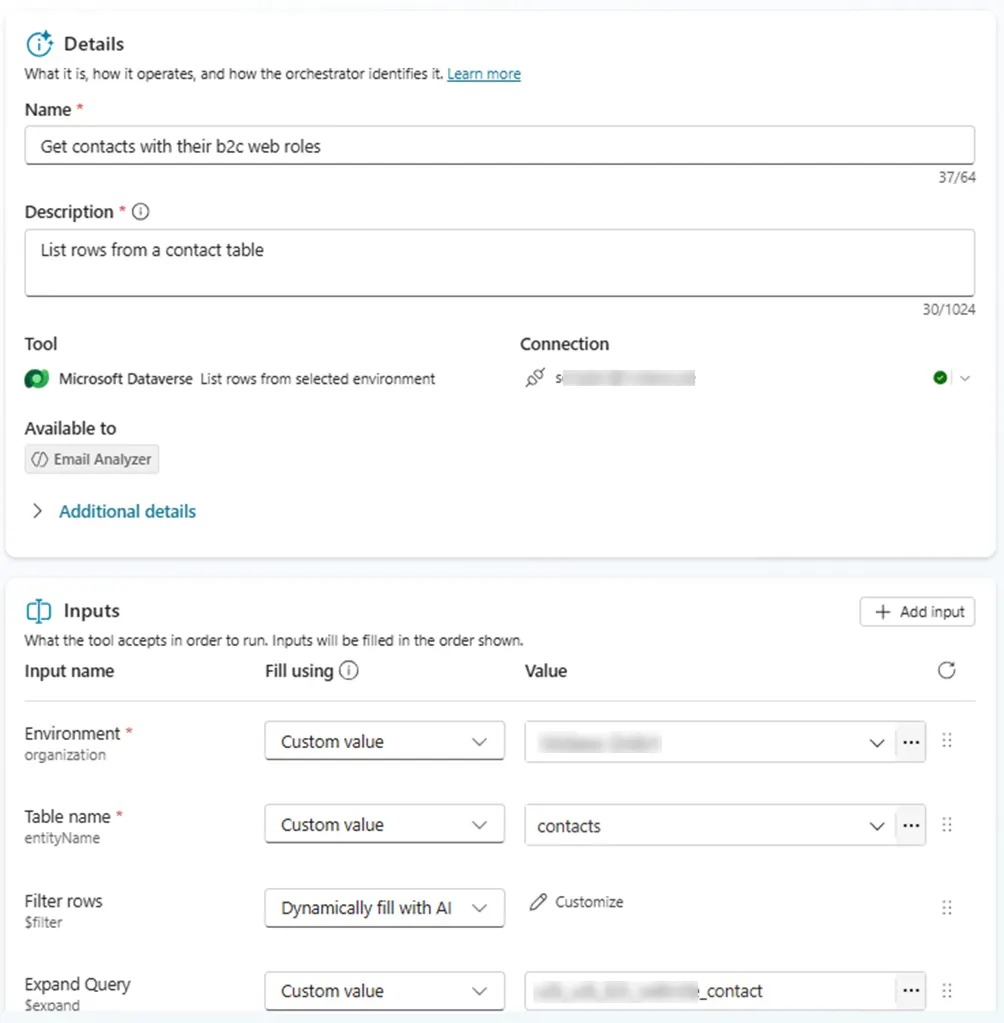
The input parameters were “Environment”, “Table Name”, and “Expand Query” to retrieve information from the role table. The resulting B2C role was used as an additional business context and had a priority impact on the further categorization of the letter.
The next step was to add another tool, the “List rows from selected environment”, with other parameters. It was used to search for relevant records in CRM based on the analyzed data from the letter, such as a case number or vehicle ID.
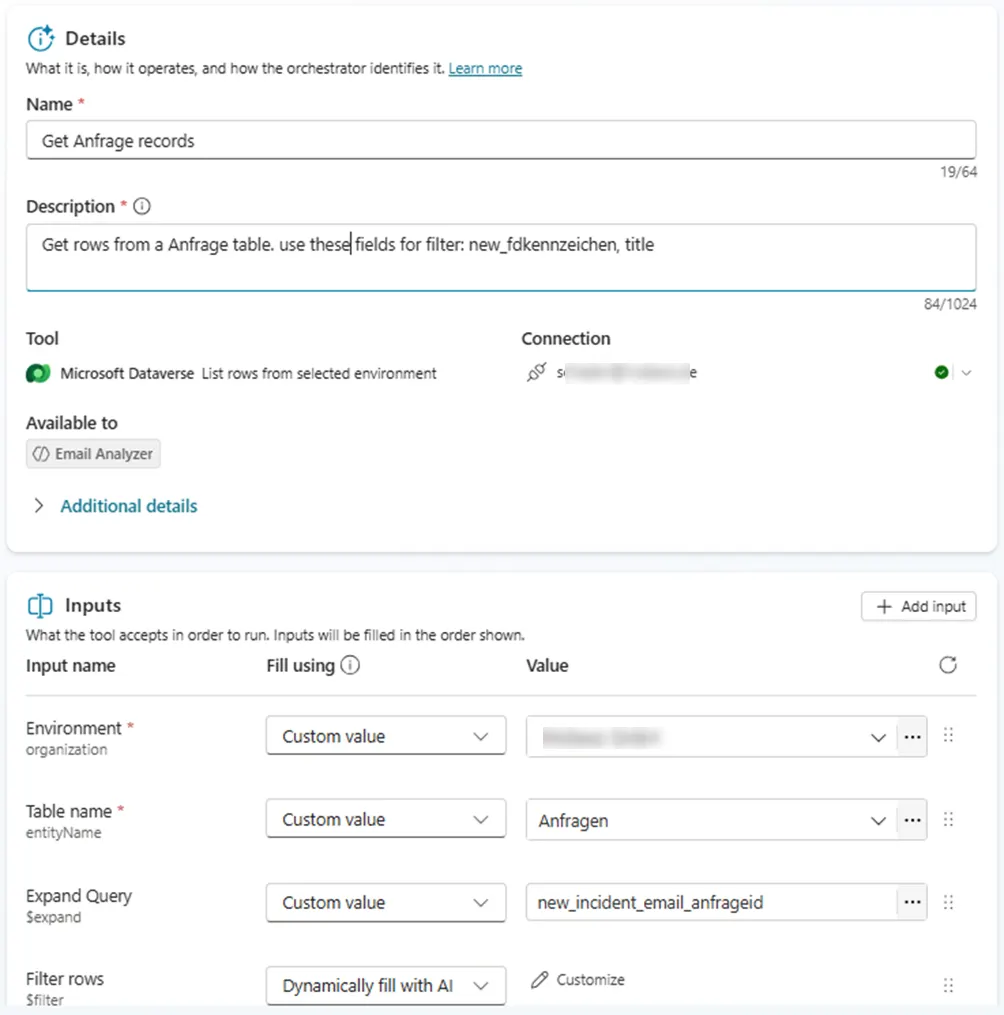
The settings defined which fields were used for filtering and which related entities needed to be loaded via the “Expand Query”.
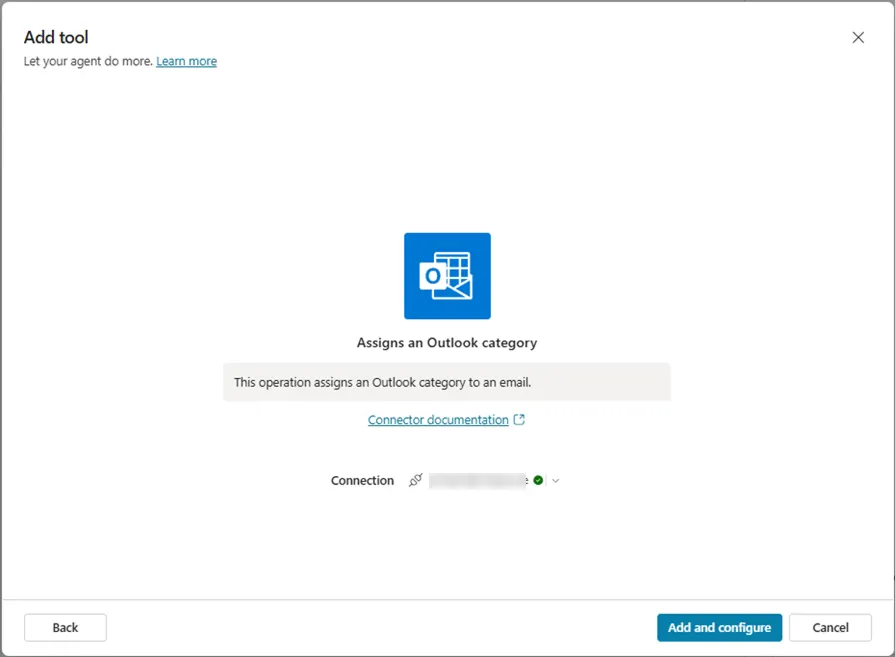
For visual classification of emails in Outlook, the “Assigns an Outlook category” tool was used, which automatically assigned a category to an email based on the results of the agent's analysis.
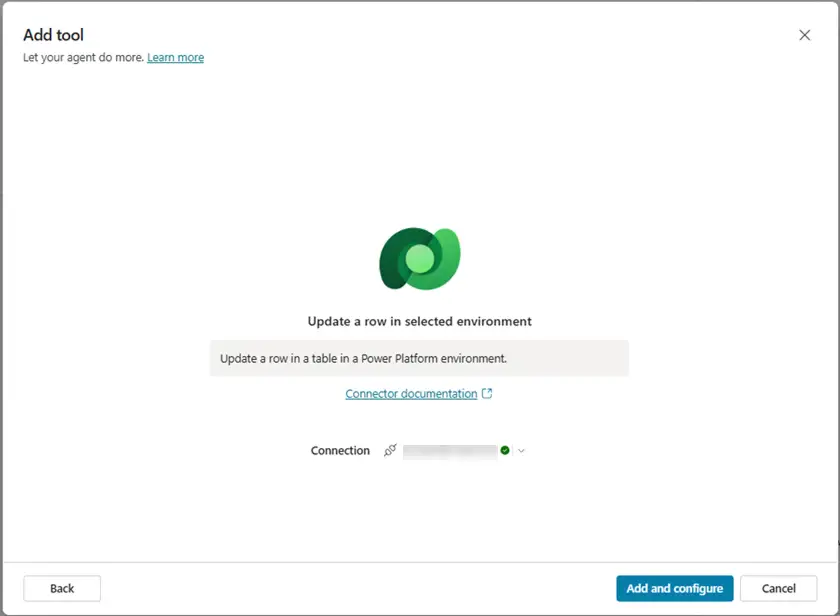
The “Update a row in selected environment” tool was used to attach a letter to the corresponding record in Dynamics 365.
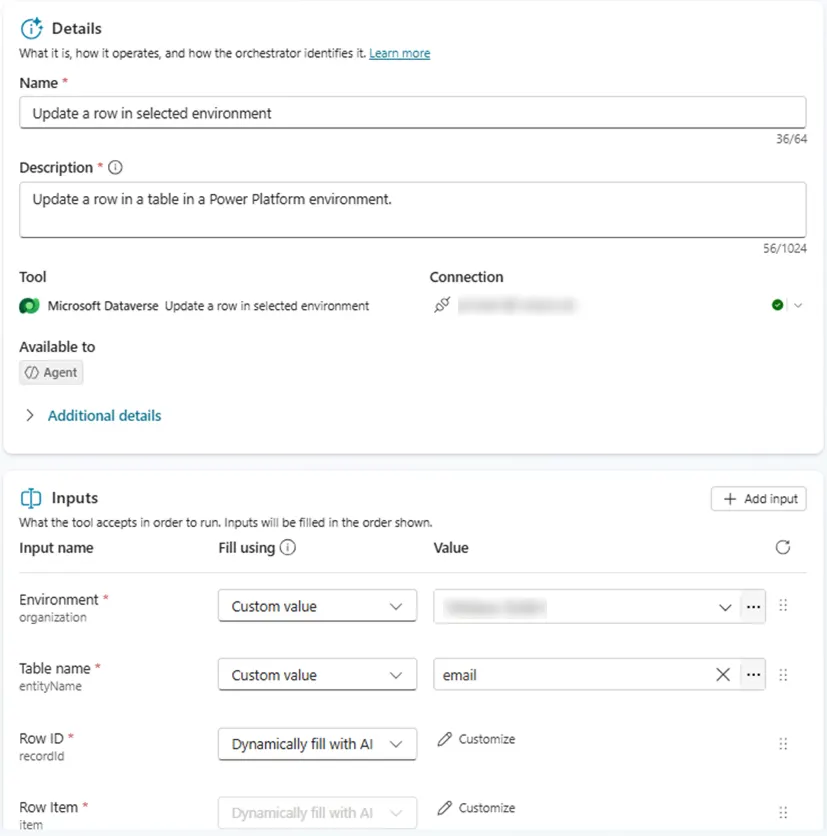
The parameters of this tool specified the target record identifier, which was passed to the regardingobjectid field, ensuring the correct connection between the email and the CRM entity.
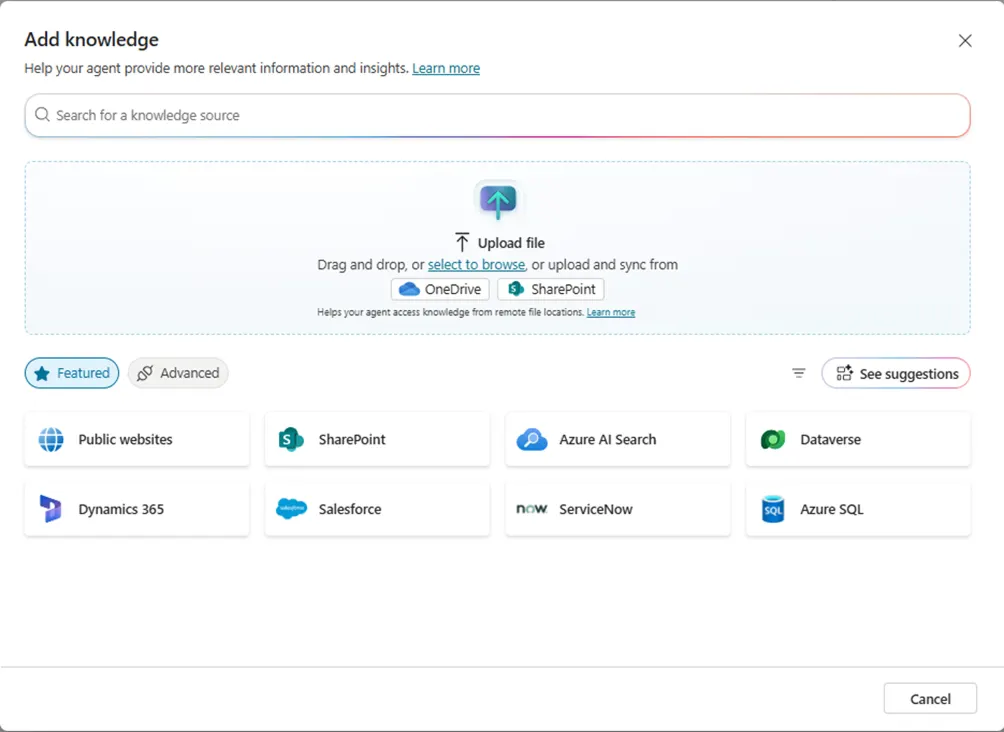
In the “Knowledge” tab, a file with a list of available categories was added, which was used by the agent as a knowledge base when classifying incoming emails.
After configuring the tools, instructions were given to the agent:

The instructions clearly described the sequence of actions: determining the sender’s role, analyzing the content of the email, selecting a category, searching for related records in CRM, and attaching the email to the appropriate entity.
“You are an AI agent responsible for processing incoming Outlook emails and linking them to the correct CRM records. Follow the steps below strictly and in order.”
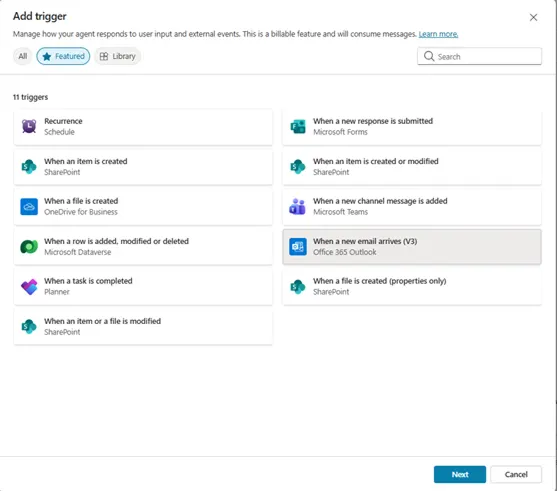
The last step was to set up a trigger that defined the conditions under which the agent would fire when a new email arrived.
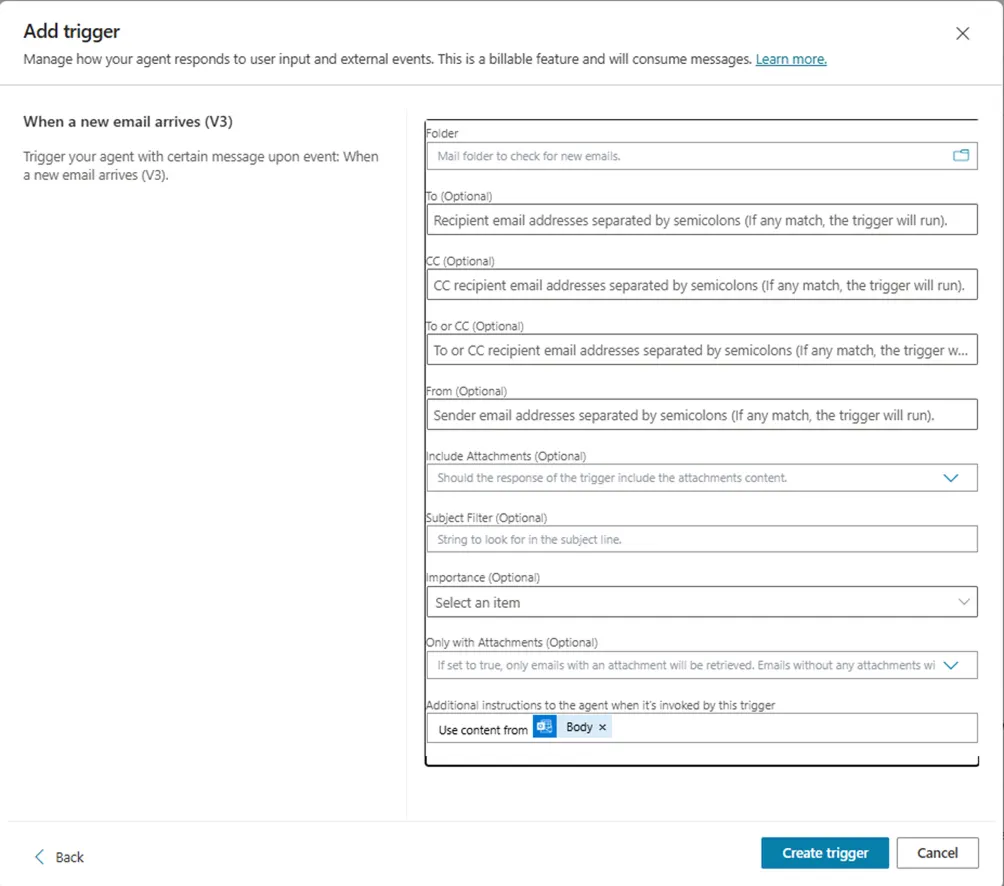
Then, it was necessary to set the basic parameters based on which the agent would operate.
After the configuration was complete, the agent was published using the Publish button and became available for productive use.
Next, the agent was tested.
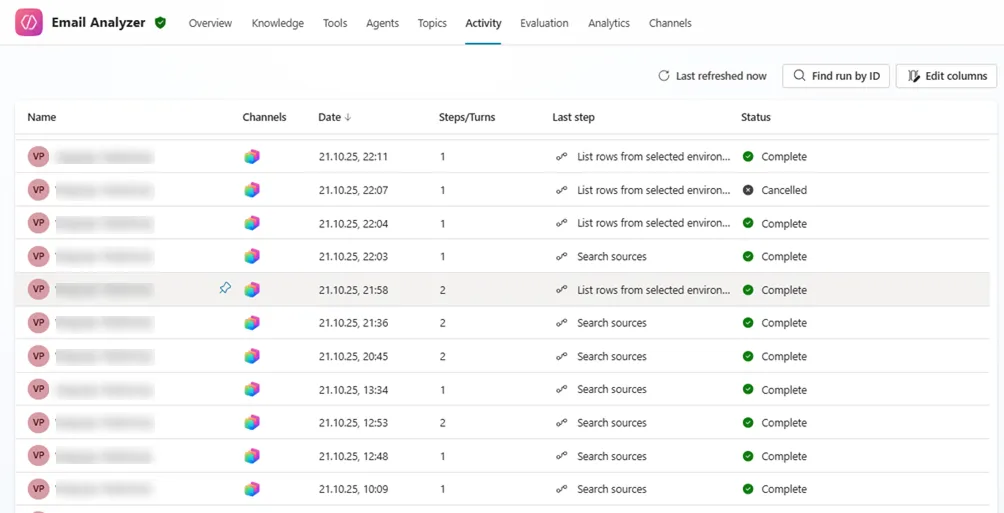
The final results demonstrate the team's high efficiency during the project.
Manual email pre-processing (tagging, categorization, and CRM linking) was fully automated, reducing handling time per email from several minutes to zero and freeing the team to focus on higher-value tasks.
Automated analysis, categorization, and CRM attachment eliminated inconsistencies caused by manual work, ensuring emails are classified correctly and linked to the right CRM entities.
Each incoming email is automatically analyzed, matched to the relevant case or entity, categorized in Outlook, and attached to Dynamics 365, creating a complete and traceable communication history.
The solution supports a growing volume of incoming emails without increasing workload or staffing needs, ensuring stable, efficient operations as the customer base and communication traffic expand.
The agent automatically processes incoming emails without user intervention, significantly reducing time, and simplifying daily work with mail and CRM. The main advantage is full automation of the process: categorization of emails, searching for related records, and attaching emails to the appropriate entities are performed without manual intervention.
Users no longer need to analyze each email or manually search for the required record in the CRM, as all preprocessing is automated. This reduces the team's workload, minimizes errors, and ensures stable, scalable work as the number of incoming messages increases.
Some Materials that May Interest You
UDS service: