



 Published:July 9, 2026
 Time to read:5 min
Microsoft Copilot Cowork: Installation, Configuration, and Skills Guide
A Short Overview of the Article
A Short Reference About the Author
Introduction
Requirement
Step-by-step Instructions
This section has three parts: setting up and opening Cowork, the advantages you gain, and the saving skills, finding them, and understanding what they are for.
Setting up Cowork with Microsoft 365 Copilot (premium)
-
Confirm your license.
Ensure that a Microsoft 365 Copilot (Premium) license is assigned to your account. Without it, Cowork will not appear.
-
Check the tenant’s enablement (admin).
The administrator will enable Cowork for the company, enabling usage-based billing/Copilot Credits, making Cowork discoverable, and enrolling the tenant in the Frontier program while it is in preview. This is a one-time organization step.
-
Open Microsoft 365 Copilot.
Go to m365.cloud.microsoft in your browser, or open the Microsoft 365 Copilot desktop app, and sign in with your work account.
-
Switch to Cowork.
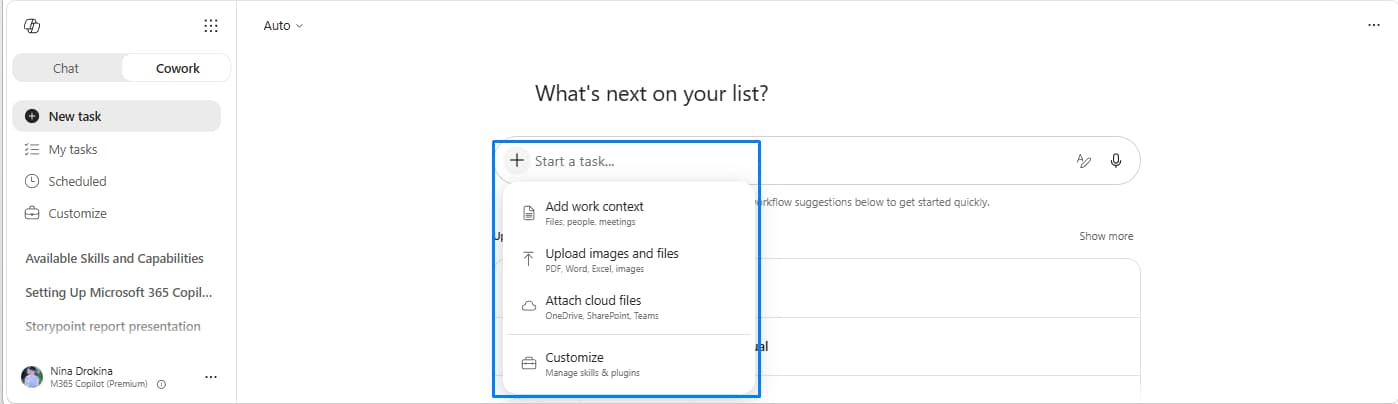
At the top of the page, select the Cowork toggle next to the “Chat”. The Cowork home page will open with a chat box and your recent tasks.
-
Start a task.
Enter your request in plain language or select from suggested prompts such as “Catch me up,” “Organize my inbox,” “Arrange my week,” “Prep for a meeting,” or “Research a company.” Press the “Enter” button to send.
-
Add context if needed.
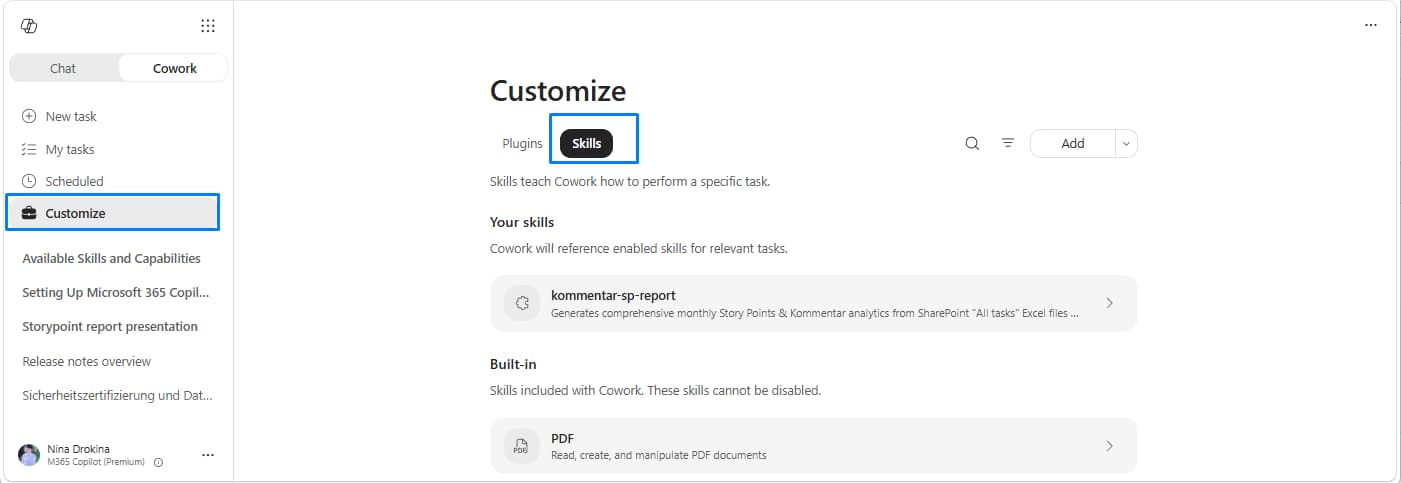
Use the “+” button (or drag and drop) to attach files, add work context (people, emails, Teams chats), or pick cloud files from OneDrive, SharePoint, or Teams. You can also dictate with the microphone button.
-
Follow along and approve.
Cowork shows its progress as it works and asks for your approval before performing any sensitive action. Review the preview, then choose “Send / Post / Create”, “Always allow”, or “Cancel”. You can pause, continue, or stop a task whenever needed.
-
Collect your results.
The files Cowork creates appear in the side panel under the "Output" folder, each with the "Download" and "Preview" buttons. Anything you provided sits in the "Input" folder.
! Note. Cowork never takes action without your approval. Always check the recipients, content, and details in the approval dialog before you confirm.
The advantages of using Cowork
Cowork adds value beyond ordinary Copilot chat in several concrete ways:
-
It completes end-to-end tasks
It handles multi-step work in one go instead of one answer at a time, for example, reads updates, drafts a summary, and schedules a follow-up.
-
It works across apps
Cowork moves seamlessly between Outlook, Word, Excel, PowerPoint, Teams, OneDrive, and SharePoint in a single workflow.
-
It uses reusable skills
It captures how you like a workflow done, so the results stay consistent every time with no re-explaining.
-
You stay in control
It asks for approval before sending, posting, or scheduling, and you can pause, resume, or cancel.
-
It conducts deep research
It synthesizes information from multiple sources into a structured, comprehensive analysis.
-
It performs automation
It can run prompts on a schedule, so recurring tasks, like briefings, or digests, happen automatically.
-
It is enterprise-safe
It works only with OneDrive and SharePoint content, under your existing permissions and compliance controls.
Saving skills, finding them, and understanding what they are for
What a skill is (and why it is needed)
A skill is a reusable recipe that teaches Cowork how you want a particular job done. It is different from a prompt.
A prompt is a one-time instruction you type in the chat. It does the job once and disappears when the chat ends, ideal for one-off or novel tasks. A skill is a reusable recipe saved in your OneDrive that guides Cowork in completing a specific task using your preferred methods and approach.
Cowork automatically chooses it based on how you word your request, so the same workflow is applied consistently every time. Skills are ideal for repeatable work, or standards your team must follow, and they can hand off to one another to build multi-stage workflows. Skills are needed because built-in capabilities are general, they do not know your templates, your team’s conventions, or the workflows you have refined over time. A custom skill fills that gap, so Cowork produces consistent, on-brand results without you having to re-explain each time.
The 13 built-in skills
Every tenant gets these skills out of the box. Cowork loads the skills required for each task:
Word: reading, creating, and editing Word documents.
Excel: reading, creating, and manipulating Excel spreadsheets.
PowerPoint: reading, creating, and editing PowerPoint presentations.
PDF: reading, creating, and manipulating PDF documents.
Email: drafting, replying, forwarding, and sending through Outlook.
Scheduling: scheduling meetings and managing your calendar.
Calendar managing: full-spectrum calendar reviewing and cleaning-up.
Meetings: preparing for meetings, creating summaries, and capturing action items.
Daily briefing: providing a prioritized brief from calendar, email, and Teams.
Communications: providing audience-adaptive updates and announcements.
Enterprise Search: searching across your organization's content.
Deep Research: synthesizing multiple sources into one report.
Adaptive Cards: rendering structured, interactive cards.
Where to find your skills
There are three easy ways to reach and manage skills:
-
The Customize page
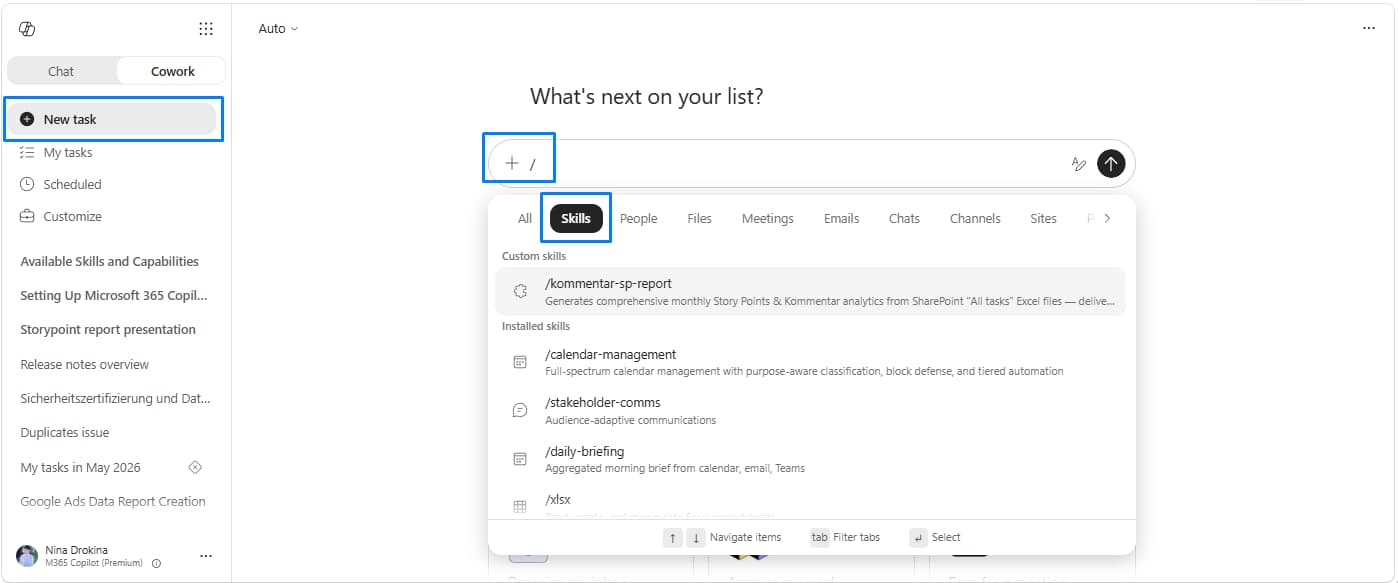
On the Cowork home page, select the “+” button next to the task box, then choose “Customize · Manage skills & plugins.” Open the “Skills” tab: it shows your skills (custom skills you or your IT team added, and built-in skills, the pre-installed set). You can enable or disable any skill here.
-
The inline “/” picker
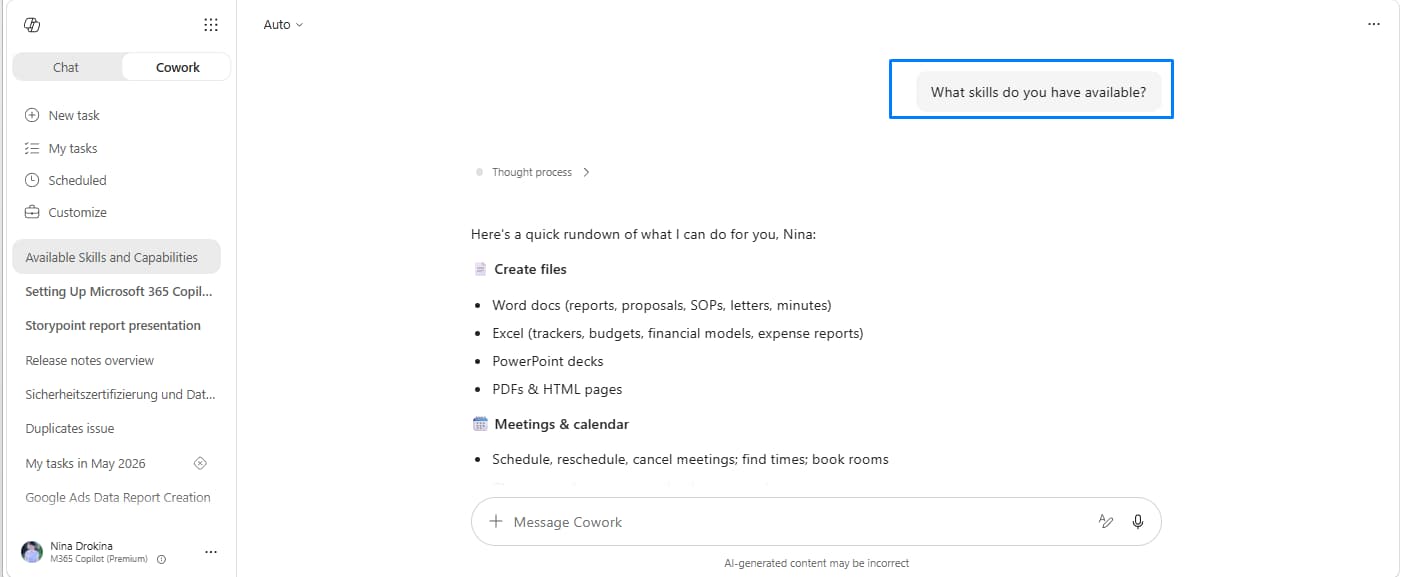
Type “/” in the task box to surface your skills (people, files, and meetings) without leaving the conversation.
-
Simply ask
Type: “What skills do you have available?” and Cowork will list every skill with its description.
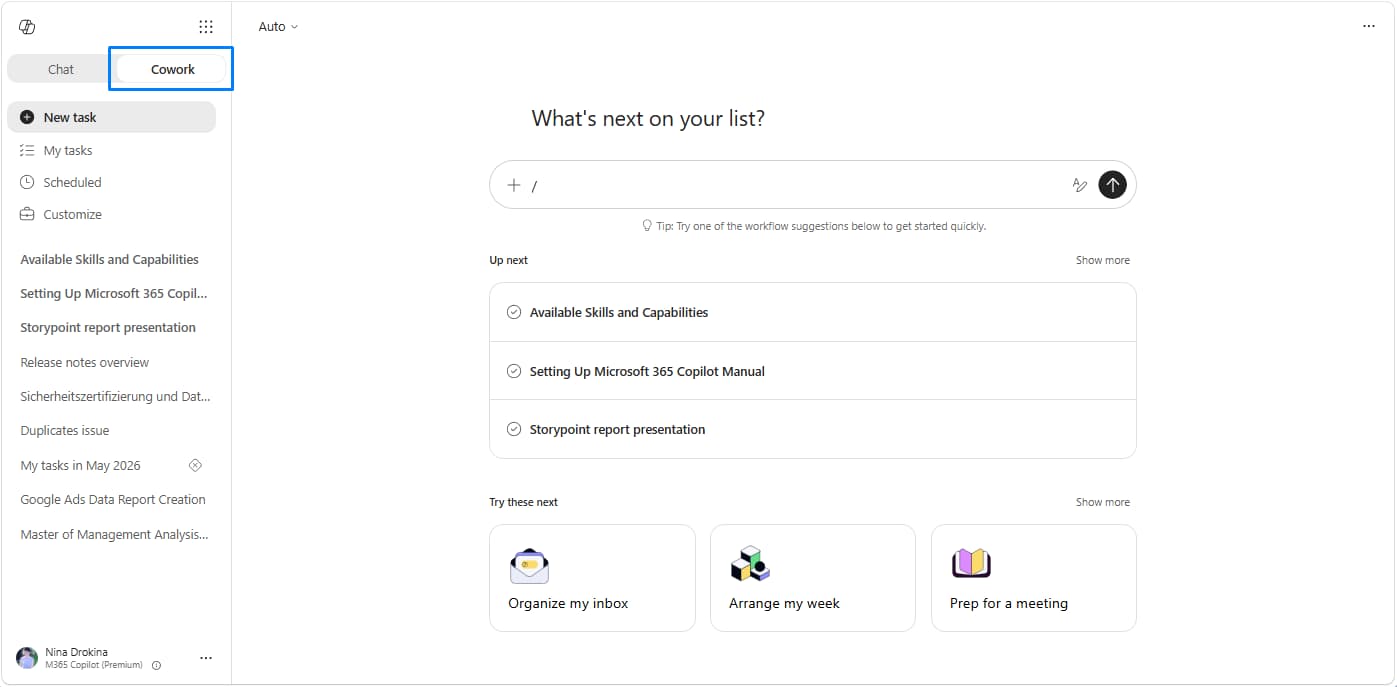
! Note. Custom skills live in your OneDrive at: Documents / Cowork / Skills / <skill-name> / SKILL.md
Each skill is a single SKILL.md file inside its own subfolder. Because it sits in OneDrive, it follows you across sessions and devices.
How to save a custom skill
You can create and save a skill in two ways:
Option 1: Ask Cowork (the easiest)
In the Cowork chat, say something like: “Create a custom skill called “weekly status” that will draft my Friday status update using our team template.”
Cowork will guide you through the name, description, and instructions, write the “SKILL.md file”, and save it to your OneDrive automatically.
Option 2: Create a skill manually
-
Create the folders.
In OneDrive, open the “Documents”, create a Cowork folder (if it does not exist), then a “Skills” folder inside it, then a subfolder named for your skill (e.g., branded-document).
-
Add a SKILL.md file.
Inside this subfolder, create a file called “SKILL.md”.
-
Write the frontmatter and instructions.
Begin with a YAML block containing the skill’s name and description, then add the instructions in plain Markdown.
Use lowercase letters and hyphens for the name. Make the description specific, as Cowork uses it to determine when the skill should be loaded.
-
Save the skill.
Once saved to OneDrive, the skill will appear in your skills list and be ready for Cowork to use.
Example — a simple SKILL.md:
--- name: branded-document description: Generates consistently formatted branded Word documents. Use this when asked to create formal documents, reports, or handover notes that must follow the standard company template. --- When asked to create a Word document, follow these conventions: - Start with a title page: title, author, date, version number. - Use Heading 1 for sections and Heading 2 for sub-sections. - End with a "Next Steps" section. - Write in a professional, accessible tone; use active voice. ! Note.
- Make the description specific, not clever “Generates our branded status report” beats “does reporting.” The description drives whether Cowork picks the skill.
- Any template or file a skill refers to must live in OneDrive or SharePoint, not on your device.
- You can create several custom skills (early guidance cited up to 20 per user; newer guidance up to 50, the limit is increasing, so check the current cap in your tenant).
Conclusion
Frequently Asked Questions that May Interest You
Microsoft Copilot Chat responds to individual prompts within a single app, such as summarizing an email or creating a document. Cowork is an agentic mode that can complete multi-step tasks across multiple Microsoft 365 apps, including Outlook, Teams, Word, Excel, OneDrive, and SharePoint. It can plan a workflow, execute each step, and request your approval before performing sensitive actions such as sending emails or scheduling meetings.
If the Cowork toggle is missing, your organization may not have enabled the feature yet. You'll need an active Microsoft 365 Copilot (premium) license, a supported work account, and your IT administrator must enable Cowork for your tenant. During the preview period, your organization may also need to be enrolled in the Microsoft 365 Frontier program.
When a task requires customer service capabilities, Copilot Cowork can load the relevant Dynamics 365 Customer Service skills and apply the instructions, formats, and workflows defined for that task. These skills help agents investigate cases, draft customer responses, create escalation summaries, and take actions across D365 and M365, all from a single workplace. This helps deliver more consistent outputs while reducing repetitive manual work.
Use a prompt for one-time or unique requests. Create a custom skill when you regularly perform the same workflow or need Cowork to follow specific templates, formatting, or company standards. Custom skills are saved in your OneDrive and can be reused automatically, helping you produce consistent results without repeating the same instructions each time.
Related Content
Table of contents: