
A Short Overview of the Article
This article is a short, practical guide to using the Dynamics 365 CRM Agent with the Dataverse MCP server inside Visual Studio Code. It covers what the setup gives you, what you need before you start, how to connect it step by step, and how to get good results once it is running.
It is written as a template so that any team can reuse it. Before you share it, swap the “YourOrganization” and the example URLs for your own.
A Short Reference About the Author
Nina is a highly experienced Project Manager and Account Lead who leads a team of specialists across Dynamics 365, Power Platform, Azure, Copilot, AI, and related Microsoft technologies. She is dedicated to delivering tailored solutions that address each client's unique business needs. In addition, Nina has extensive hands-on experience implementing Dynamics 365 Customer Service, Field Service, and Marketing, helping organizations optimize operations and enhance customer engagement.
Introduction
The Dynamics 365 CRM Agent lets your team work with CRM data without leaving the Visual Studio Code. It connects to a Dataverse MCP server, where MCP (Model Context Protocol) is an open standard that enables AI tools to connect with enterprise data. Once it is connected, you can ask questions and make changes from the editor instead of switching to the browser and clicking through screens.
Moreover, with this, you will get a working Dynamics 365 CRM Agent in VS Code, reachable from GitHub Copilot Chat with the ability to read and update CRM data in plain language, without leaving your editor, and a setup you can hand to the rest of the team.
Learn how the UDS AI Assistance Service can help you implement such an agent and much more.
Why Use Dataverse MCP
Here is what the MCP server brings to day-to-day work:
-
Natural language instead of query syntax
You can ask things like “show me my open opportunities” or “find recent orders for this customer” and get a real answer. There is no FetchXML or OData to hand-write.
-
No SDKs or custom APIs to maintain
The remote server is hosted and managed by Microsoft. A simple “Sign in” connects your client, so there is no custom SDK or local integration layer to maintain and keep up to date.
-
One standard, many tools
Because MCP is an open protocol, the same Dataverse connection works across VS Code, Copilot Studio, Claude, and other MCP clients. Your data stays portable rather than being tied to a single integration.
-
Grounded in your real schema
The agent can inspect your live tables, columns, and relationships before generating responses or executing actions. That avoids the common problem where AI guesses column names and produces code that looks right but fails against your environment.
-
Your security still applies
Access is granted through your existing Dataverse roles and field-level permissions, plus Microsoft identity features such as MFA. The agent is limited to viewing and performing only the actions that the signed-in user is authorized to access.
-
Reading and writing, with guardrails
You can query data and also create or update records. By default, destructive actions, such as deleting a record or a table, require explicit user confirmation.
-
Less context switching
You stay in your editor. Asking a question about CRM data no longer means opening a browser or writing a one-off query.
-
Central governance
Since the server is managed in the cloud, admins can enforce security policies and turn clients on or off from the Power Platform admin center, which suits distributed and hybrid teams.
! Note. Dataverse MCP uses your existing Dataverse security roles. It is not a way around permissions, so people see only what they already have access to.
The capability has grown quickly through 2025 and 2026, and the usage can be subject to licensing. Check your current licensing and which clients your admin has enabled.
Requirements
A few things need to be in place before you start:
-
Visual Studio Code, installed and reasonably up to date
-
A CRM account providing access to your YourOrganization Dynamics 365 environment
-
Internet access, with the agent signing in and talking to the MCP server online, so you need a stable connection
Step-by-step Instructions
This section covers the whole flow: connecting the agent, using it, a couple of tips, and what to try if something goes wrong.
Setting up the agent
This usually takes about five minutes if you follow these steps:
-
Open the VS Code.
-
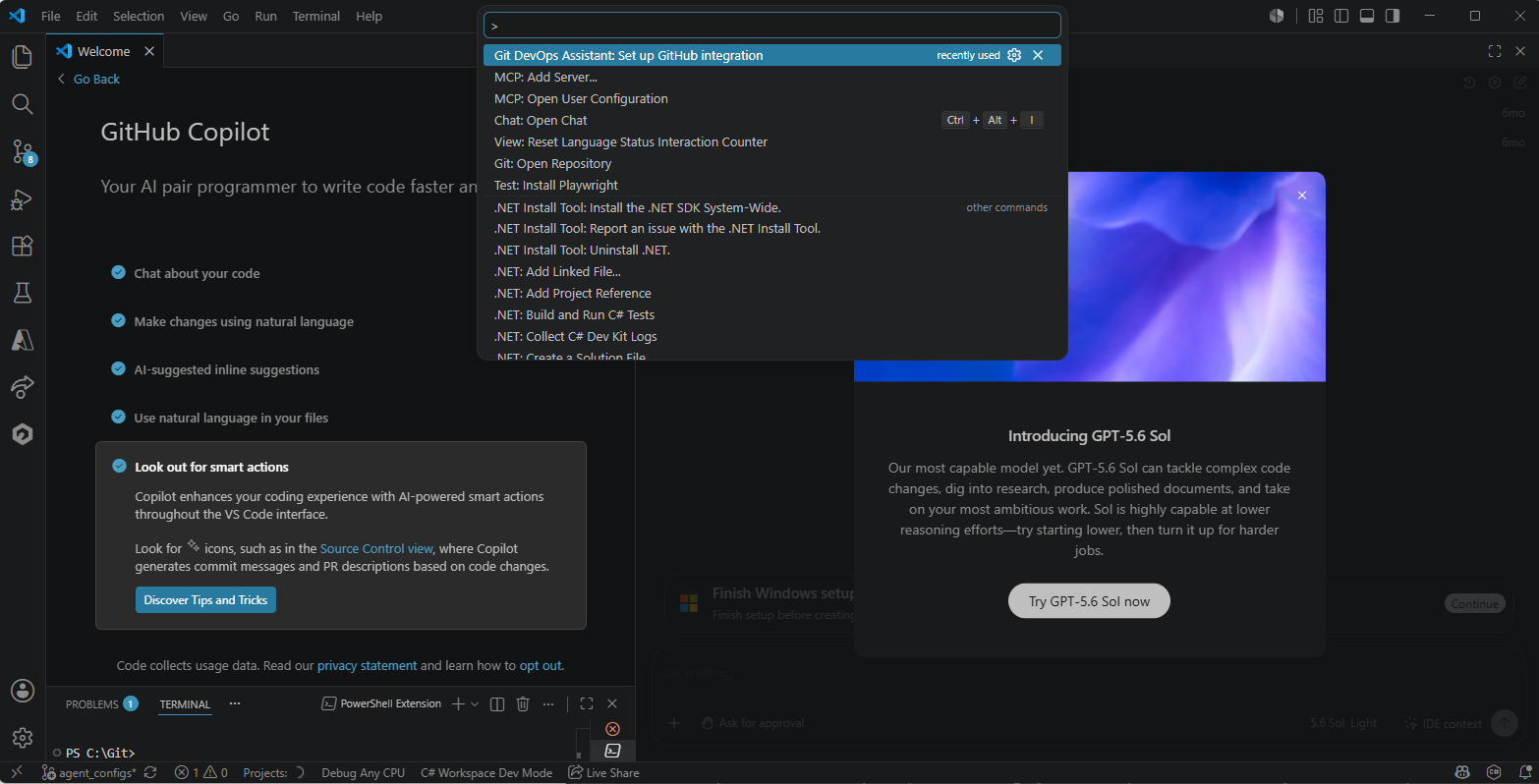
Open the "Command Palette". Press "Ctrl+Shift+P", or "Cmd+Shift+P" on a Mac.
-
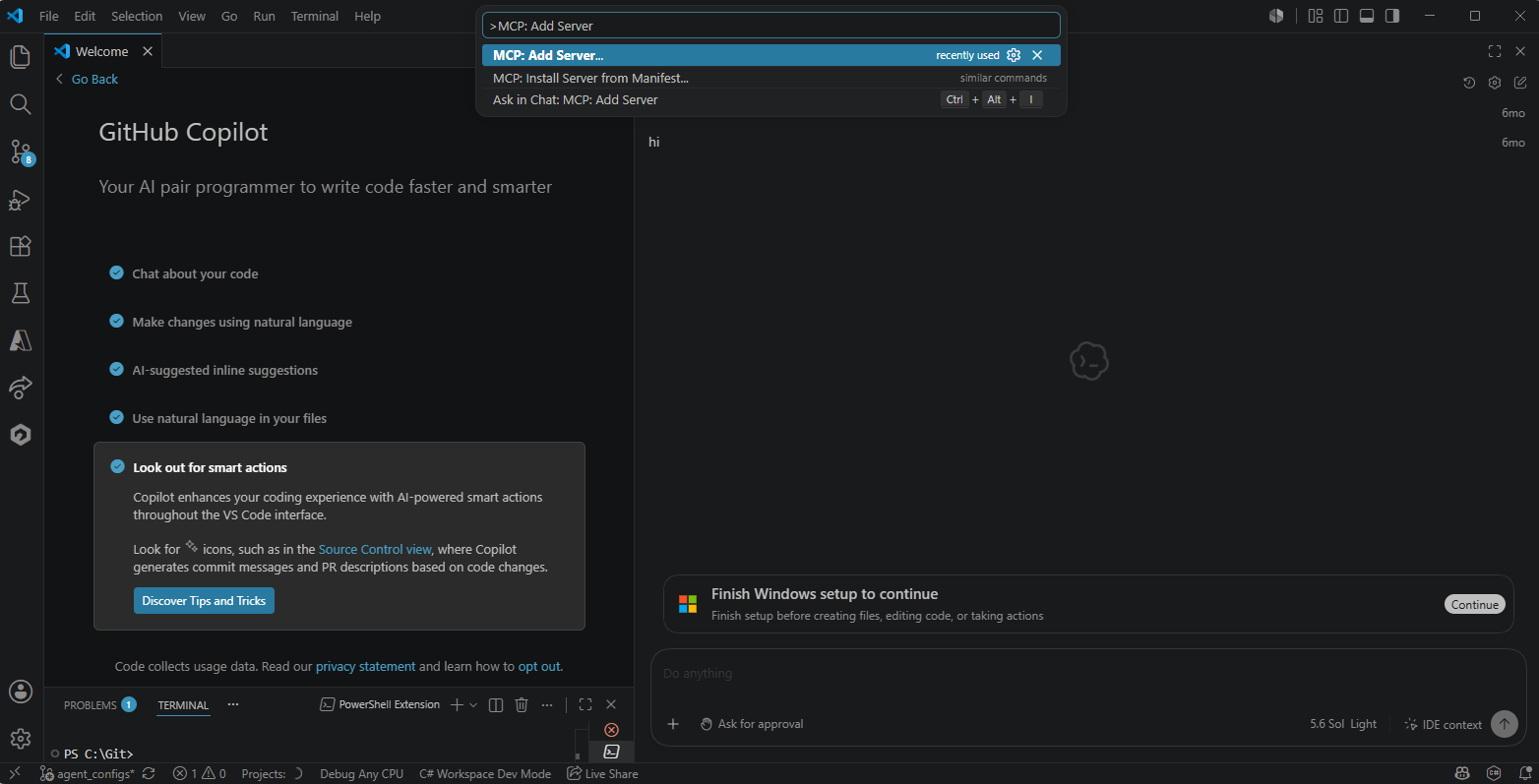
Add the server. Type the MCP: Add the "Server"... and pick that command when it shows up.
-
Pick the server type. When the VS Code asks, choose the HTTP (HTTP or Server-Sent Events).
-
Enter the server URL. You can set different environments, like production, staging, or development, for example:
Production: https://YourOrganization.crm4.dynamics.com/api/mcp
Development: https://YourOrganization-dev.crm4.dynamics.com/api/mcp
-
Name the server. Give it a name you will easily recognize later, such as Dynamics 365 MCP.
-
Select the target, then click on the "Global" to make the server available across all your projects.
-
Sign in. A window pops up. Click on the "Allow", then choose your "YourOrganization CRM" account to log in.
! Note. About the server URL:
The crm4 part of the address is the region your environment lives in. Yours might be crm, crm2, crm11, or something else. To check, open your CRM in a browser and look at the address bar. The part before ".dynamics.com" is what you need.
Using the MCP
Once the MCP is set up, you are ready to go:
-
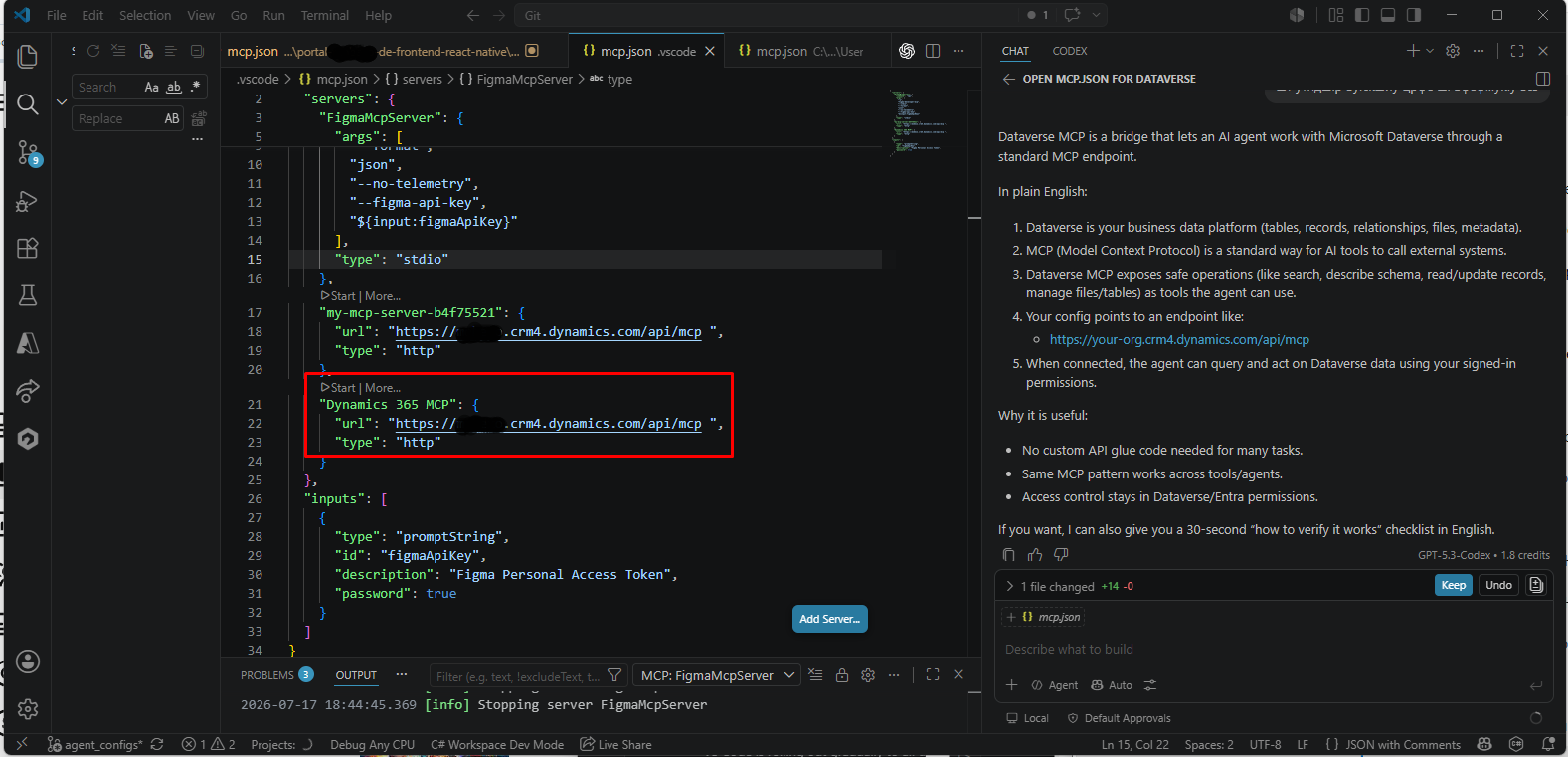
Start the server. In the VS Code, press the "Start" where the server appears.
-
Pick the agent. Open the "GitHub Copilot Chat" and select the "Agent mode".
-
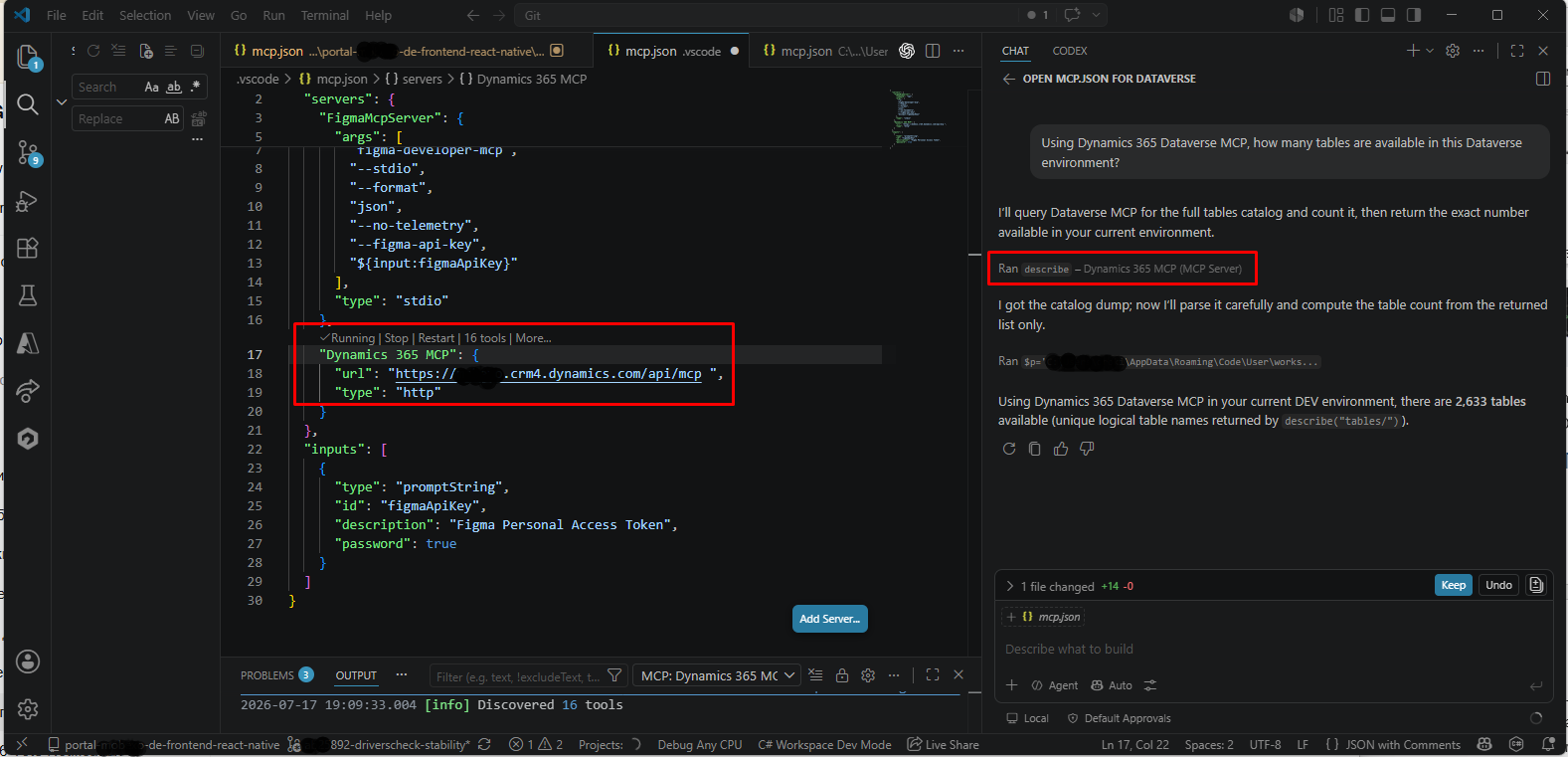
Ask away. Put your Dynamics CRM questions to the agent, and it will help.
! Note. Tips for better results:
-
Name the product: mention Dynamics CRM or Dynamics 365 in your prompt, so the agent knows you are asking about CRM and not anything else.
-
Keep it specific: short, clear questions get better answers than long, vague ones.
If something goes wrong
If you encounter an issue, begin by checking the basics. These four checks clear up most problems:
-
Check your connection
Make sure you are online and the connection is stable.
-
Check the URLs
A small typo in the server address is easy to miss, so read them again.
-
Sign in again
Sign out of your CRM account and back in.
-
Restart the VS Code
Closing and reopening clears up a surprising number of small glitches.
Conclusion
The Dynamics 365 CRM Agent with Dataverse MCP brings AI much closer to everyday Dynamics 365 development and administration. Instead of switching between applications, writing queries, or searching through documentation, you can interact with your Dataverse environment using natural language directly from Visual Studio Code.
Whether you need to explore your data model, retrieve information, update records, or automate repetitive tasks, MCP provides a secure and familiar way to work with Dataverse while respecting your existing security roles and permissions. As Microsoft's AI ecosystem continues to evolve, Dataverse MCP is becoming an essential tool for Dynamics 365 professionals, helping developers, consultants, administrators, and business analysts work faster and more efficiently without leaving their editor.
Frequently Asked Questions that May Interest You
No. While the agent runs inside Visual Studio Code, you don't need to write code to use it. You can interact with your Dynamics 365 data using plain-language prompts, making it useful for developers, consultants, administrators, and power users alike. Some familiarity with Dynamics 365 and Dataverse is helpful, but programming knowledge is not required for everyday tasks.
Yes. In addition to retrieving information, the agent can create and update Dataverse records when you ask it to. Any actions it performs are governed by your existing Dataverse security roles and permissions, and potentially destructive operations, such as deleting records, require explicit confirmation.
Yes. You can configure separate MCP server connections for environments such as development, testing, staging, and production. Each environment has its own server URL, allowing you to switch between them while working in Visual Studio Code.
First, verify that your internet connection is stable and that the MCP server URL is correct for your Dynamics 365 environment. If the issue persists, sign out and back into your Microsoft account, restart Visual Studio Code, and confirm that your administrator has enabled Dataverse MCP access and that your account has the required permissions.
Related Content
UDS Blog articles:
- Microsoft Copilot Cowork: Installation, Configuration, and Skills Guide
- Dynamics 365 Customer Service Empowered with AI Agents
- Dynamics 365 AI Agents and Copilot Transforming Sales in 2026
- Intelligent Document Processing with Microsoft AI
- AI CRM Chat Assistant for Invoice Validation
- Dynamic AI Assistant for Invoicing
- Training and Deploying Custom AI Models for Specific Business Applications
- AI-powered Document Recognition
- Azure Open AI Chatbot Integration with Azure DevOps
