





A Short Reference About the Author
Andrei is a highly experienced Dynamics 365 Consultant who specializes in Dynamics 365, Power Platform, Power Automate, Azure, and Copilot Studio, among other technologies, and has completed numerous successful projects for our satisfied clients.
Introduction
Working with large datasets can be time-consuming, especially when you need to make the same change to hundreds or thousands of records. Power Automate makes this easier by allowing you to update multiple records at once, reducing hours of work to just a few automated steps. This not only saves time but also helps keep your data accurate, which is essential for any process that depends on up-to-date information.
In this article, we will demonstrate how to use Power Automate to update multiple records simultaneously. You will see a step-by-step example of setting up a flow to handle bulk updates efficiently. Whether you are updating customer info, inventory, or transactions, these techniques will make managing large datasets simpler and more reliable.
Requirements
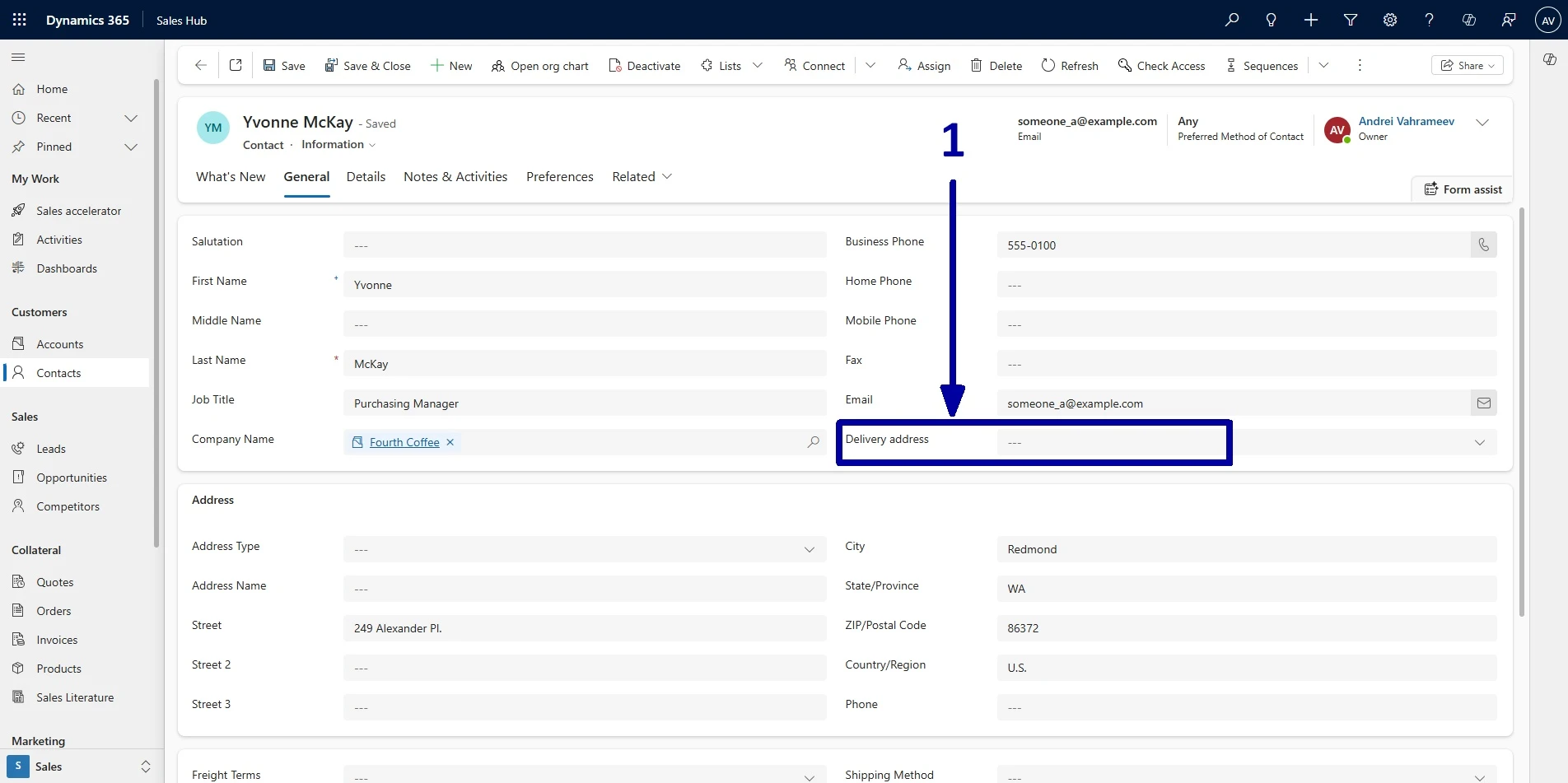
Our company has recently introduced a new delivery option that allows customers to select any delivery address, not just their primary one. To support this, we added a new field called “Delivery address” to the Contact table. It has two options:
- Existing (default), which uses the customer's main address from the CRM.
- Custom, which lets the user enter a different address.
This field has been recently added, and, by default, it is set to "Existing" for new records.
The older records have this field blank (1).
Since this field may be used in Power BI reports and other processes, we must ensure it is populated for all the records to maintain the data consistency. To do this, we will use Power Automate to update all the older records to the default value. This is a fast and accurate way to handle large updates without manual intervention.
Step by Step Instructions
We will skip the basics and assume you already know how to access Power Automate and select the right environment.
-
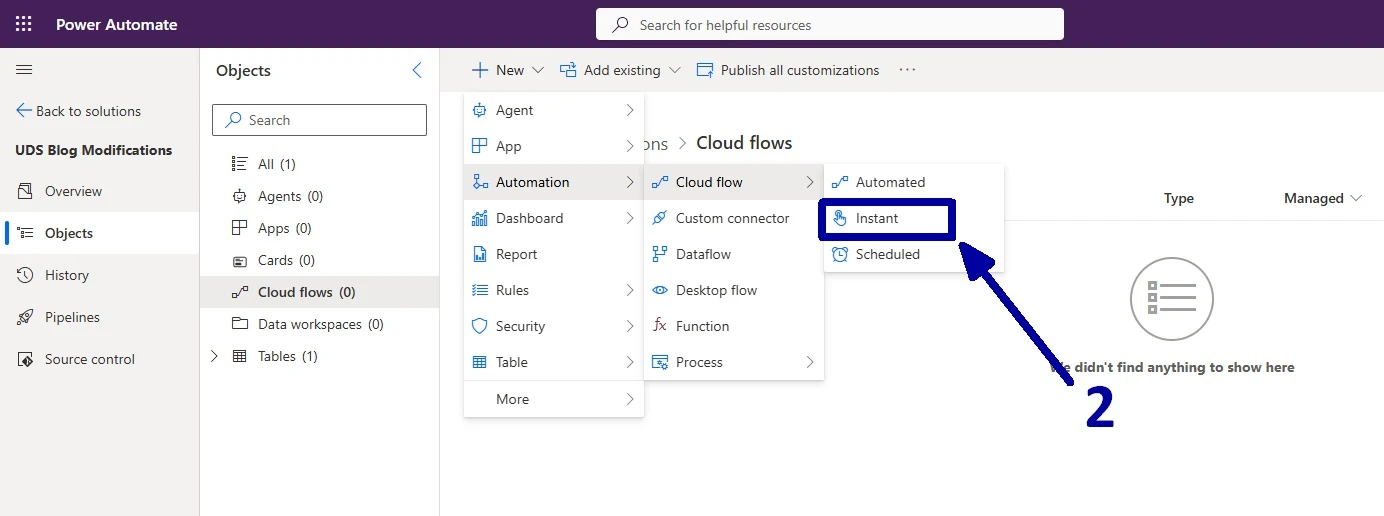
In the environment where you plan to work, start by creating a new instant cloud flow (2).
-
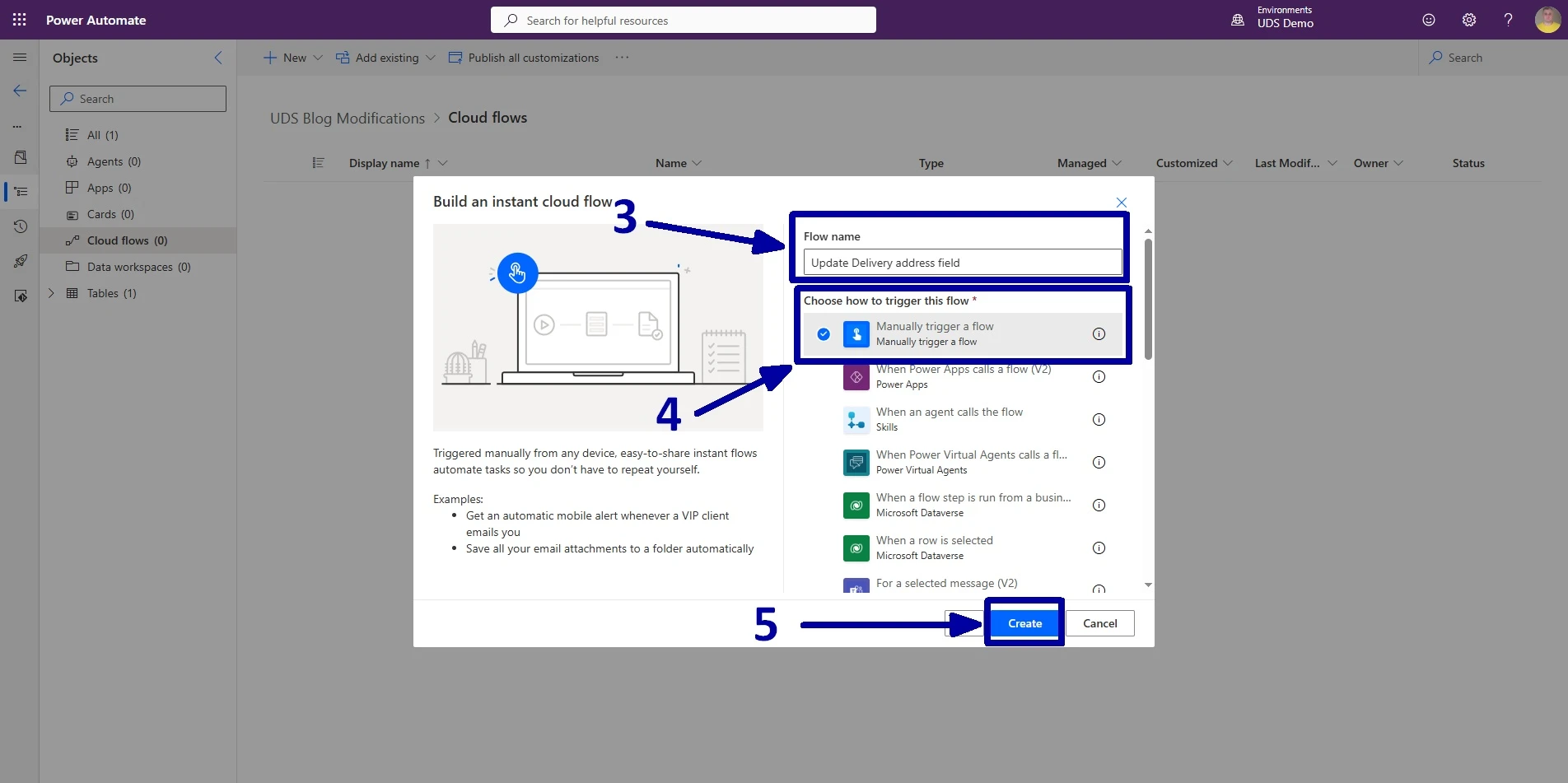
Give the flow a clear name (3), set the trigger to “Manual” (4), and then click on the “Create button” (5) to proceed.
-
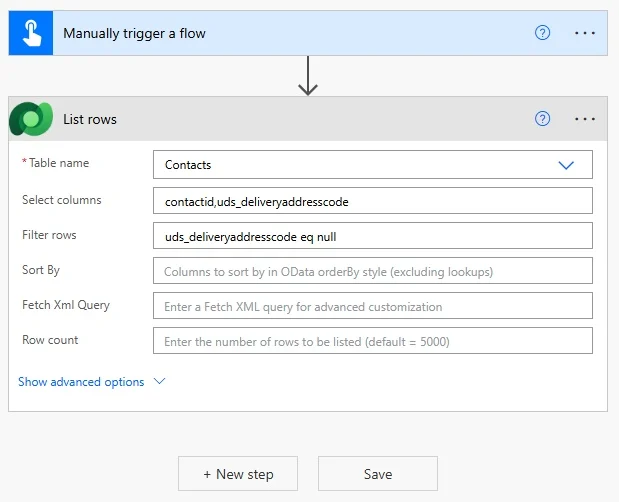
On the next screen, we need to choose which fields the flow will use.
In the “Select columns” section, choose these two fields:
- contactid (This tells the flow which records it is working with.)
- uds_deliveryaddresscode (We will use this to filter the records.)
Next, in the Filter rows section, enter this expression:
"uds_deliveryaddresscode eq null”
This means the flow will only find records where the Delivery address field is empty, since those are the ones we need to update.
-
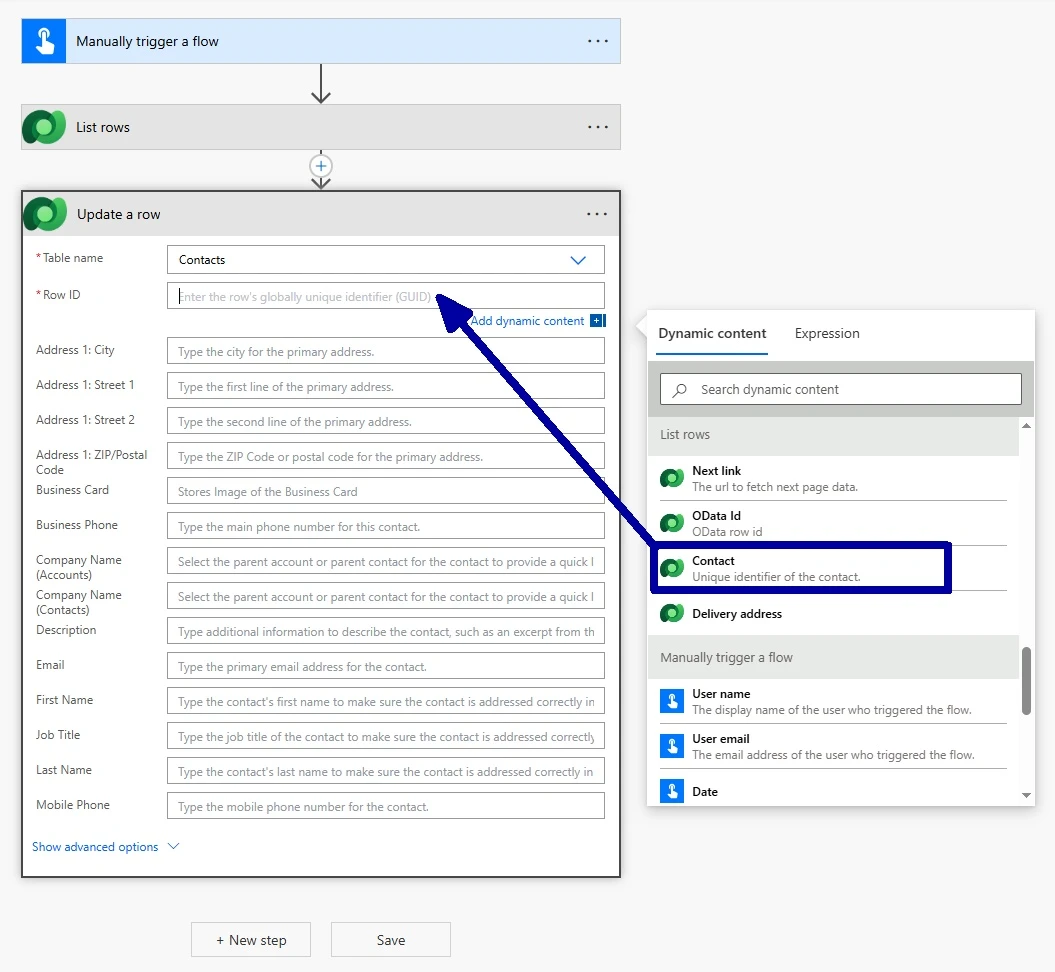
Next, add the “Update a row” action.
For this, do the following:
- Choose the Contacts table.
- In the “Row ID” field, select the contactid from the previous step.
This tells the flow exactly which record to update.
-
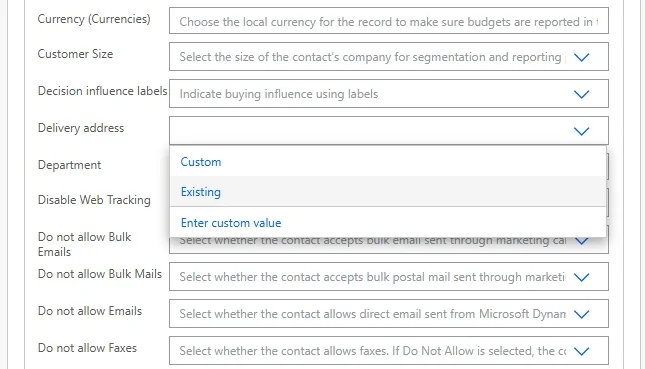
Now, open the "Apply to each" and "Update a row" sections. Then, scroll down to the "Delivery address" field, click on the dropdown, and choose “Existing”.
! Note. When you add the action, it will automatically go inside an "Apply to each" loop. That is expected: it only means the update will run for each record that matches the filter we set earlier in the "List rows" step.
-
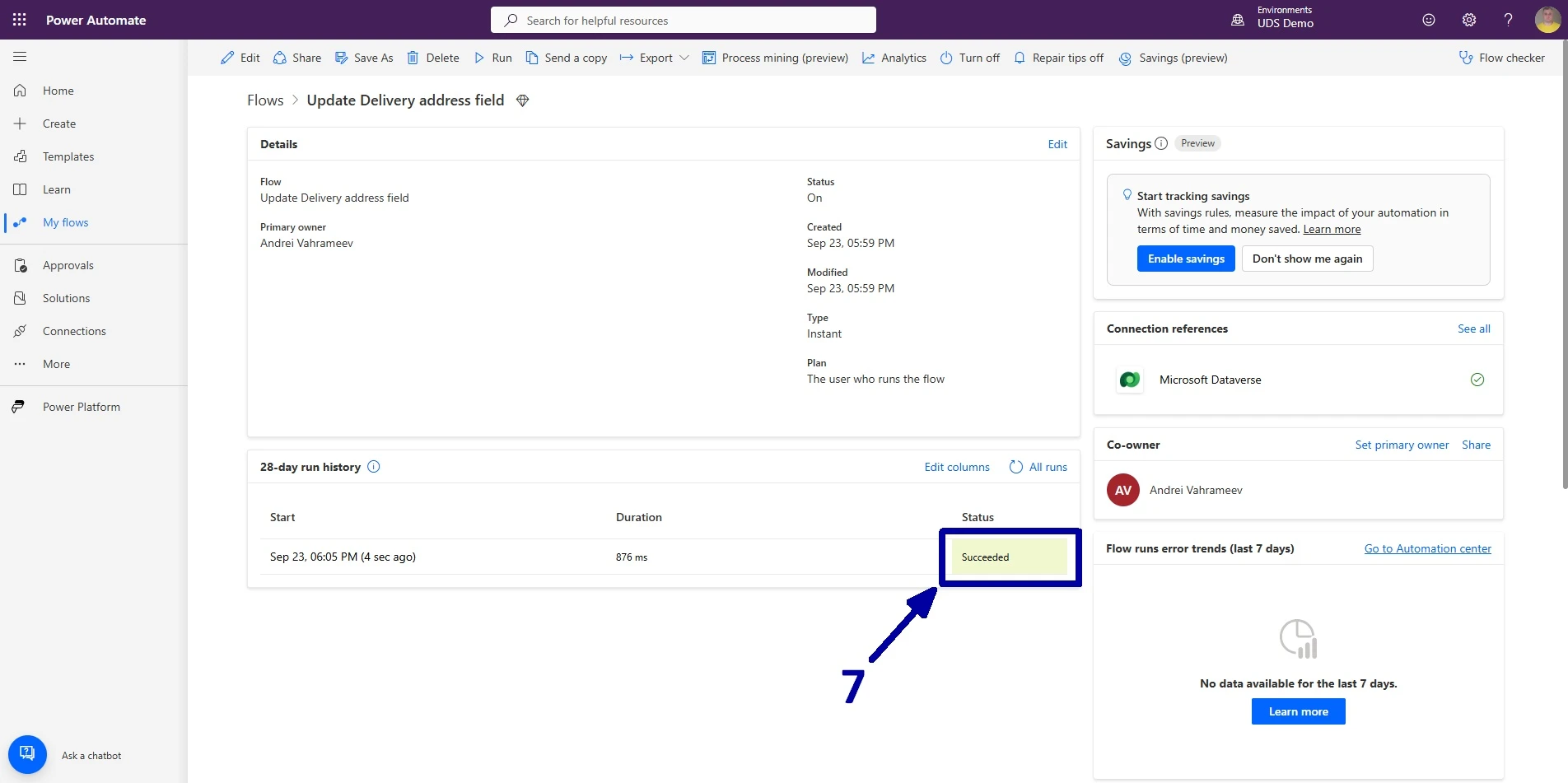
Wait for the flow to finish (7).
! Note. This could take anywhere from a few seconds to over an hour, depending on how many records and fields are being updated.
! Note. If you are updating more than 5,000 records, it is better to use a scheduled flow instead. That way, it can run automatically—like overnight—without slowing down your system.
-
Now, open the CRM and check each historical record to verify that the changes have been applied.
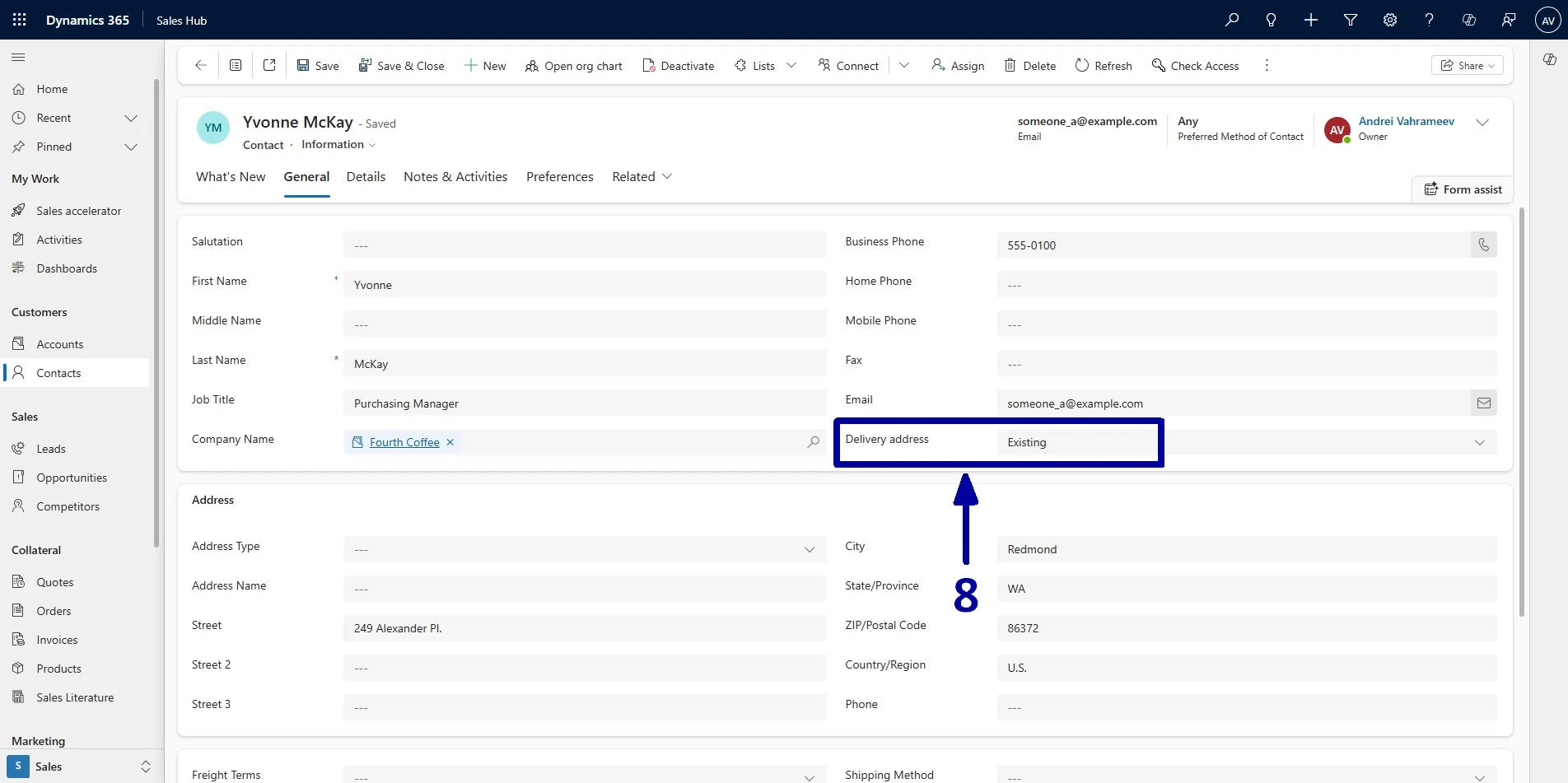
As you can see, the process has successfully updated all the records, and Power BI reports have been saved for now :-)
Conclusion
Using Power Automate to update records in bulk is a smart and efficient way to keep your data accurate and ready for reporting. What might take hours or days to do manually can be done in minutes, with fewer mistakes.
In our example with the “Delivery address” field, we used a flow to quickly update past records. Doing this by hand would have been slow and error-prone, but the flow made it fast and consistent.
Once you are comfortable building flows like this, you’ll see how the same method can be used in many other situations, like updating customer info, managing inventory, or applying business rules across lots of data.
The main takeaway: Power Automate saves time, improves data quality, and helps your team make better decisions. The more you use it, the more ways you’ll find to simplify routine tasks and focus on work that matters.