




A Short Reference about the Author
Eugene is a highly qualified Dynamics 365 expert with outstanding, long-term experience across various client projects and the creation of unique, personalized solutions, including managed solutions.
Introduction
Managed solutions help businesses streamline operations, reduce costs, and enhance security. In today’s digital world, they are critical for companies looking to stay agile, secure, and cost-effective while leveraging the latest technology trends.
In this article, we will examine managed solutions in detail, including their components, deployment, and testing mechanisms.
Managed and Unmanaged Solutions Overview
In Microsoft Dynamics 365, solutions are packages that contain components used to customize or configure the system, such as entities, forms, plugins, workflows, and more. Solutions are used to deploy and distribute customizations across environments. They can be managed or unmanaged and have distinct characteristics and use cases.
Managed Solutions
A managed solution is a finalized, packaged, deployable, and locked version of a solution that can be installed in different environments. It is commonly used for distributing apps, customizations, or enhancements while maintaining control over the components.
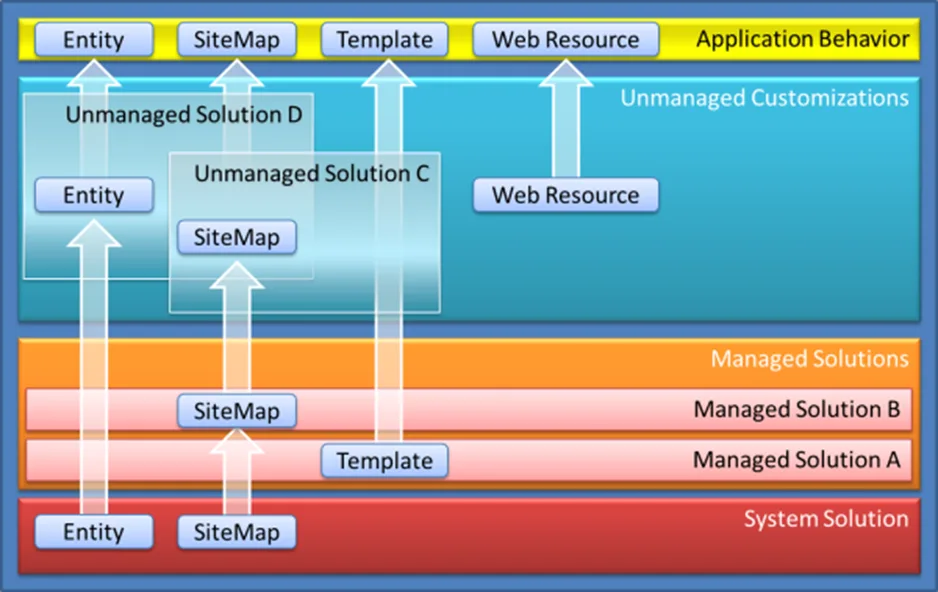
The components in a managed solution cannot be edited or deleted directly in the target environment. Managed solutions include versioning, making it easier to track updates. They can layer on top of other managed or unmanaged solutions. They maintain their customization priority through solution layering. You can delete the entire managed solution, which removes all its components from the target environment.
Unmanaged Solutions
An unmanaged solution is a working version of a solution that is editable and still under development or is not intended to be distributed. Its components are editable, allowing for modifications and testing.
When the unmanaged solution is completed, you can distribute, export, or package it as a managed solution. Changes made to unmanaged components are merged into the default solution. Deleting an unmanaged solution only deletes the solution container, leaving the components in the environment.
The following diagram introduces how managed and unmanaged solutions interact with the system solution to control the application behavior:
Managed Solutions Layering
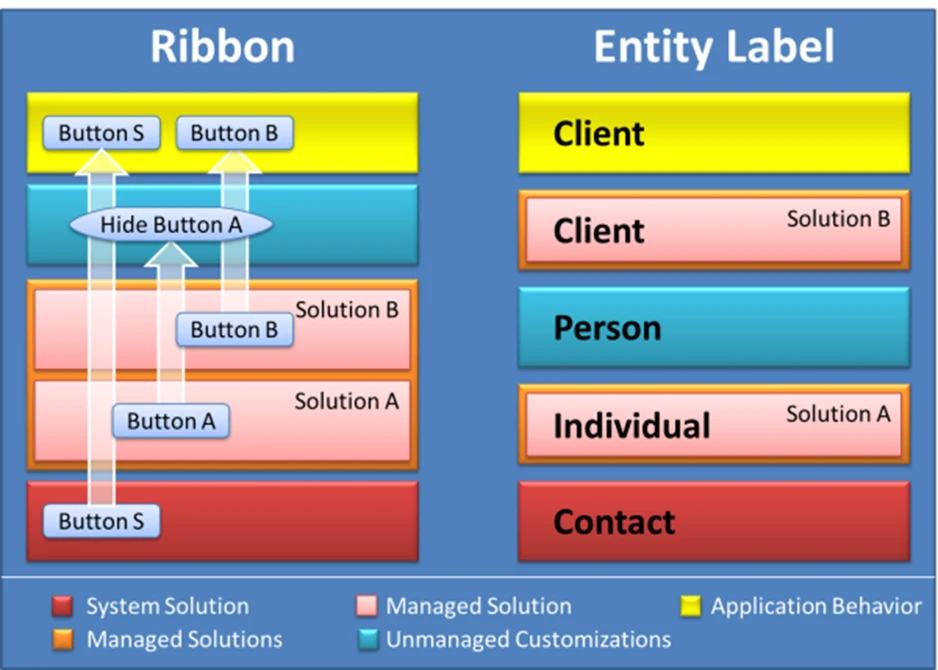
When two or more solutions define solution components differently, Dynamics 365 Customer Engagement, on-premises, resolves the conflict using two strategies, Merge and Top Wins.
The following diagram illustrates the differences:
Merge
User interface components, such as the command bar, ribbons, forms, and site map, are merged. This means that the solution components are recalculated from the lowest to the highest level, so the organization's unmanaged customizations are applied last.
Top Wins
For all other solution components, any conflict is calculated in favor of the customization that is applied last. For managed solutions, this usually means that the last solution installed is applied. However, there is a special case when an update to a managed solution is installed.
Managed Solution Versions
A solution's version has the following format: major.minor.build.revision.
An update must have a higher major, minor, build, or revision number than the parent solution. For example, for a base solution version 3.1.5.7, a small update could be 3.1.5.8, or a slightly more significant update could be 3.1.7.0. A substantially more significant update could be version 3.2.0.0.
! Note. The new Make PowerApps interface automatically increases the managed solution's version automatically when you export it. You do not need to manage it manually.
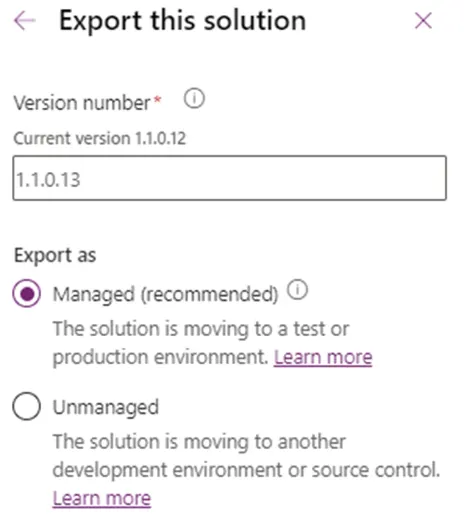
! Note.If you need the same version of the solution as it failed during the import to the target environment, you are to decrease the version manually to the previous one while exporting.
Managed Solution Patches
If you add an entity to a solution and export it, the entity and all its related assets are exported to that solution. These assets include attributes, forms, views, relationships, visualizations, and any other assets packaged with the entity. Exporting all the objects means you can unintentionally modify the objects on the target deployment or carry over unintended dependencies.
To address this, you can create and publish solution patches containing subcomponents of entities rather than publishing the entire entity and all its assets. The original solution and one or more related patches can be rolled up (merged) later into an updated version of the solution, which can then replace the original solution in the target Dynamics 365 Customer Engagement (on-premises) organization.
The Deployment, Testing and Release Processes
Deployment to any upper-level environment should be done using a managed solution. The exception could be deploying an unmanaged solution to an environment where the development is to proceed.
The release process illustration:
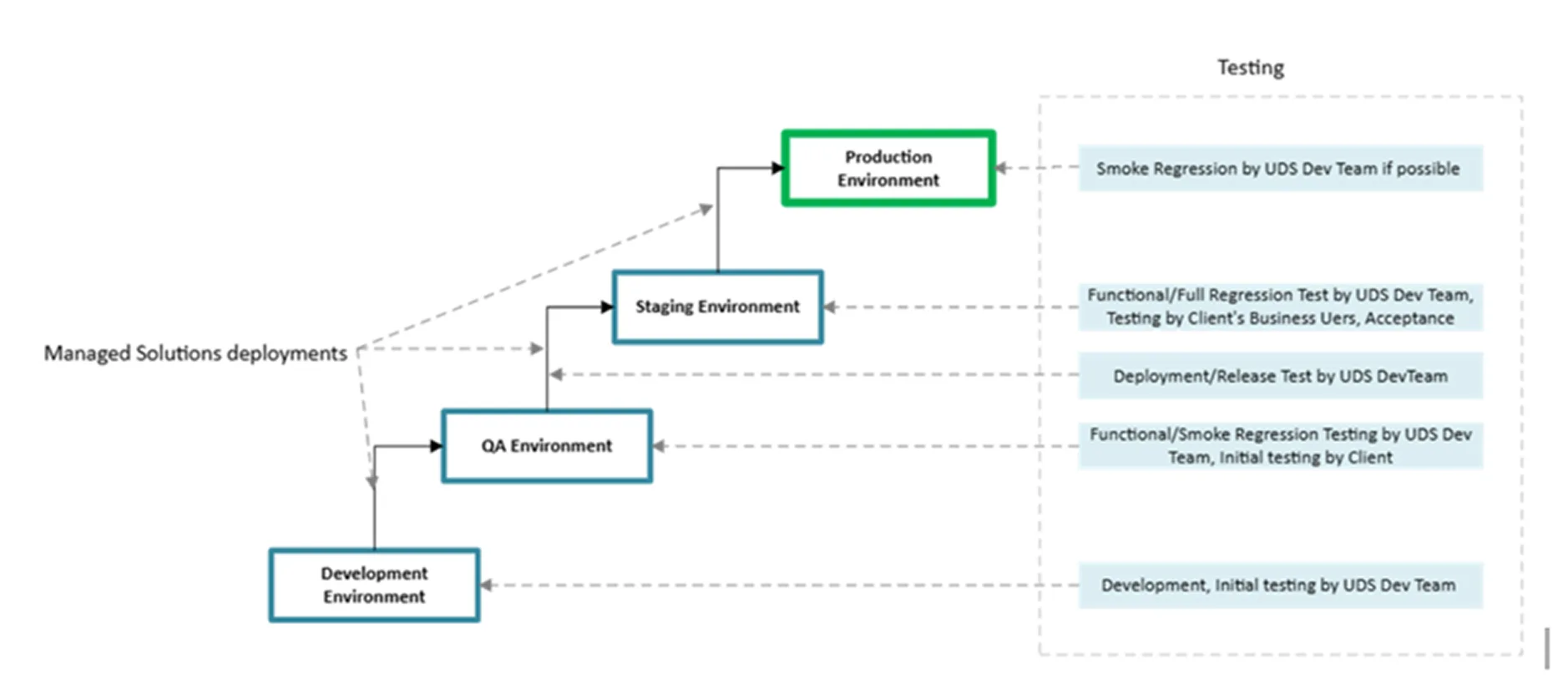
! Note.All customizations should be done in the Dev environment and deployed to other environments using managed solutions via the release process.
Direct customization of any upper-level environment is allowed only as an exception (having a blocker issue/bug or the highest priority level request from the client) when there is no time for a usual release process. The same customization should be done in the Dev environment and released afterward.
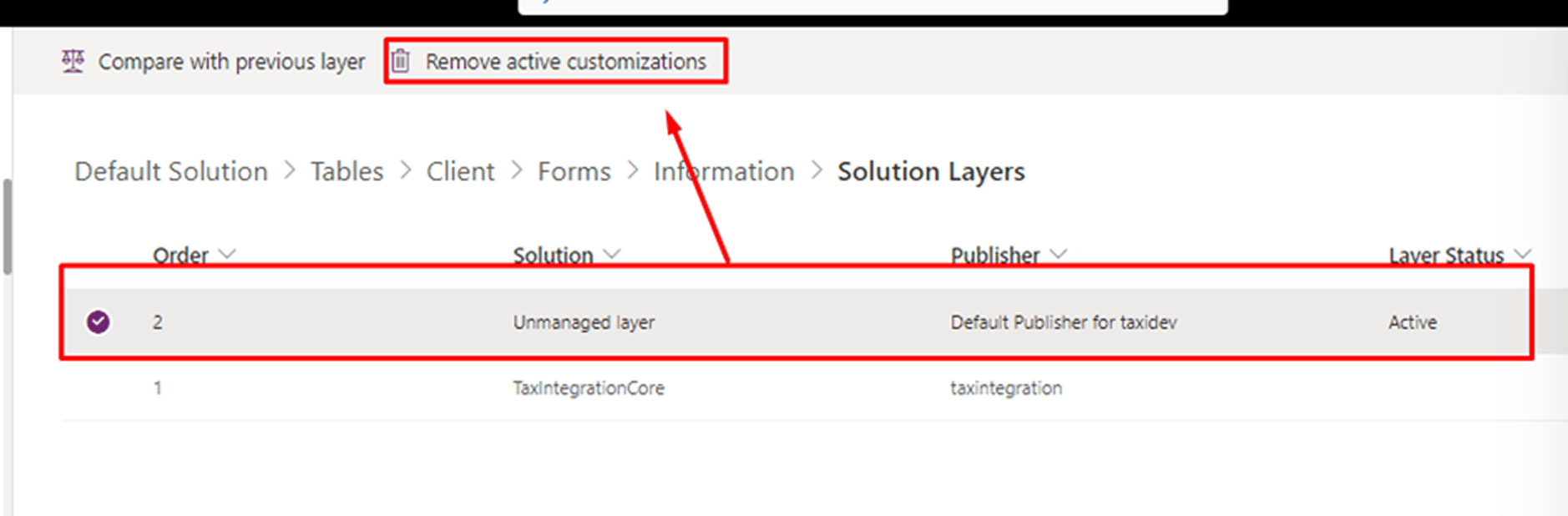
After the direct customization has been done in the upper-level environment, it will create an unmanaged layer that, in most cases, will be over the managed level.
! Note.If an unmanaged layer has been created, it should be tracked and manually removed after the next release:
Components Segmentation and Deployment Sequence
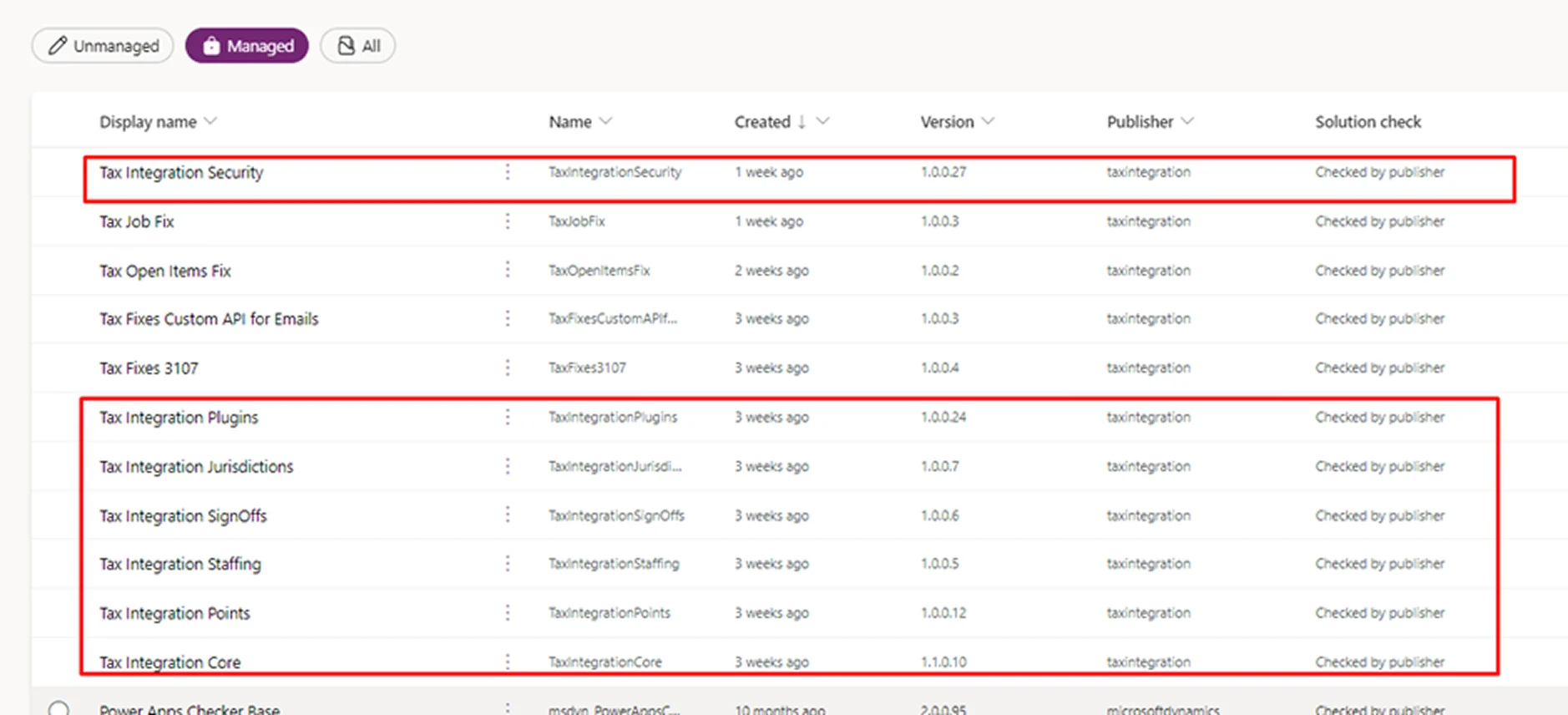
Components Segmentation between Solutions
Application Core
It includes the following:
- Apps (Model Driven Apps)
- Site Maps
- Tables (Entities) with all assets. All assets will add all the Columns (Fields), Views, Charts, Business Rules, etc., that belong to the Table (Entity)
- Choices (Global Option Sets)
- Web Resources (Images, JScripts, minor HTML Web resources)
- Dashboards, optionally adding to the Core Solution, could be added to a separate solution
Security
It includes these:
- Security Roles
- Column Security Profiles
Plugins
They include these:
- Plug-in Assemblies
- Plug-in Steps
- Plug-in Packages
- Custom APIs
- Environment Variables that belong to the components above (if any)
Automation
It includes the following:
- Cloud Flows
- Workflows
- Business Process Flows
- Environment Variables that belong to the components above (if any)
Major Web Resource #1, etc.
It is highly recommended to create separate solutions for major complicated Web Resources to be able to deploy them separately from the Core Solution and not overload the Core.
! Note. Environment variables should be added to the solution where the depended component is located.
! Note. If the Core Solution becomes overloaded and the deployment takes too long, it could be separated into several solutions. The separation could be done logically by Tables (Entities) or Web Resources, moving all the minor Web Resources to a single separate solution.
! Note. Each component must be part of only one solution! The exception is Temporary Fix Solutions.
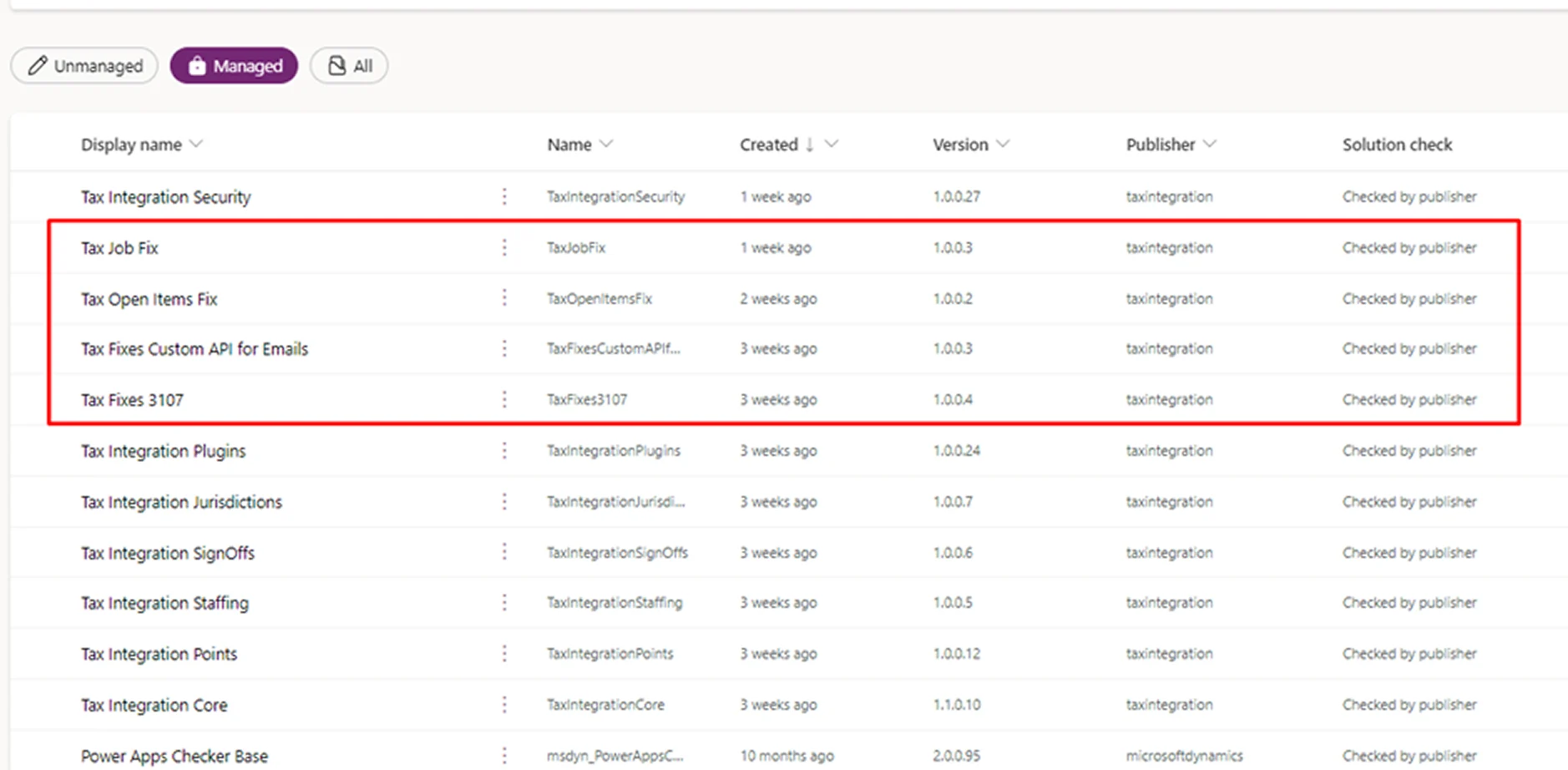
Fix Solutions
It is allowed to create a temporary 'Fix' solution to perform a quick bugfix or an exceptional (unscheduled) release of new functionality at a client's request, adding only the required components without following the segmentation.
! Note.Such solutions may be bug/request-related and must be manually deleted after the next major release.
Deployment Sequence
The only possible issue with not following the correct deployment sequence is a failure due to the dependencies during the solution's import. Such failures will not affect the functionality of the target environment and can be resolved ‘on the fly’.
First, solutions that do not depend on components outside of them and have not been deployed to the target environment before should be imported.
An Example of a Failure
You are importing the Core Solution with the Table (Entity) formed with a custom Web Resource. Due to the segmentation, this custom Web Resource is in a separate solution and has not yet been imported into the environment. You will face a failure because of missing dependency. To resolve such a failure, import the solution formed with the Web Resource first and then import the Core Solution.
Examples of Deployment Sequence for Provided Segmentation
- Major Web Resource #1, etc.
- Core
- Plugins
- Automation
- Security
Configuration Migration
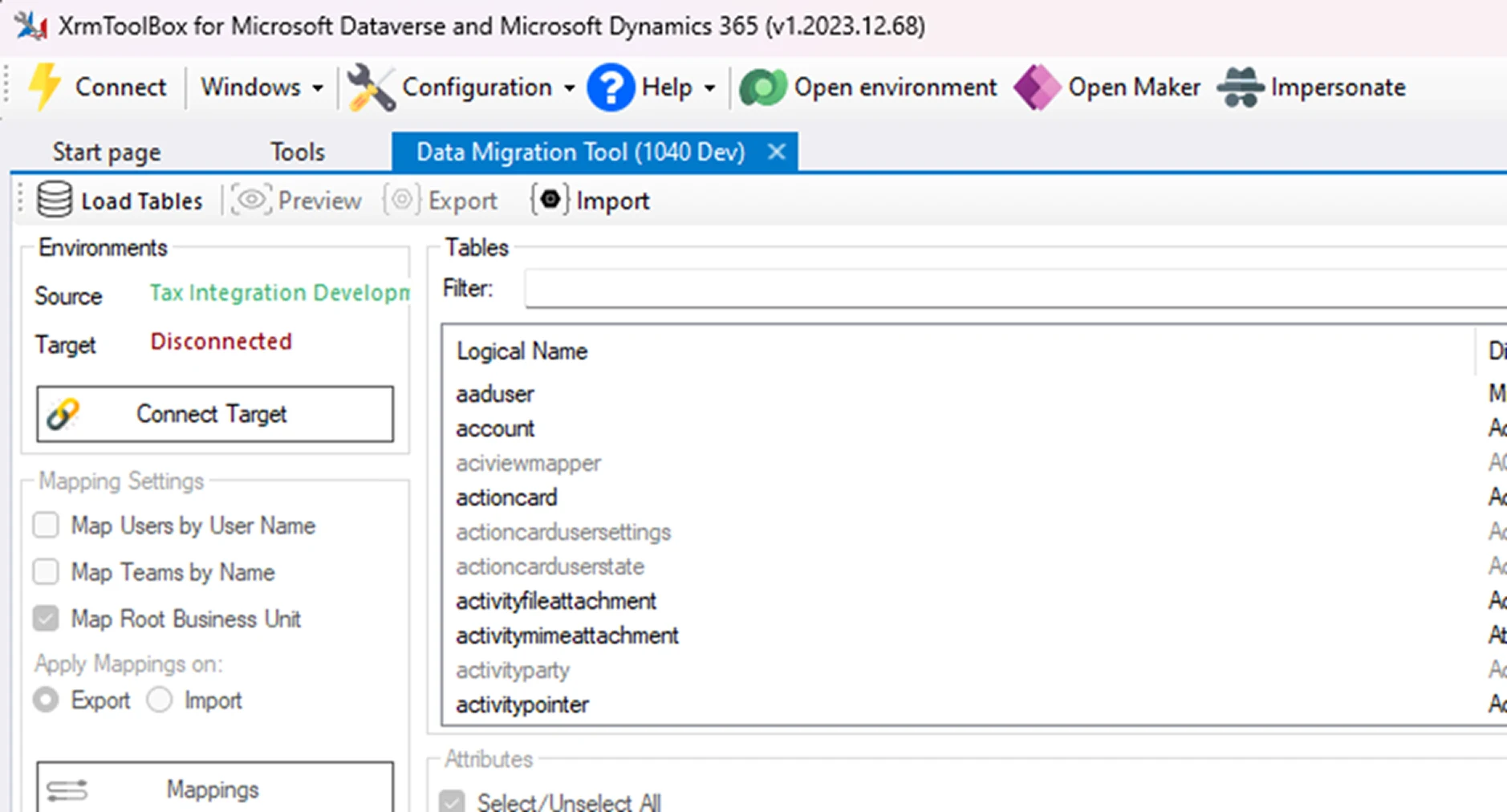
It usually happens that during deployment, you need to migrate configurational records or other business-used records, saving their IDs. This necessity appears when you retrieve such records in your Plugins/Web Resources/Flows, etc., and request them via GUID.
To fulfill such a migration, there are multiple options:
-
1. Using the Data Migration Tool (XRMToolBox)
-
2.Applying the Configuration Migration tool from the Microsoft Download
-
3.Using the Ootb Export- Import Functionality. The import should be done using CSV and manual mapping
Safe Mechanism
The best safe mechanism is appropriate functional and regression testing on QA and the staging environment. It is also important to run the Deployment/Release Test during deployment to the staging environment. However, even during such a test, issues can still arise.
Before each release, it is recommended to manually back up the production environment. It usually takes from 30 minutes to up to a few hours. It depends on the number of records and customizations in the system.
! Note.Consider the time required to roll back the backup while you discuss the release timeframe with the client.
The Release Documentation and Distribution
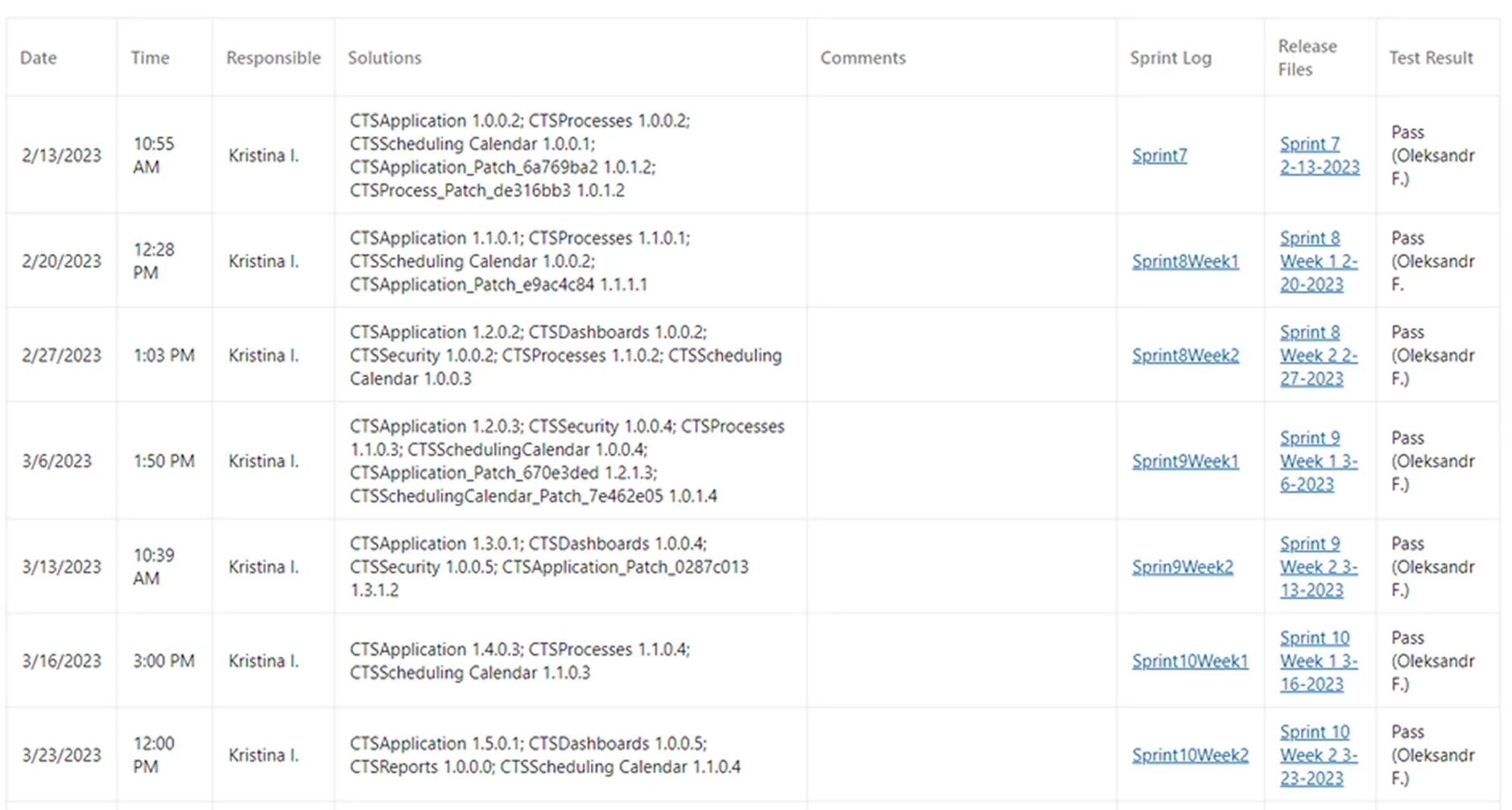
In the best scenario, each release should be Linked with the following:
-
Release Notes: a short description of all the changes deployed in the current release
-
Test Cases
-
Release Log
Summarizing
Managed solutions are essential in the modern business and IT environments for several reasons. Thus, they provide pre-built, tested, and optimized tools or services, reducing the time needed for implementation and maintenance. They also come with professional management and technical expertise, ensuring smooth operation without requiring in-house specialists. Moreover, they help businesses stay secure and compliant with industry regulations by implementing the best cybersecurity and data protection practices.
Managed solutions can easily adapt to a company’s changing needs, allowing businesses to scale without overhauling their infrastructure. Instead of investing heavily in infrastructure and personnel, companies can pay for a managed solution as a service, reducing upfront costs. Finally, managed solutions often come with automatic updates, ensuring businesses always have access to the latest features, security patches, and innovations.