





A Short Reference about the Author
Andrei Vahrameev is an experienced Dynamics 365 Consultant and a highly-skilled developer who has successfully managed IT projects including Power Platform and Copilot features over the last three years.
Introduction
In the UDS blog article Creating an AI Agent with Microsoft Copilot Studio, it is explained how to create an AI assistant, the kind that anyone can use to quickly find answers without having to dig through endless pages.
In this article, we will delve a bit deeper behind the scenes: building a Copilot Agent that leverages Dataverse as its knowledge source. Unlike the general help agent, this one is designed specifically for internal CRM users. It gives them quick access to business data stored in Dataverse, whether it is a Contact, an Account, or any other record they need. The goal here is to make that data easier to access – right from the chat window – and to reduce the time spent navigating through the system.
It is a simple concept, but it can make a significant difference in how teams work with CRM on a day-to-day basis.
What is Dataverse and What Makes it Specific?
It is a cloud-based data platform that is characterized by built-in logic, security, and integration tools, part of the Microsoft Power Platform.
This business-friendly data platform enables users, from non-developers to professional developers, to create, automate, and analyze apps and workflows using a centralized, relational data store without requiring extensive code writing or managing a complex database.
Its brightest characteristics include the following:
- Tables storing structured data, such as contacts, orders, or projects
- Relationships defining how data connects (one-to-many, many-to-many)
- Business Rules adding logic like validation and automation without code
- Security Roles controlling access at the table, row, or field level
- Integration allowing easy connection with Excel, Power BI, SharePoint, Dynamics 365, and external data sources
How Dataverse differs from a traditional Database
There are several specific differences:
- Dataverse is a sort of business-ready database with guardrails: it is easy to use, highly integrated, and made for creating apps and automations quickly. Whereas a traditional database is a kind of powerful, flexible backend for large custom applications that requires more technical skill and maintenance.
- Dataverse is designed for low-code app builders and business users. However, traditional databases are typically used by technical teams to build large-scale, custom applications.
- Dataverse provides ready-to-use tables, forms, views, and relationships with a point-and-click interface. But traditional databases require SQL knowledge and custom app development for data entry and reporting.
- Dataverse has granular built-in security (user roles, field-level, record-level). Whereas in traditional databases, security must be custom-built at the application level.
- Dataverse integrates directly with Power Automate, Power BI, Outlook, Teams, and more, although traditional databases can integrate but need custom connectors, middleware, or ETL pipelines.
- Dataverse allows you to add business rules, calculated fields, workflows, and real-time validation without code. But a traditional database relies on triggers, stored procedures, or external app logic.
- Dataverse is fully managed by Microsoft, so users do not worry about uptime, backups, or scaling. However, a traditional database requires manual infrastructure management, unless you utilize a cloud-managed option, such as Azure SQL or Amazon RDS.
Step-by-step Instructions
Let us assume you are already comfortable with the basics of agent creation (see the article Creating an AI Assistant with Copilot Studio) and skip the setup part, jumping straight into adding knowledge.
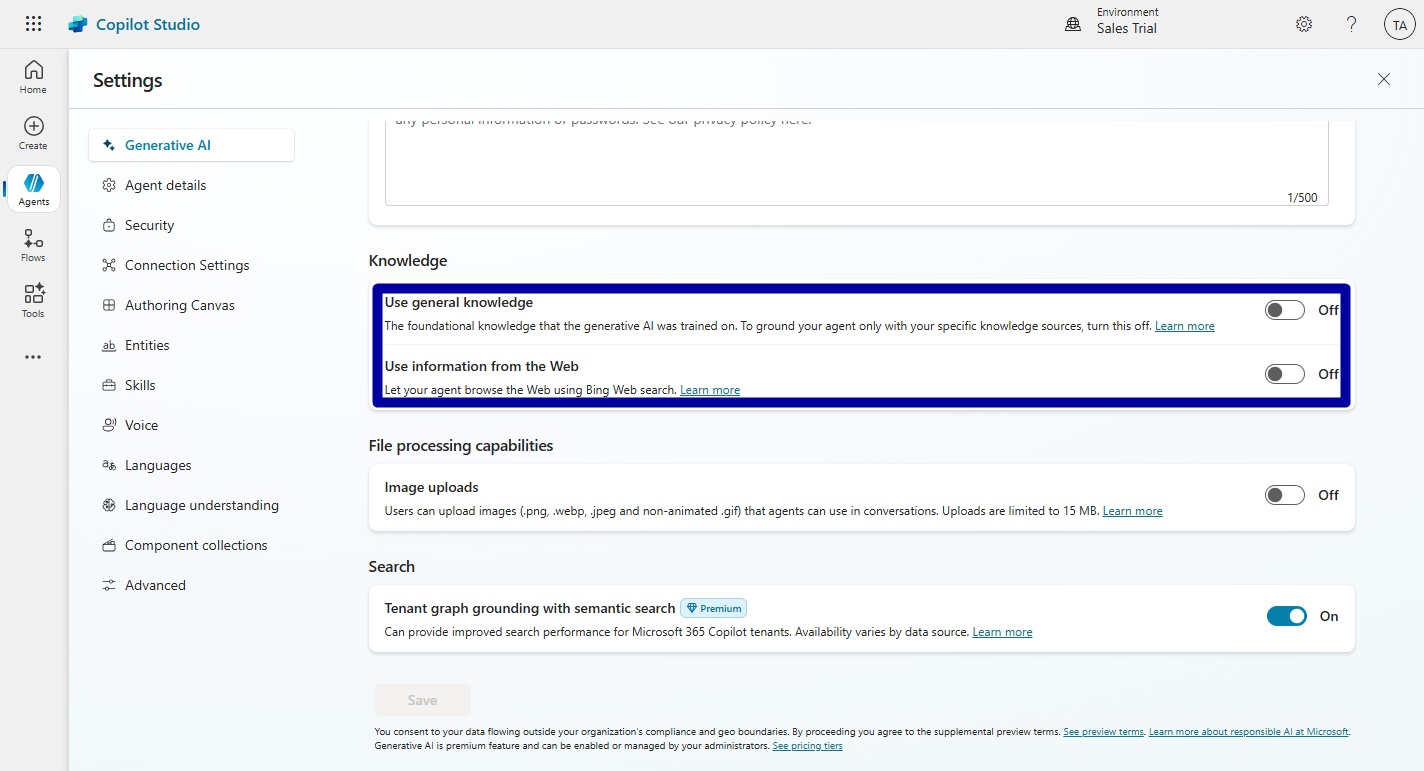
! Note. Do not forget to turn off the General Knowledge option, as described in the article mentioned above. This way, the agent sticks strictly to the data sources you configure.
Now, open your agent, go to the Knowledge tab (1), and click on the “+ Add knowledge” button (2).

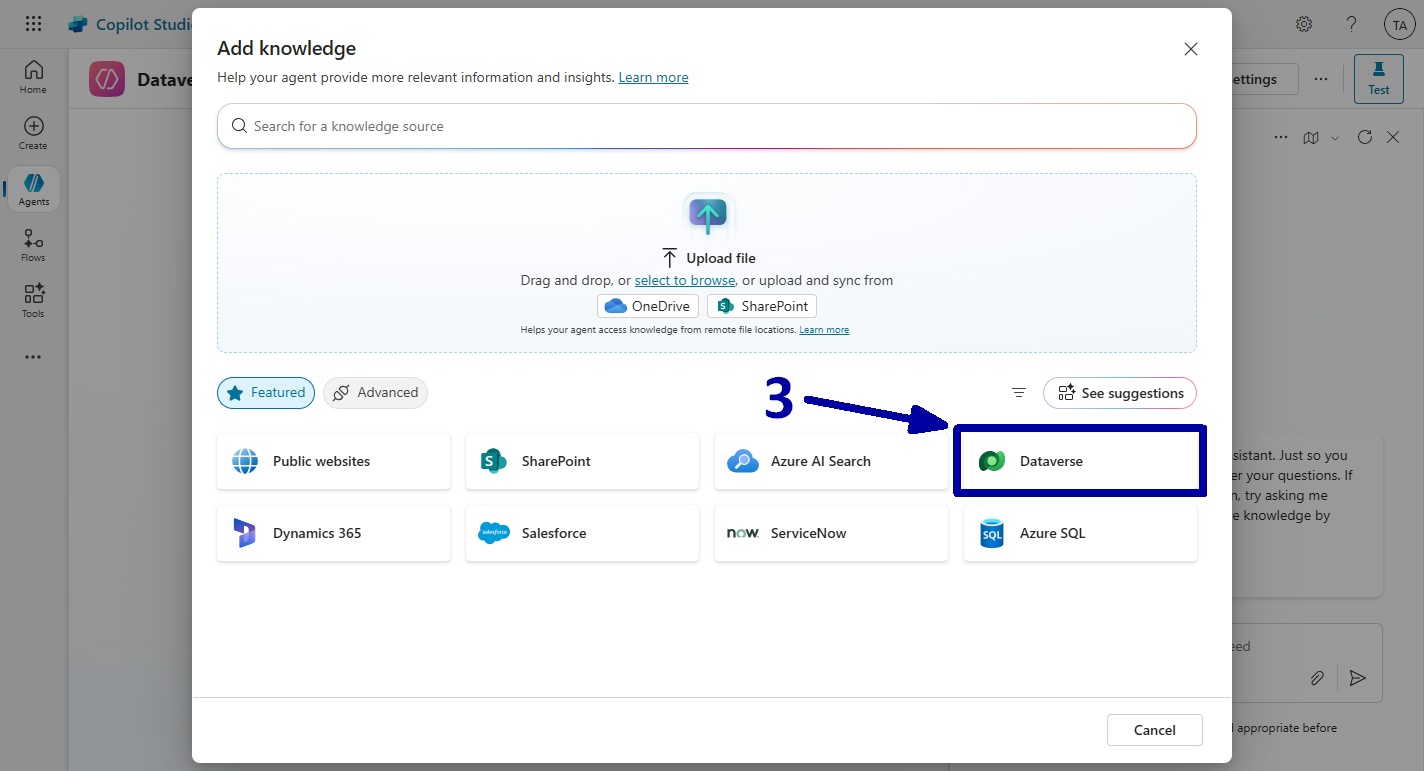
In the pop-up window, select the Dataverse option (3).
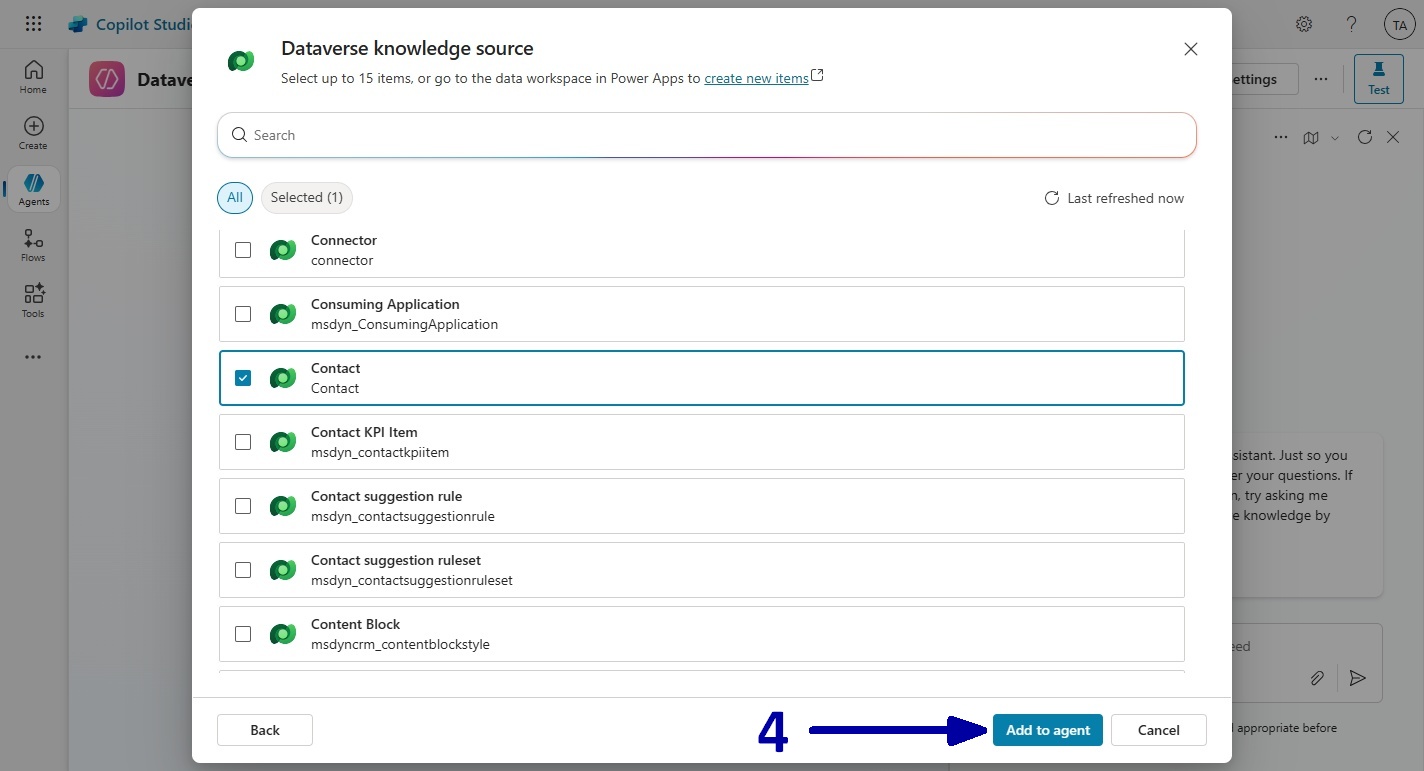
At this step, opt for the table you want your agent to access. You can pick a single table or multiple ones, up to a maximum of 15. To keep things straightforward for this demo, let us focus on just the Contact table.
As soon as you have decided on your choice, click on the “Add to agent” button to continue.
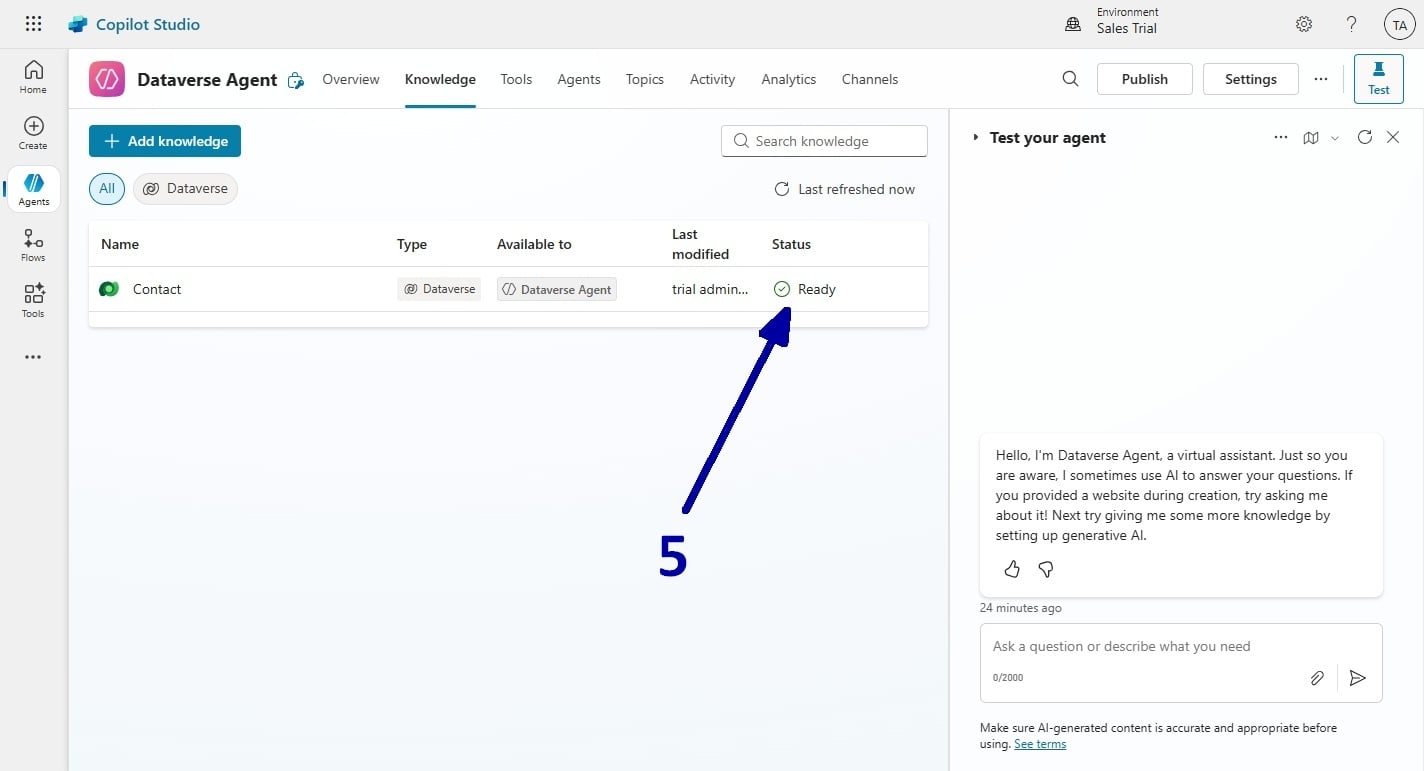
After that, depending on the size of your table, you may need to wait a bit until the knowledge source status changes to “Ready” (5).
Now, we will test the newly built agent, beginning with a simple question based on the sample data in the trial CRM.
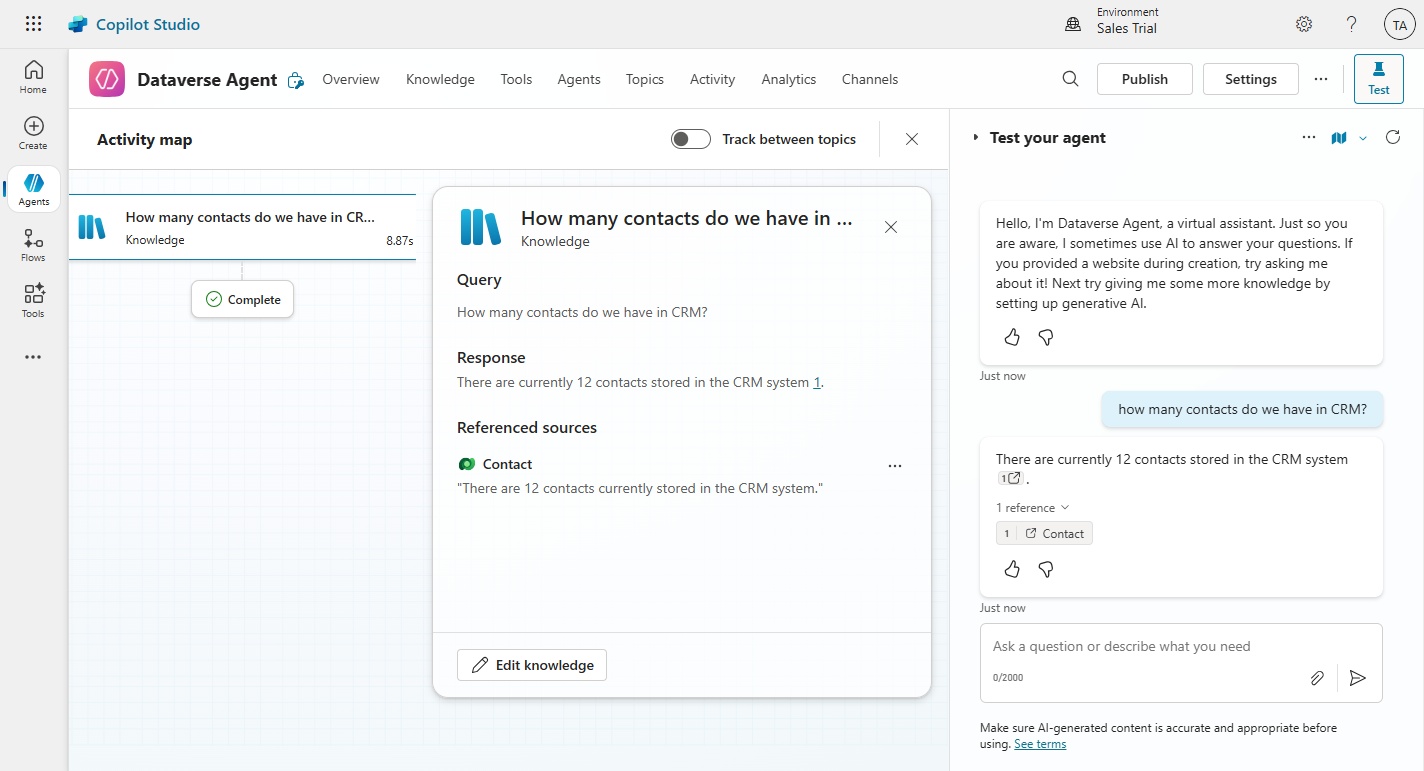
We will include a typo (6) in the question to see how well the agent handles it.
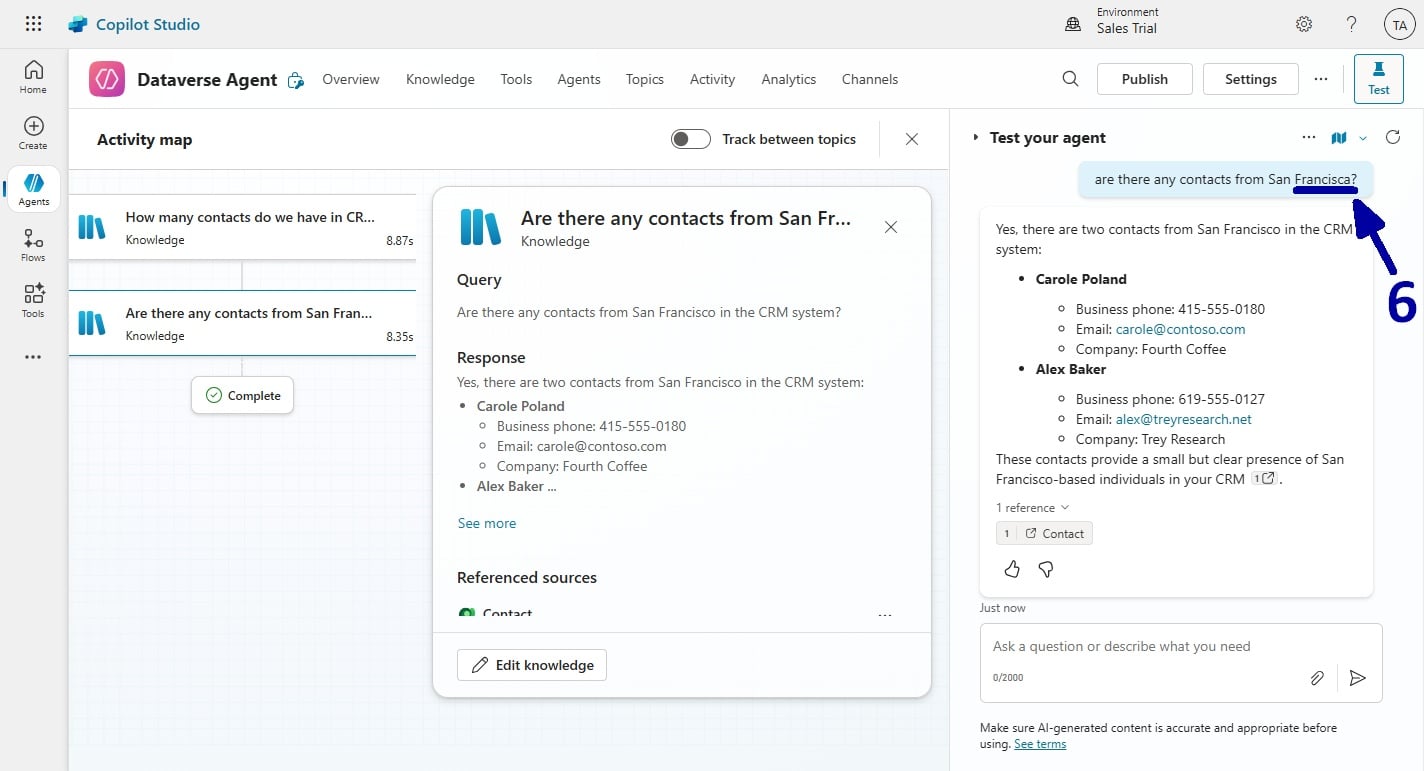
As you can see, despite the presence of the typo, the agent still understands and reacts appropriately, which is a pleasant extra that gives users a more forgiving experience.
! Note. Before continuing, remember to publish your changes after ensuring everything is functioning correctly.